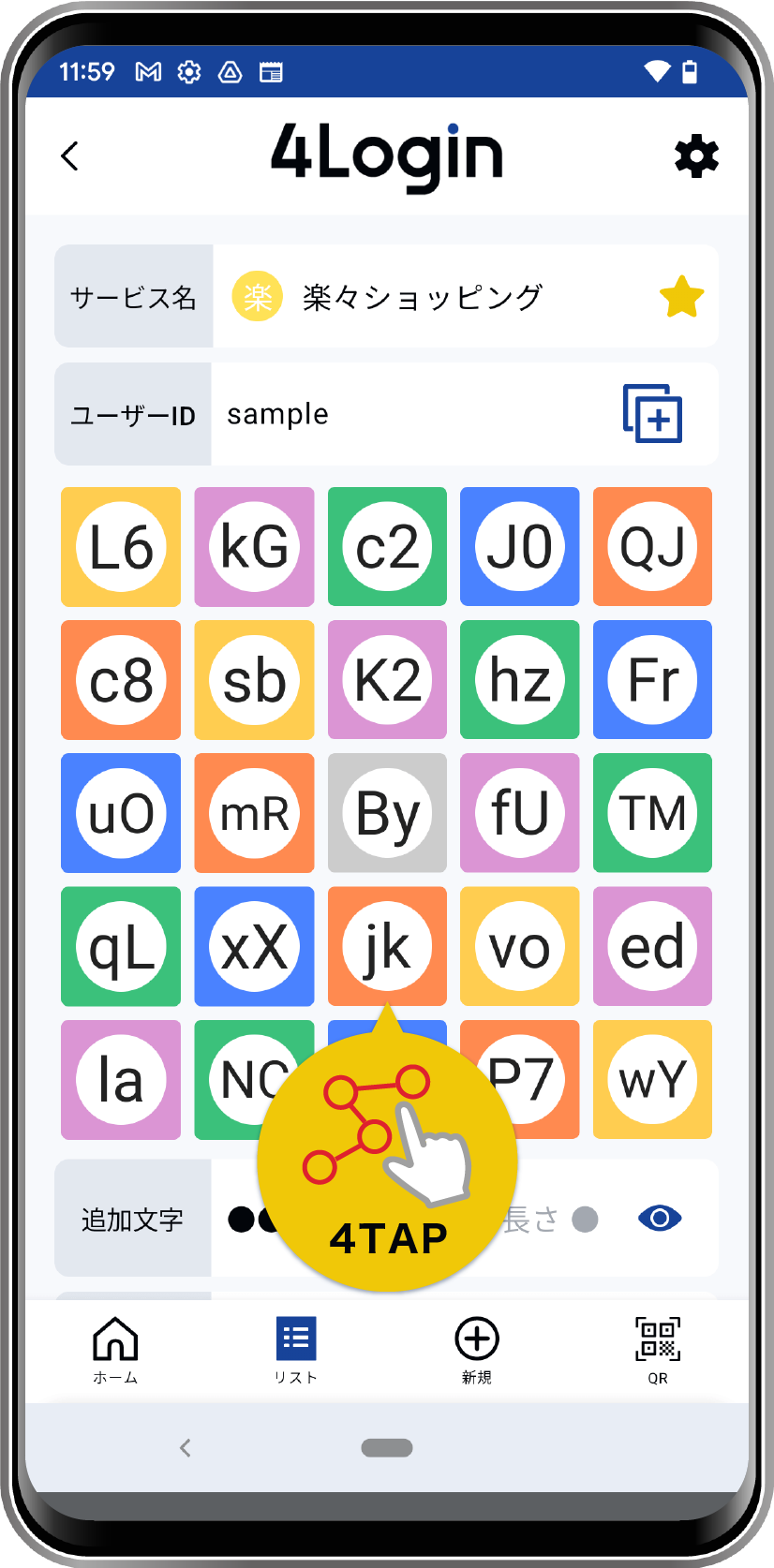
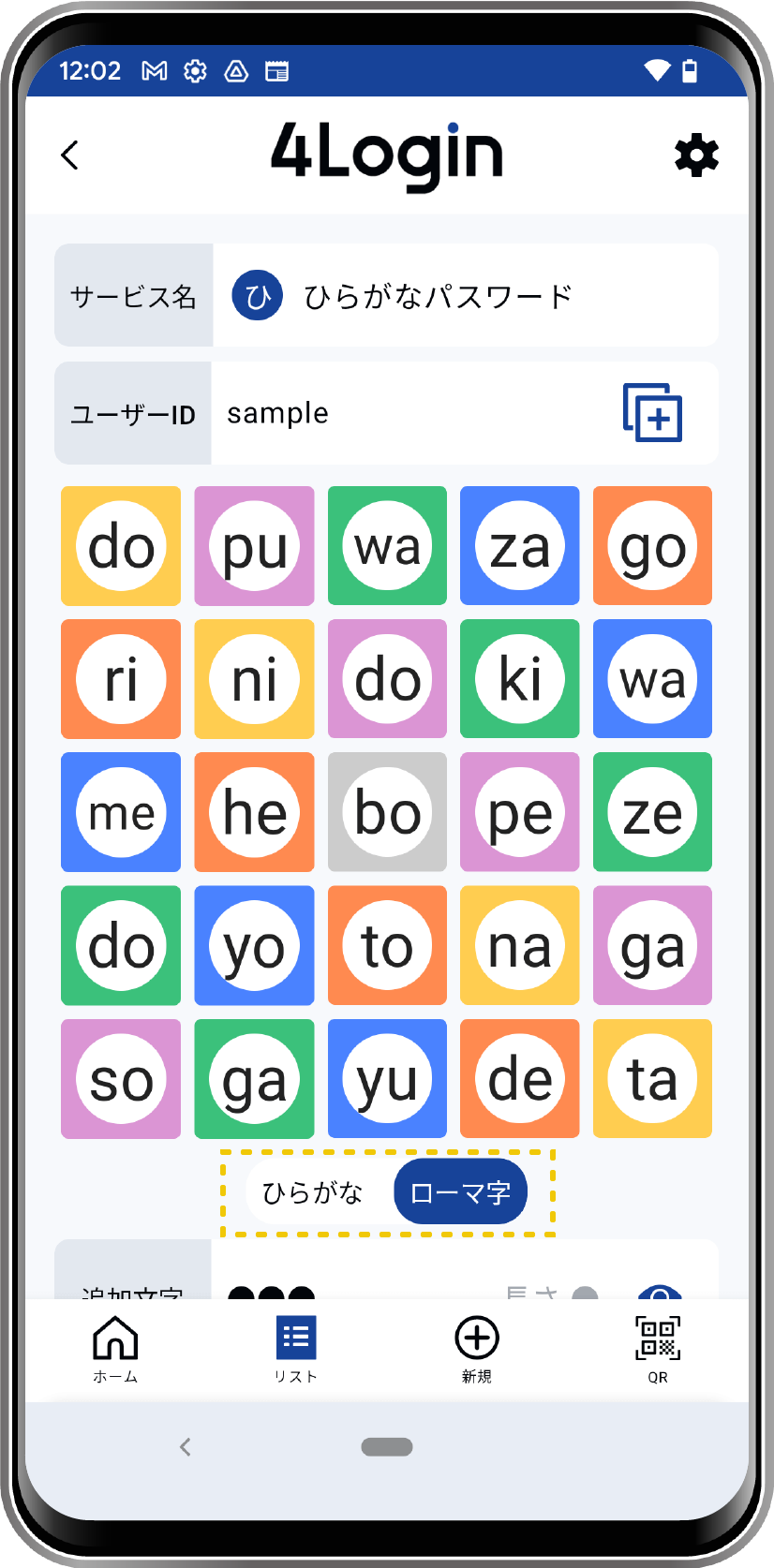
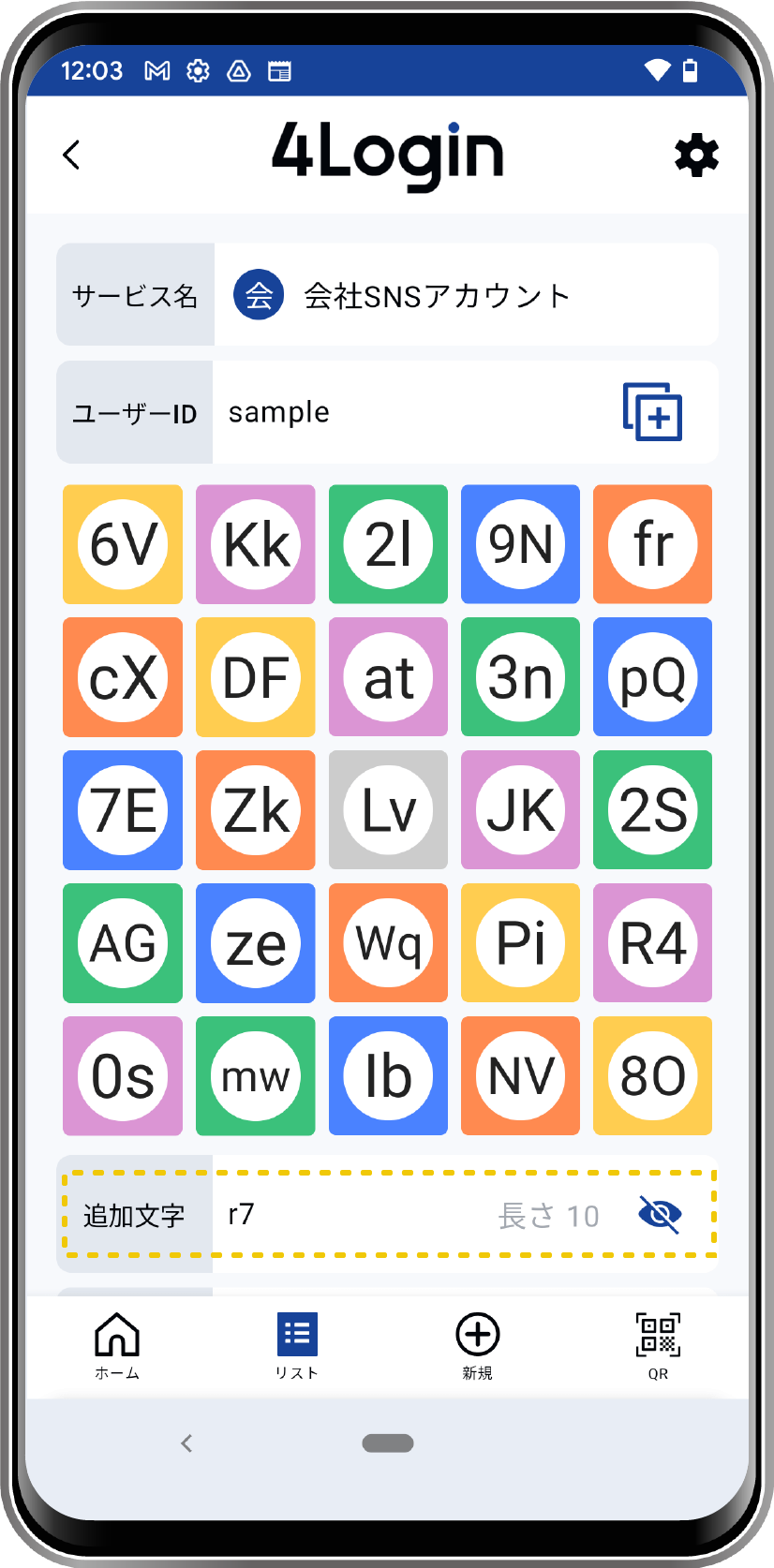
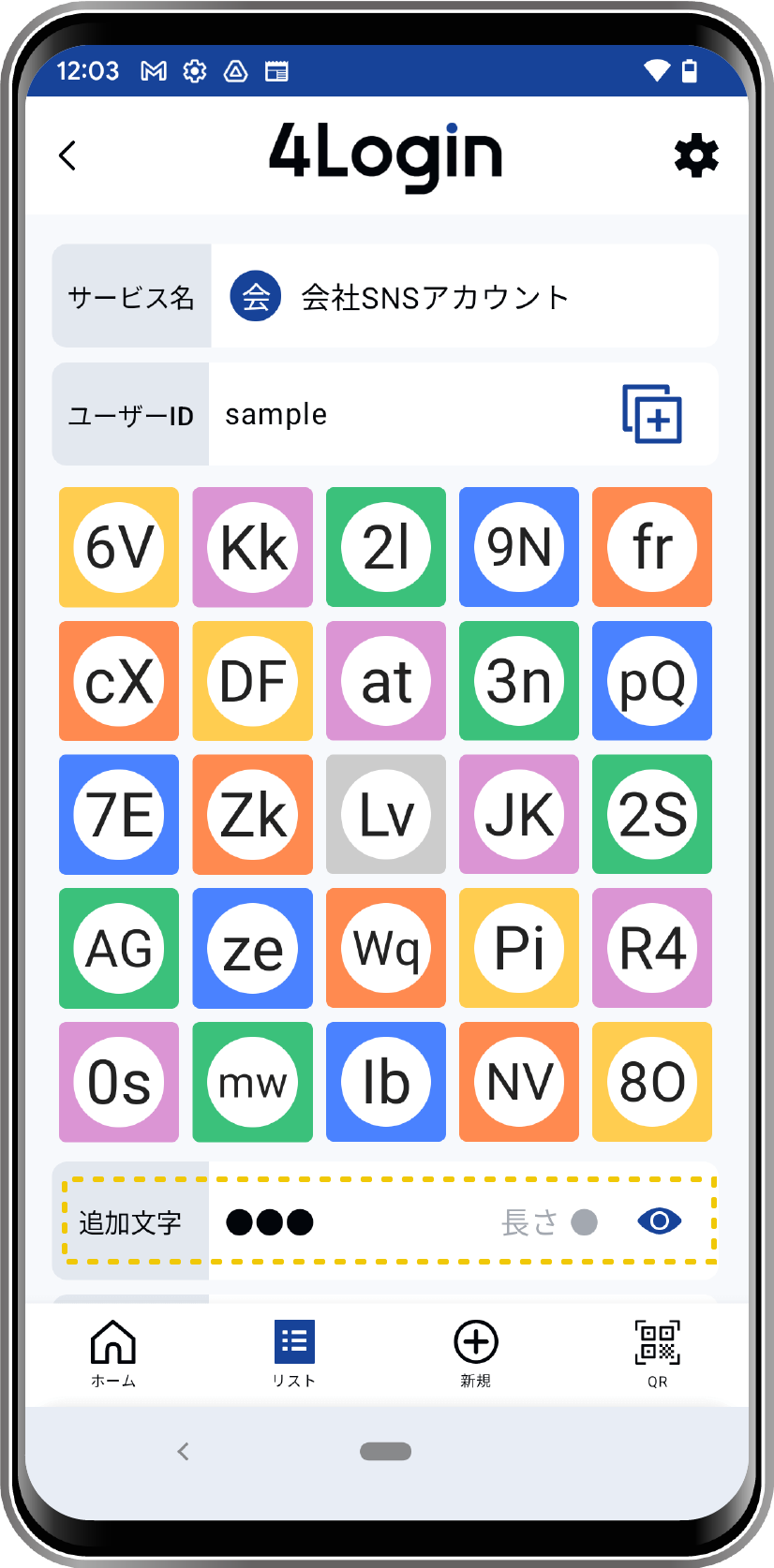
The password (or slot) screen can be customized to your liking.
*This setting applies to all passwords; individual settings are not available.
How to change password display settings
STEP
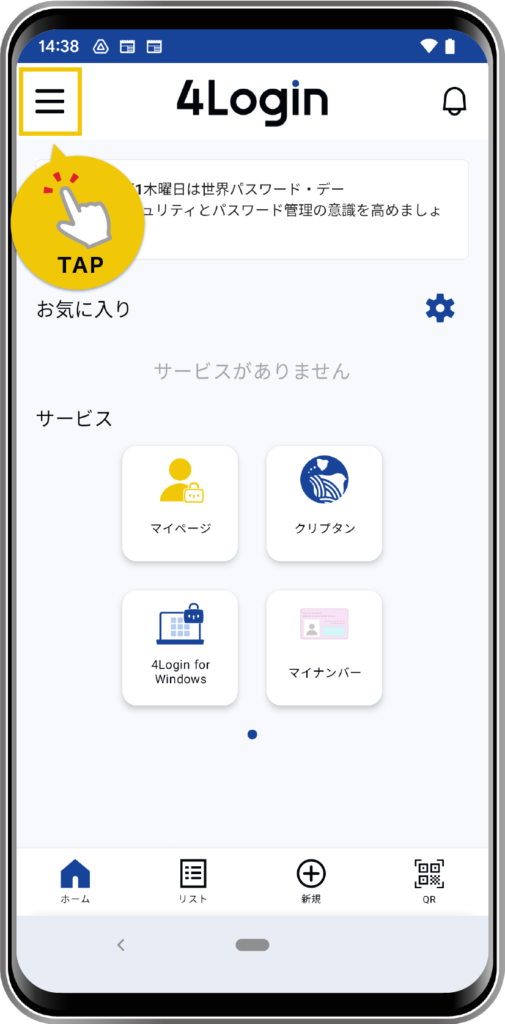
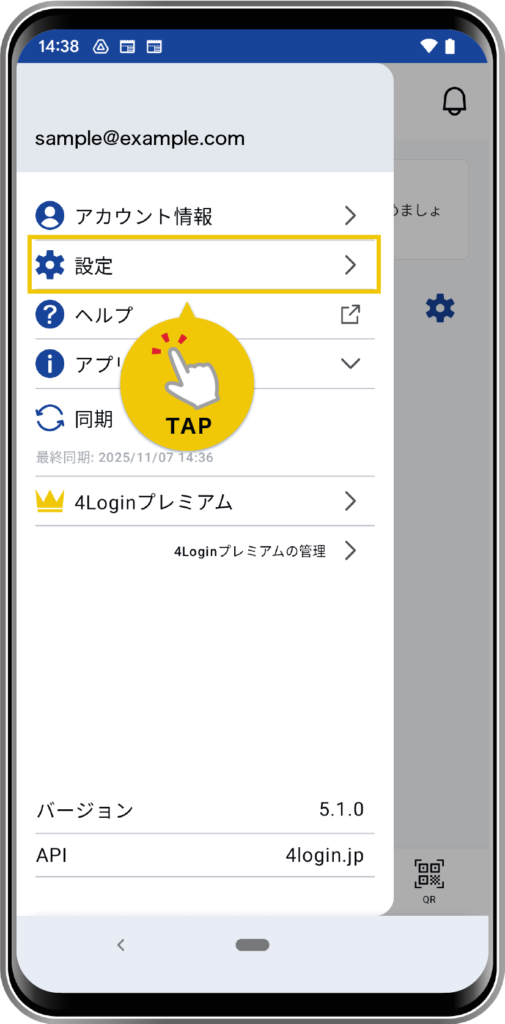
Tap “Settings” from the menu in the upper left corner of the screen.
STEP
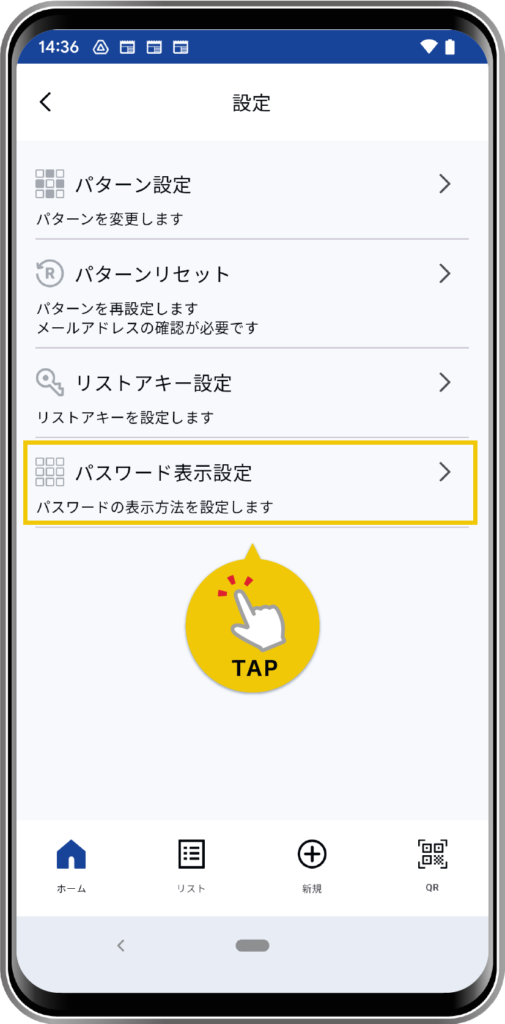
Tap “Password display settings”.
STEP
Change the settings according to the on-screen instructions.
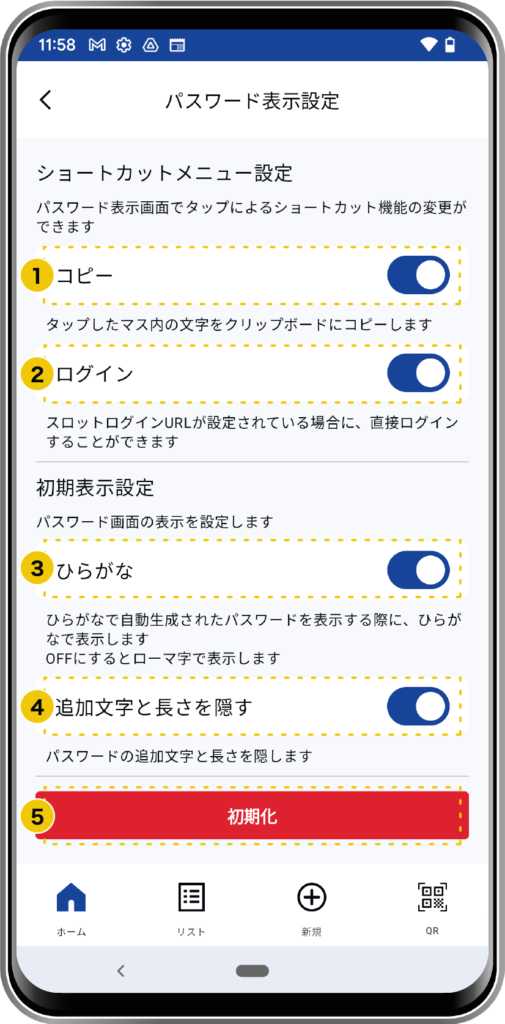
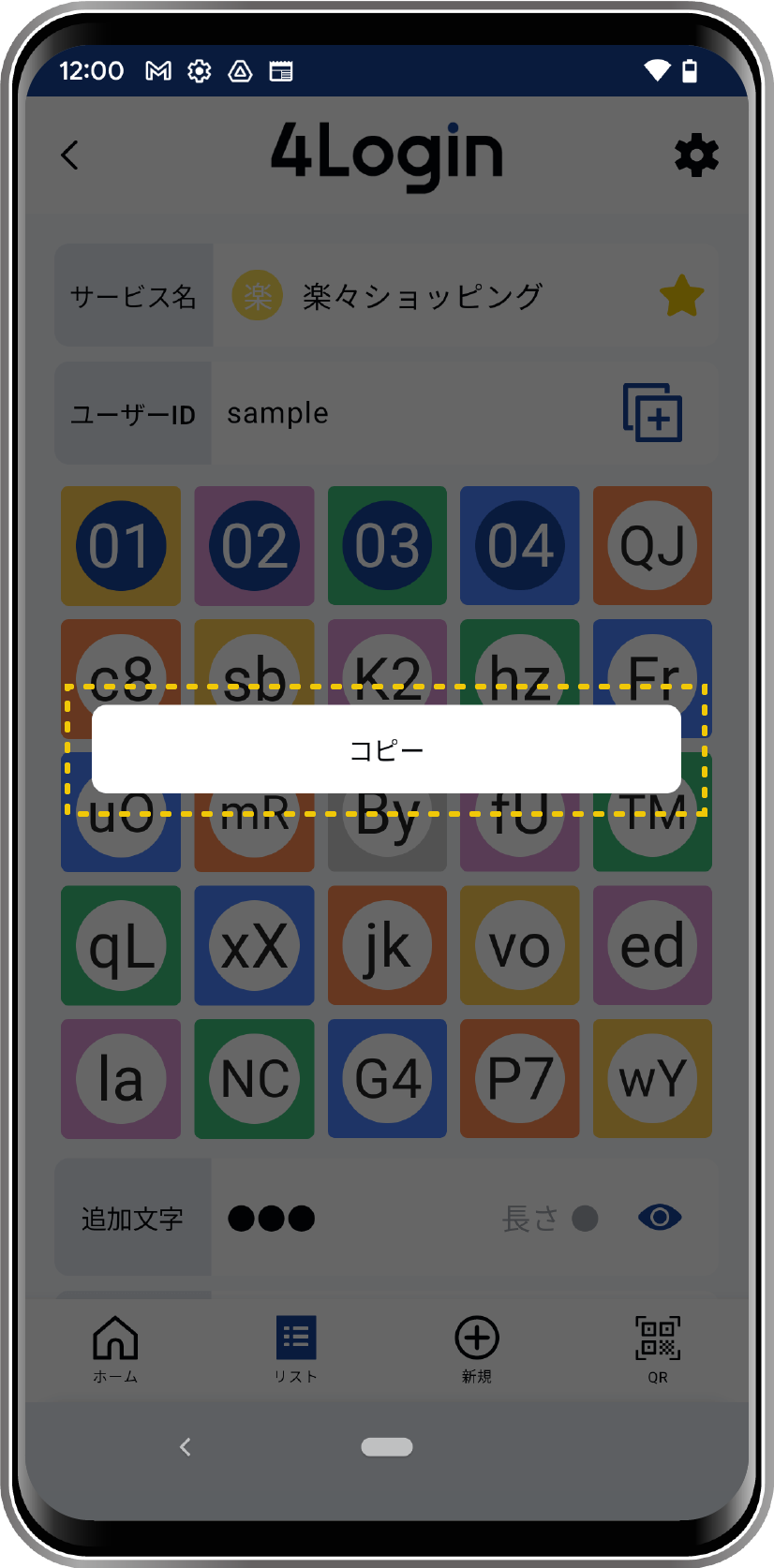
- copy
- ON: After tapping a pattern, a button to copy to the clipboard will appear.

- OFF: The copy button will not appear even if you tap the pattern.
- ON: After tapping a pattern, a button to copy to the clipboard will appear.
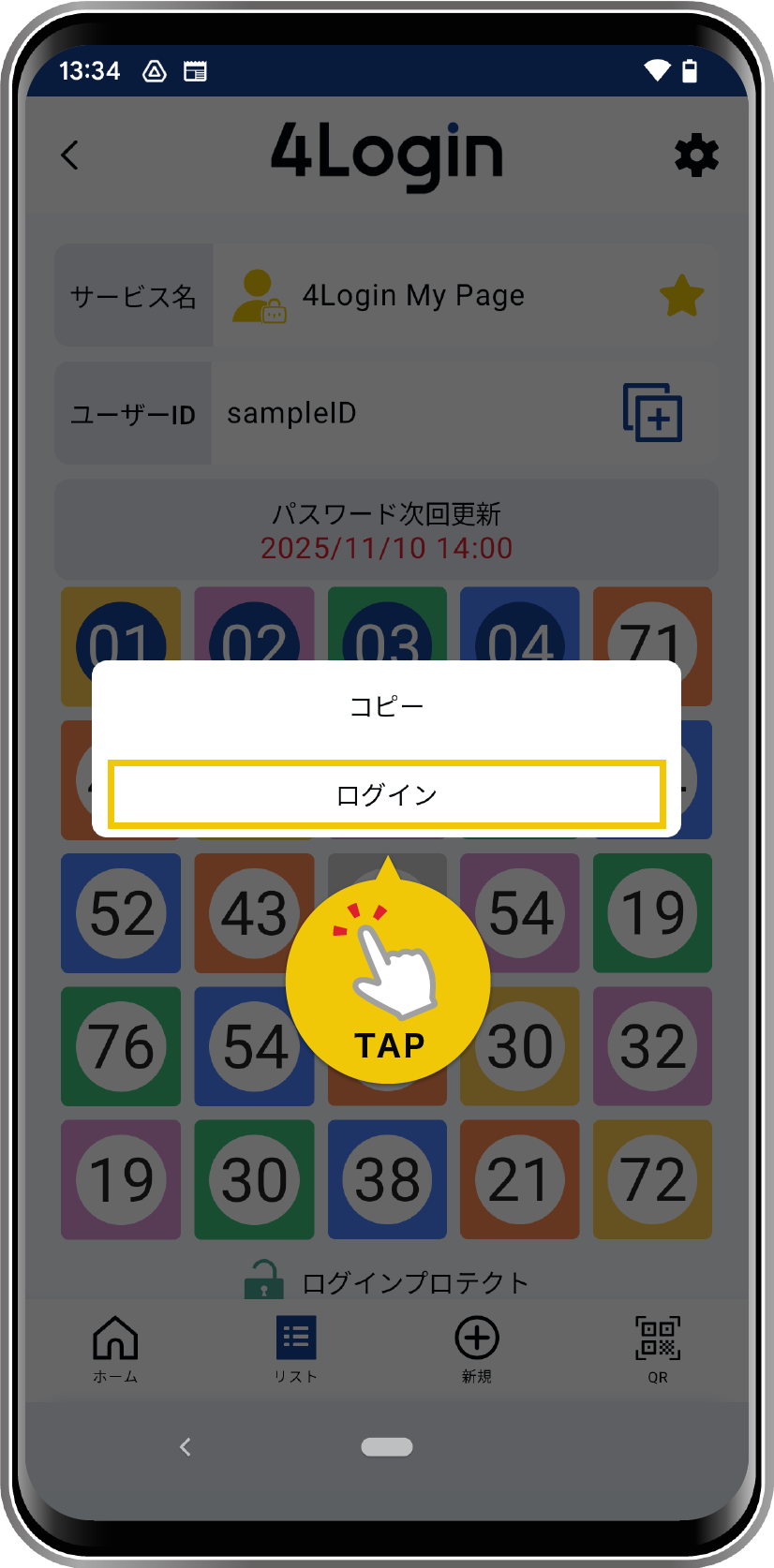
- Login : Only available for services where slot login is enabled.
- ON: After tapping the pattern, a login button will appear, allowing you to log in to the service by tapping it.
- OFF: The login button will not appear even if you tap the pattern. Please log in to the service separately by copying or scanning the pattern.
- ON: After tapping the pattern, a login button will appear, allowing you to log in to the service by tapping it.
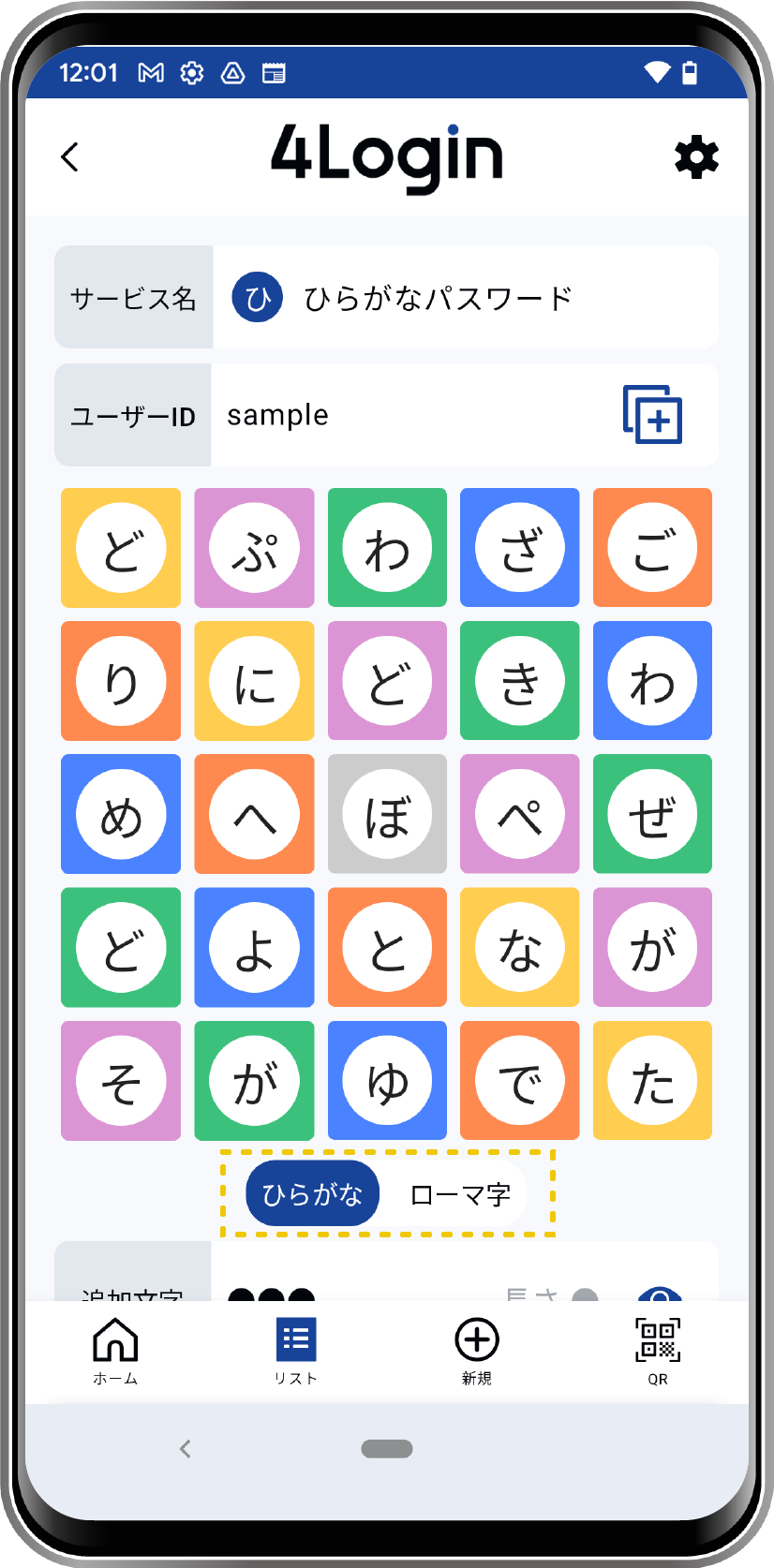
- Hiragana : only when using a hiragana password
- ON: Displays in hiragana by default.
- OFF: Displays in Roman characters by default.
- ON: Displays in hiragana by default.
- Hide the length of the additional characters
- ON: Hides additional text with a ●. You can show it by tapping the eye icon.
- OFF: Displays the added text as is. Tap the eye icon to hide it with a ●.
- ON: Hides additional text with a ●. You can show it by tapping the eye icon.
- “Initialize” button : Reset everything to its initial state. (Initial setting: All ON)