
You must register an account to use 4Login.
Please have the email address you use ready and proceed to account registration.
How to Register an Account
STEP
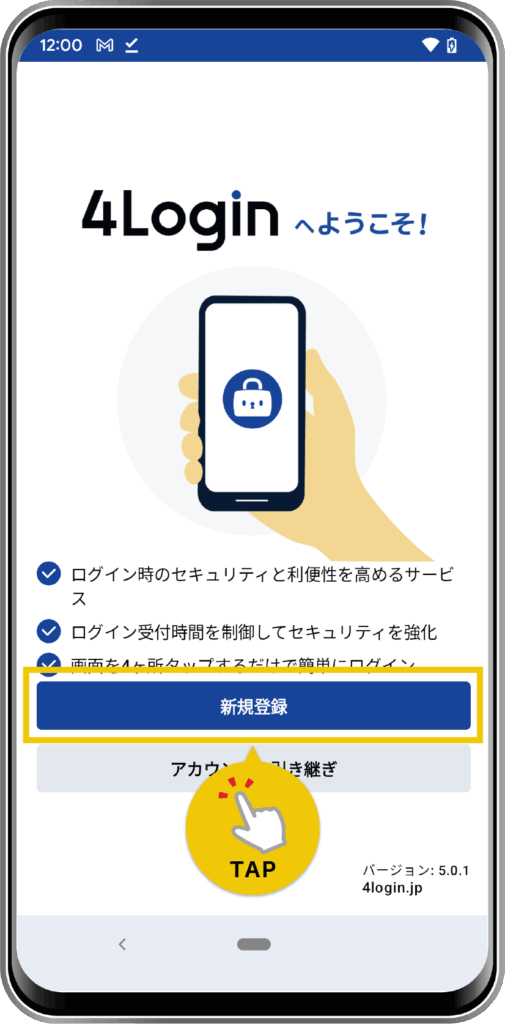
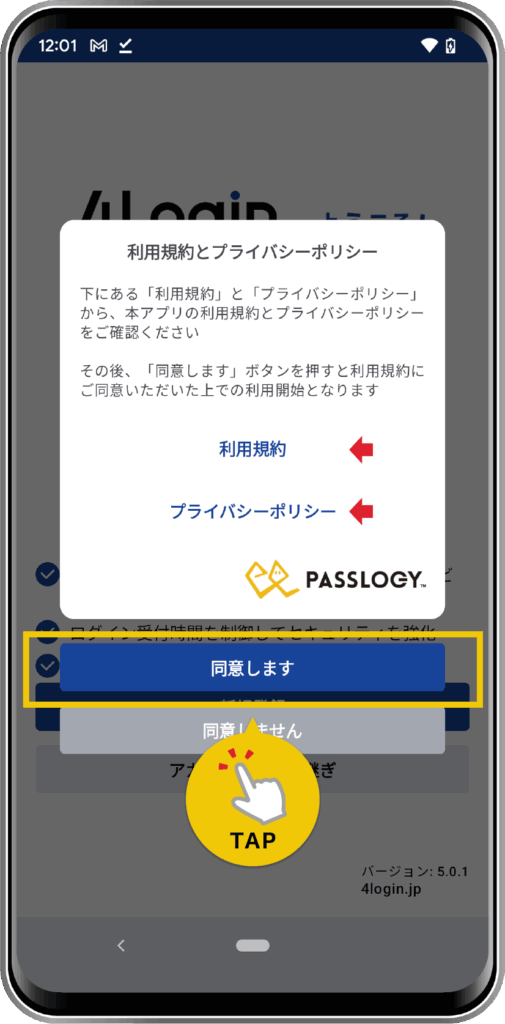
Launch the app, tap the “Register New Account” button on the startup screen, and review the “Terms of Use” and “Privacy Policy.” After reviewing them, tap the “Agree” button.
STEP
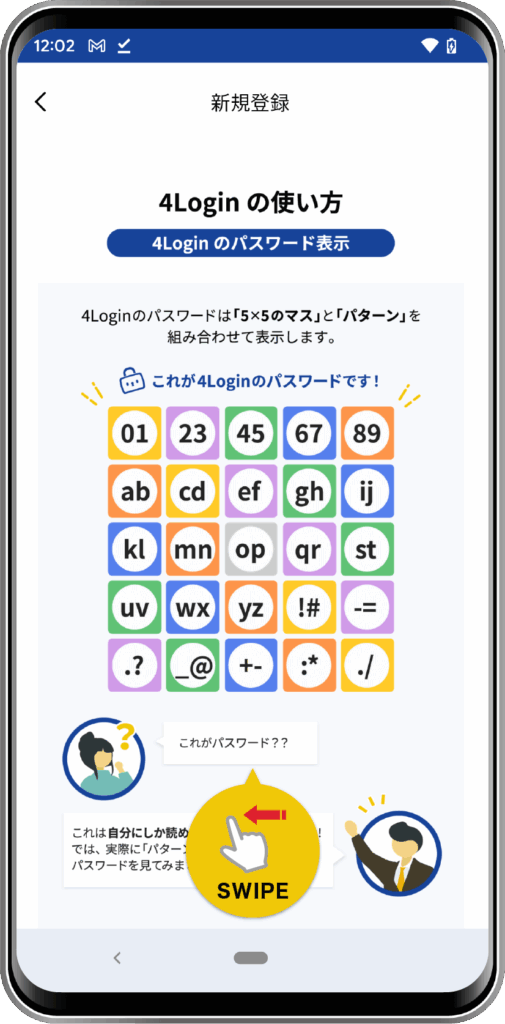
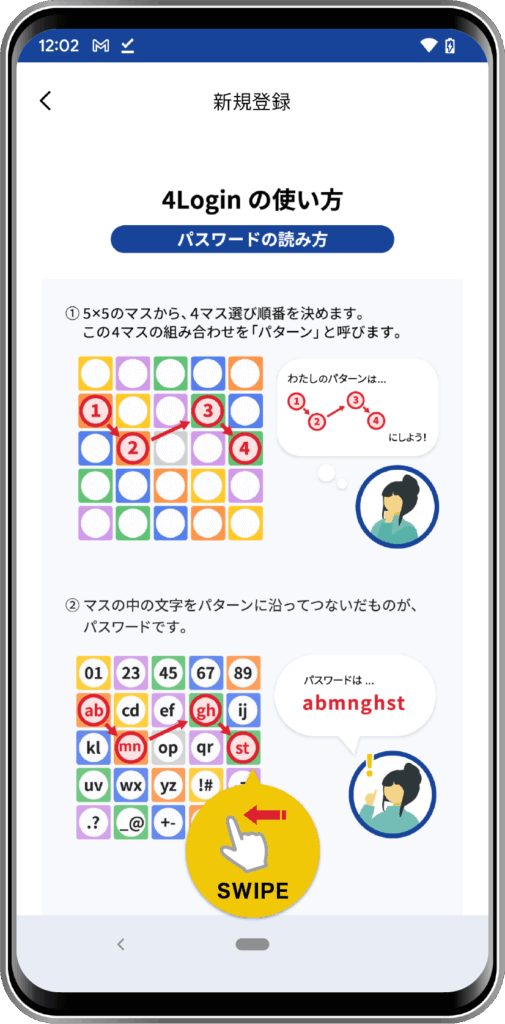
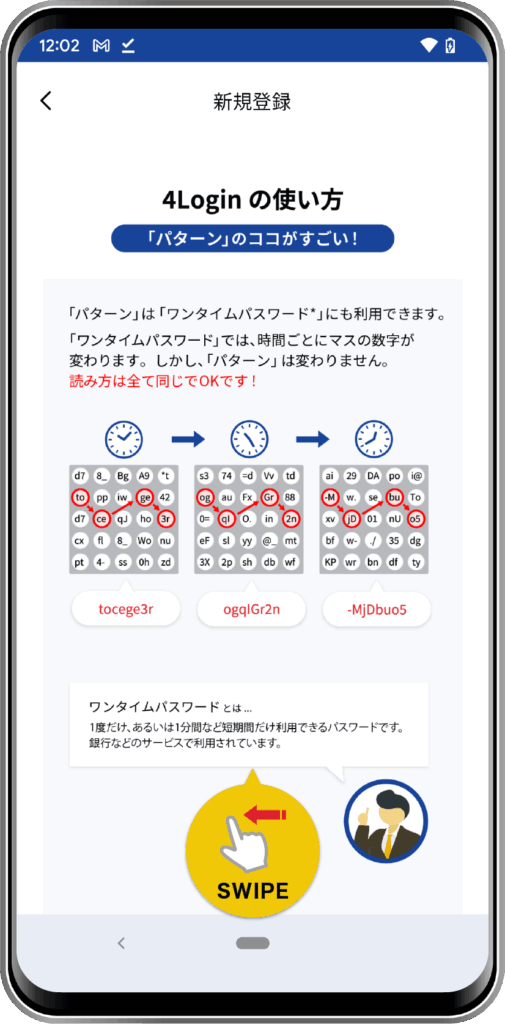
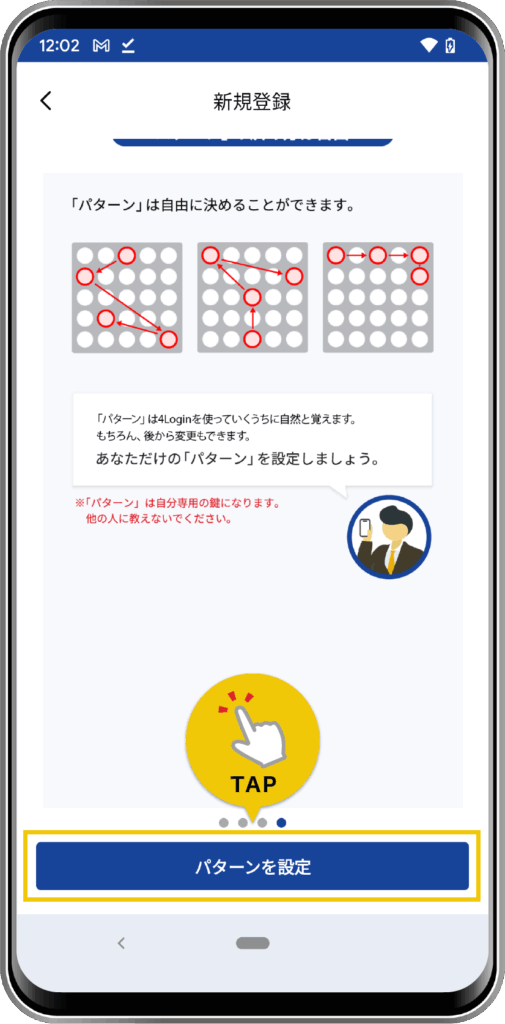
After reviewing “ 4Login ” (swipe to navigate through the screens), set up your pattern.
STEP
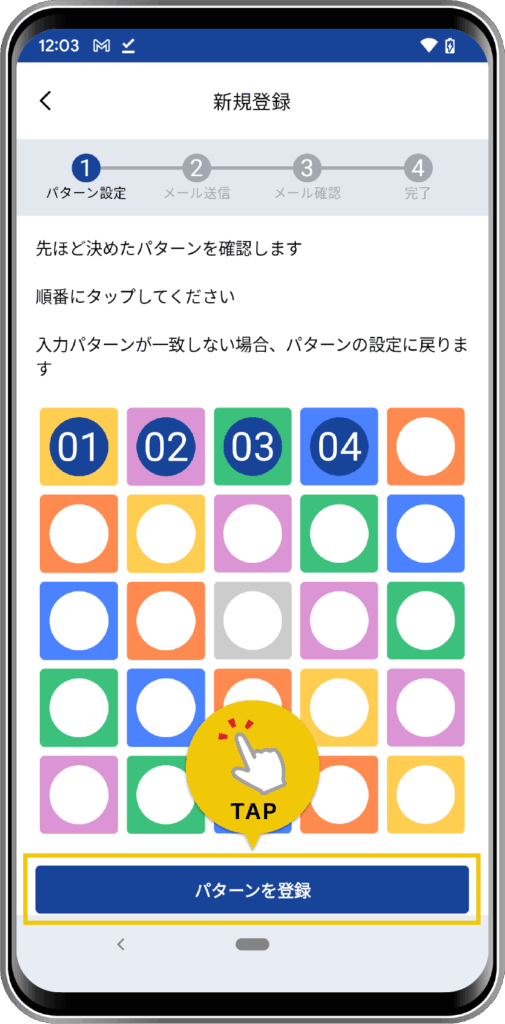
To create your unique authentication pattern, tap the four “locations” in “order,” then tap the “Confirm Pattern” button. Tap the same pattern again to confirm, then proceed to “Register Pattern.”
*The pattern shown in the image is just an example. Please set the pattern you have chosen.
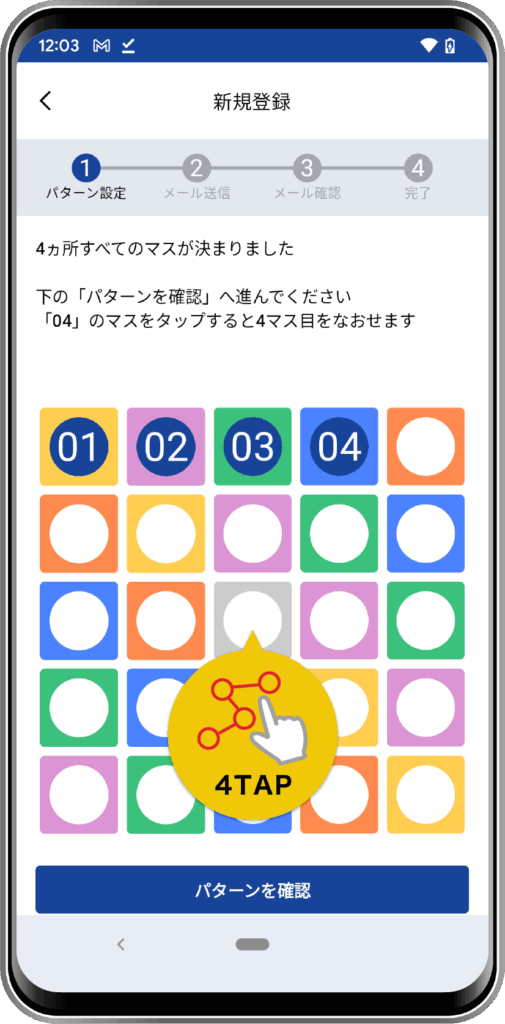
- Tap the “Set Pattern” button
- Tap the four “locations” in “order”
- To create your unique authentication pattern, tap the four “positions” in “order.”
- Tap the “Confirm Pattern” button
- Once you have tapped all four points, tap the “Confirm Pattern” button.
- Tap the same pattern again
- For verification, tap the four “locations” in the same “order” as in “②.”
- Tap the “Register Pattern” button
- If step “④” is completed correctly, you will proceed to the “Register Pattern” screen.
STEP
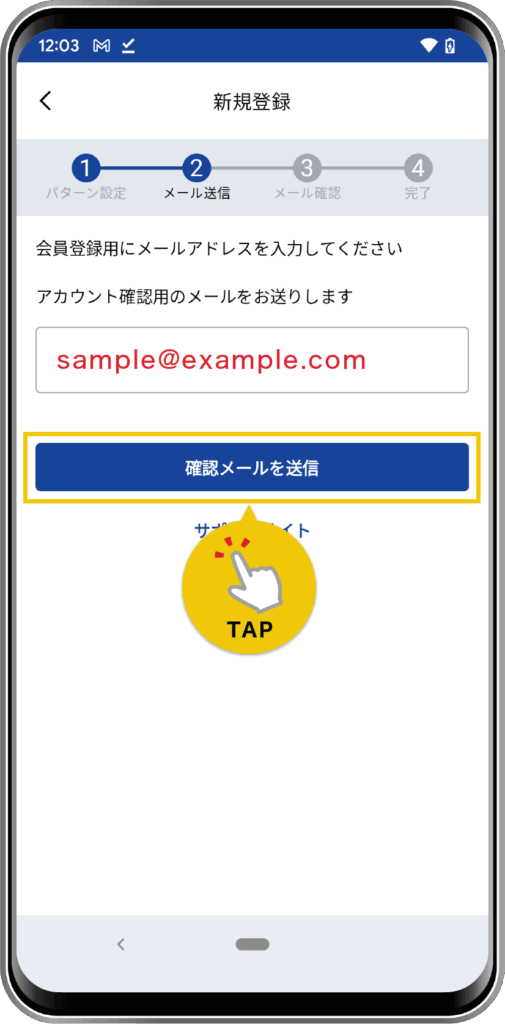
We will now verify your email address.
Enter the email address you want to register and tap the “Send Confirmation Email” button.
STEP
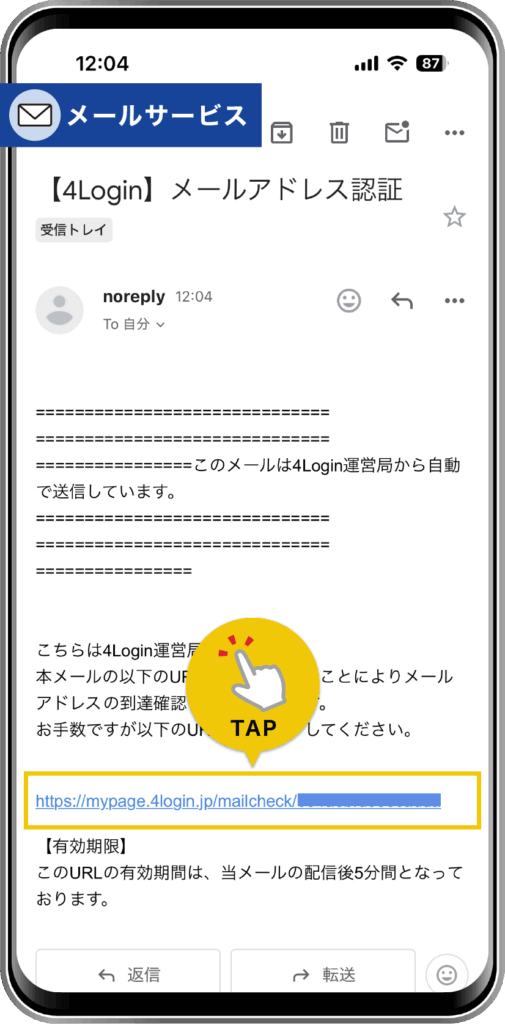
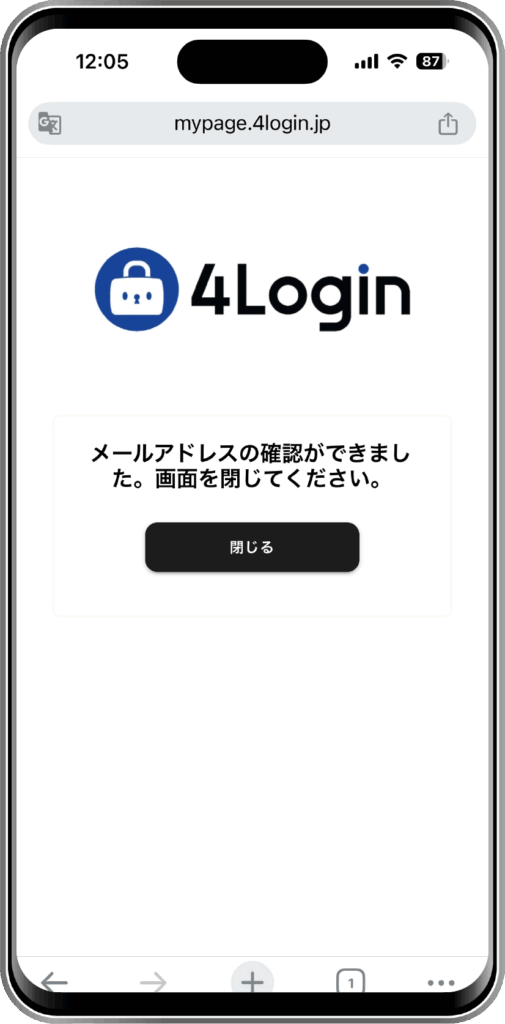
An email will be sent to the address you entered. Please access the URL provided in the email.
*Please do not close 4Login at this point; keep it open.
*If you close the app, you will have to start the 4Login Account Registration” process over from the beginning.
STEP
Once the screen changes and the “Setup Complete” screen appears, tap the “ 4Login ” button at the bottom of the screen to go 4Login.
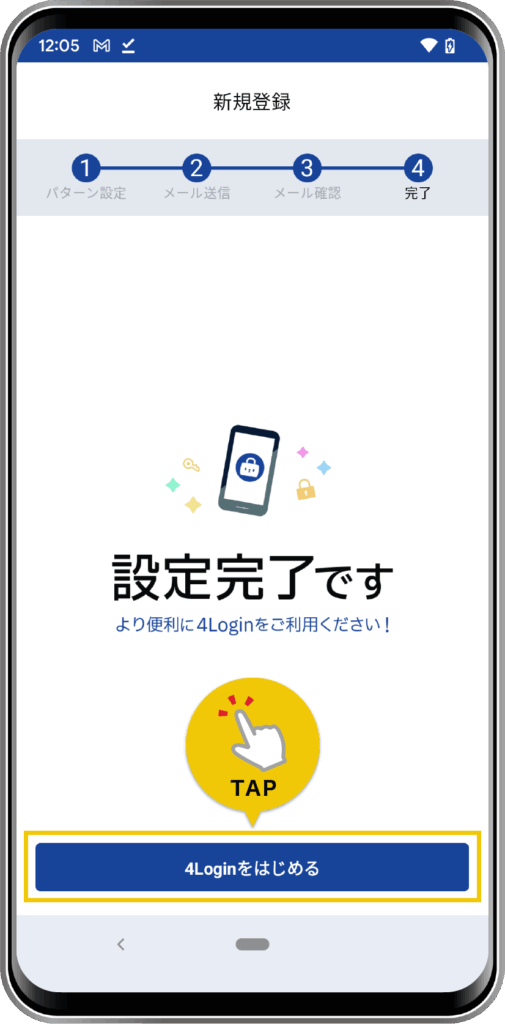
This completes the account registration.