
Home Screen
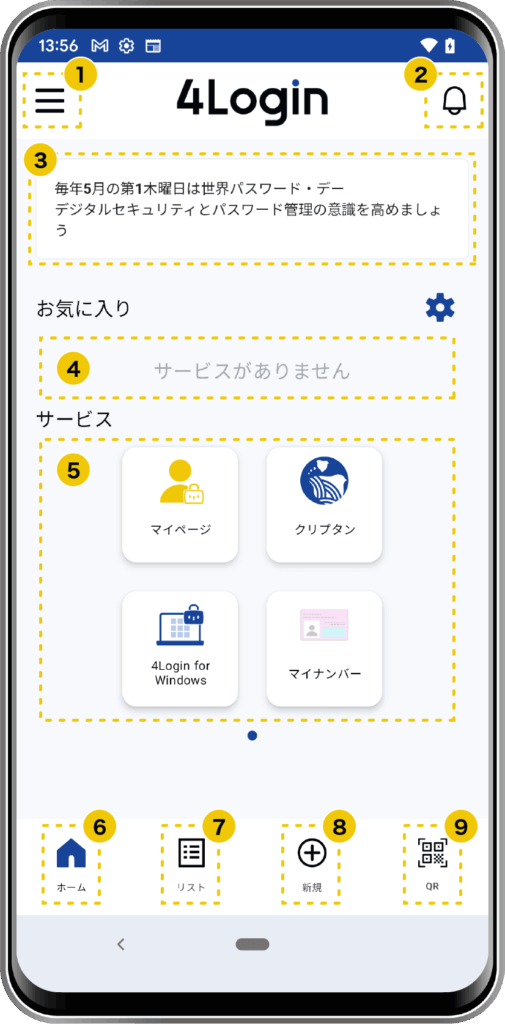
- Menu Button
- This menu allows you to view and change your account information and settings.
- Notice
- Go to the list of app notifications.
- Tips Area
- Displays random tips for using the app and recommended services.
- Favorite Services
- You can customize this section to register the services you use most often.
- Services
- These are the services currently offered 4Login.
- Home
- This screen.
- List
- Go to the list of slots for password management, 4Login codes, and more.
- New
- Click here to create passwords, groups, and more.
- QR
- The camera for scanning QR codes will launch.
List
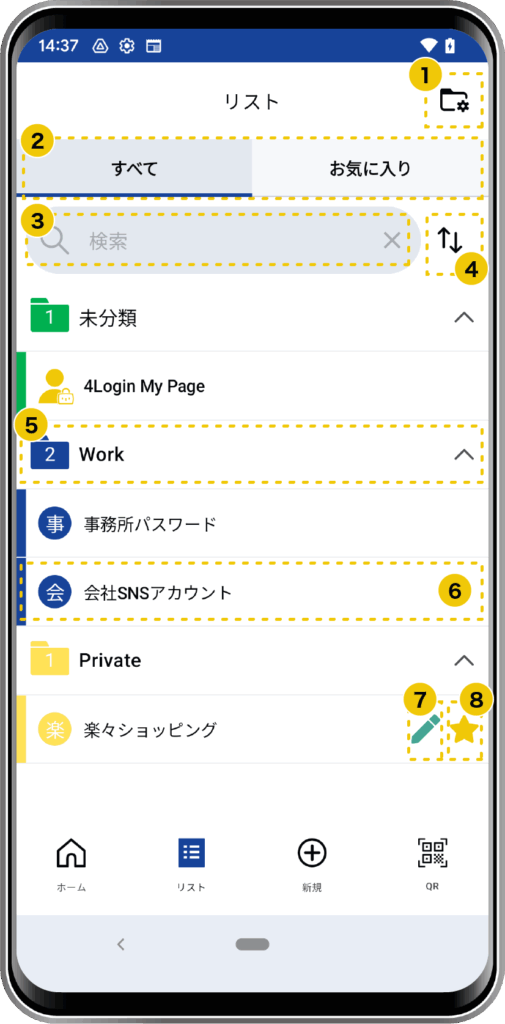
- Edit Group
- Edit or delete existing groups. *You can only delete groups that have no items.
- “All” and “Favorites” toggle button
- All: Displays all passwords registered in each group
- Favorites: Displays a list of passwords marked as favorites
- Search
- You can search by the name of the password management service.
- Sort
- You can move items by long-pressing those with a “=” icon. You can also move them to a different group.
- Group
- The total number of saved passwords is displayed on the icon.
- Slot (Registered Service Name)
- Tap a slot to go to the password details screen.
Swipe left to display the menu.
- Tap a slot to go to the password details screen.
- Note icon
- A pen icon appears next to slots that contain notes.
- Favorites icon
- Slots marked as favorites display a “★” icon.
Password Screen and Slot Details Screen
Password Screen
Tap the relevant slot from the list to go to the password details screen.
The password is displayed on the pattern you set.
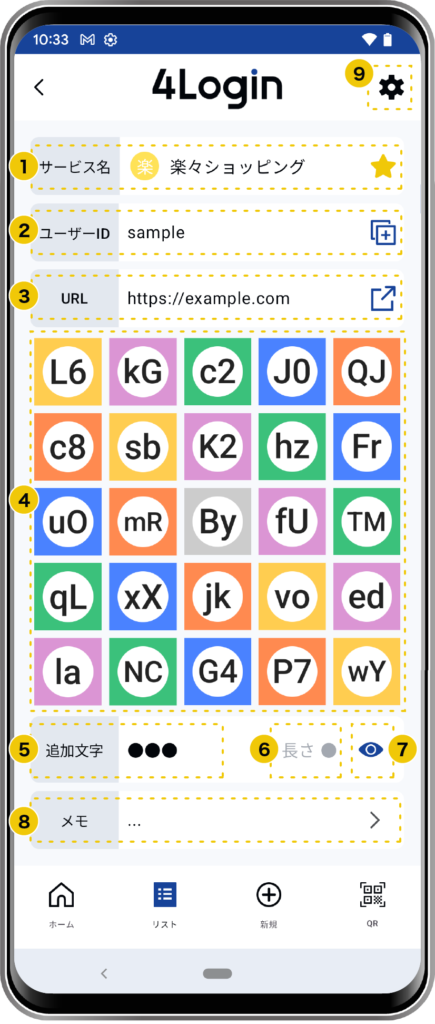
- Service Name
- This is the name displayed in the list. Since it’s editable, you can register it with a service name that’s easy for you to understand.
- User ID
- Register using the user ID you registered with the service. Tap the user ID to copy it.
- URL
- You can register the service’s URL. Tapping the URL will launch your browser and take you directly to the service page.
*If no URL is entered, it will not appear on the screen.
- You can register the service’s URL. Tapping the URL will launch your browser and take you directly to the service page.
- Matrix Table
- The password is created by connecting the characters displayed in cells 1 through 4 in the order of the “pattern” you chose. If the password is 8 characters or longer, please add the “Addition” characters to the end.
▶︎For details, please refer to the “How to Read Passwords” page. - Tap the four locations in the “pattern” you chose to copy the password.
- The password is created by connecting the characters displayed in cells 1 through 4 in the order of the “pattern” you chose. If the password is 8 characters or longer, please add the “Addition” characters to the end.
- Additional Text
- Any characters exceeding 8 characters will be displayed here.
- Length
- This shows the password length. *Tap the “Show” icon next to “⑦” to view the character count.
- Show/Hide
- Toggle the display of additional characters on or off.
- Notes
- You can add or view notes (a pattern verification will be required).
- Settings
- You can edit or delete registered entries and view your password history.
Slot Details Screen
Tapping the relevant slot in the list will take you to the slot details screen.
The information required for login is displayed on the pattern. Tap the pattern to log in or copy it.
*Depending on the service’s settings, you may not be able to log in by tapping.
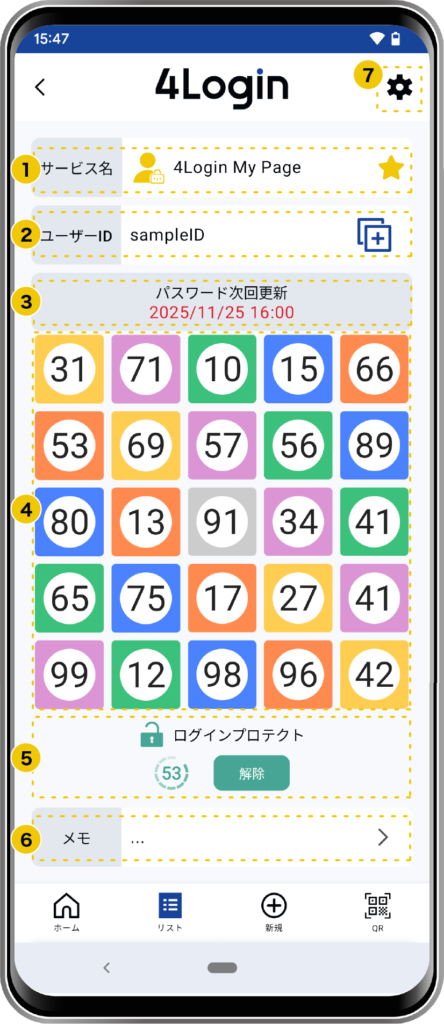
- Service Name
- This is the name displayed in the list. Since it’s editable, you can register it with a service name that’s easy for you to understand.
- User ID
- Tap the user ID to copy it.
- Password Renewal Interval
- The password displayed in the slots is a dynamic password that changes every hour. *If you registered the password yourself, “③” will not be displayed.
- Matrix Table
- The characters displayed in squares 1 through 4, in the order of the “pattern” you set, are the password required to log in. Tap all four to log in or copy the password. If the password is 8 characters or longer, the “additional characters” will be appended to the end.
- Login Protection
- This is the time during which you can log in (typically 60 seconds; this may vary by service). You cannot log in by tapping while the lock is closed. To unlock it again, tap the “Unlock” button.
- Notes
- You can add or view notes (a pattern verification will be required).
- Settings
- You can edit or delete your registered information.