Rearranging the slots (passwords)
This will organize the order of items on the list screen.
STEP
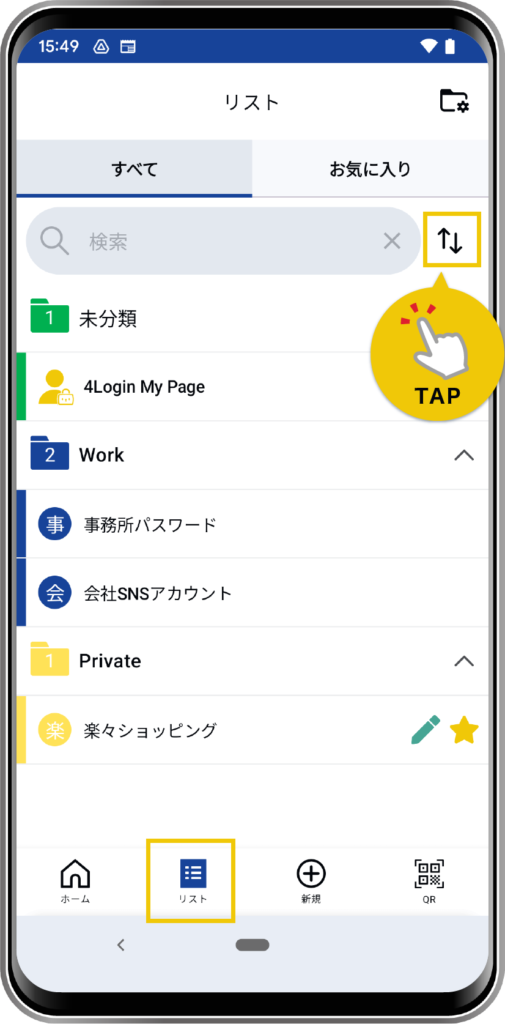
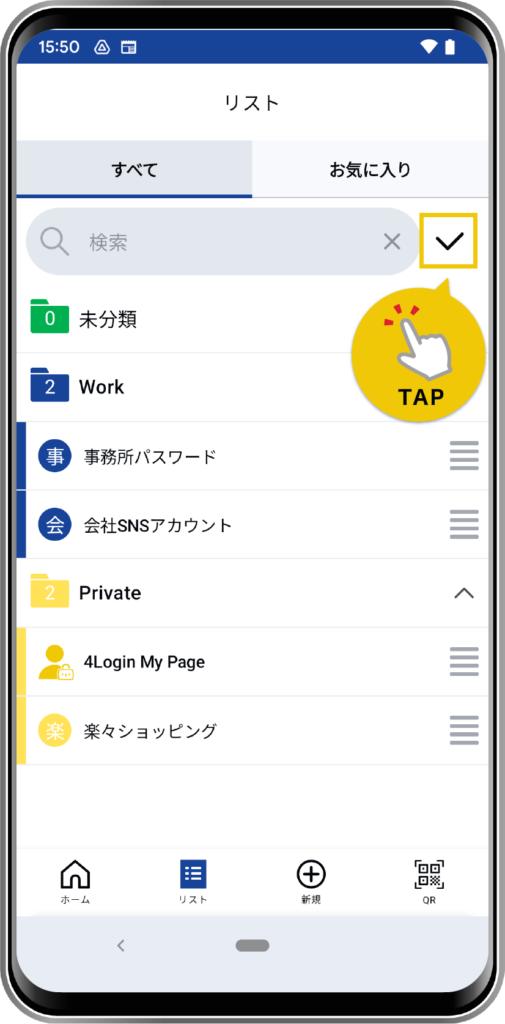
From the “List” menu at the bottom of the screen, go to the list view screen and tap the arrow icon next to the search bar.
STEP
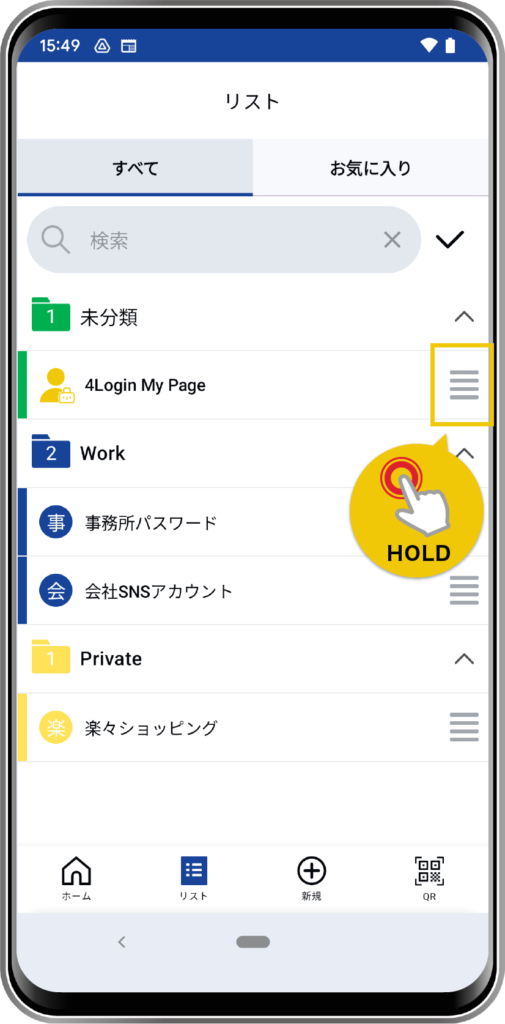
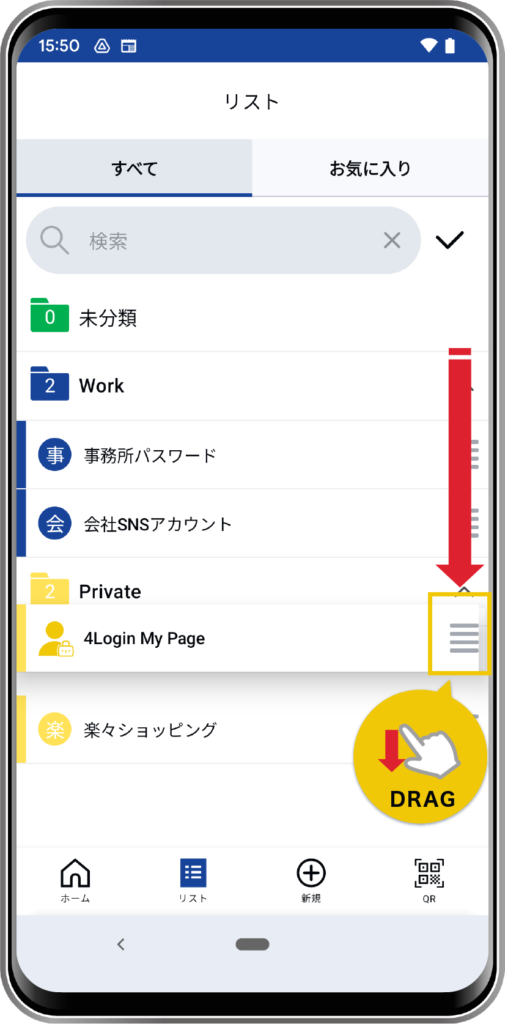
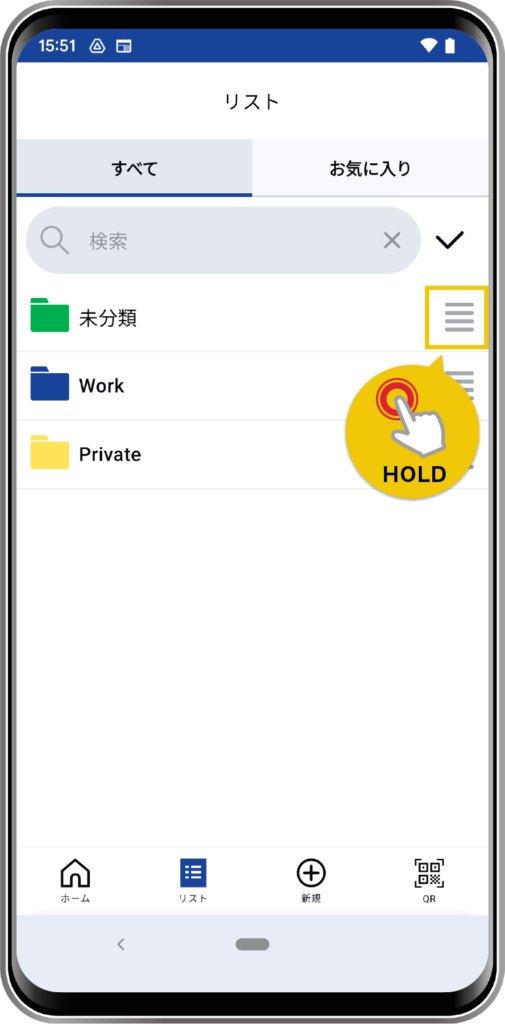
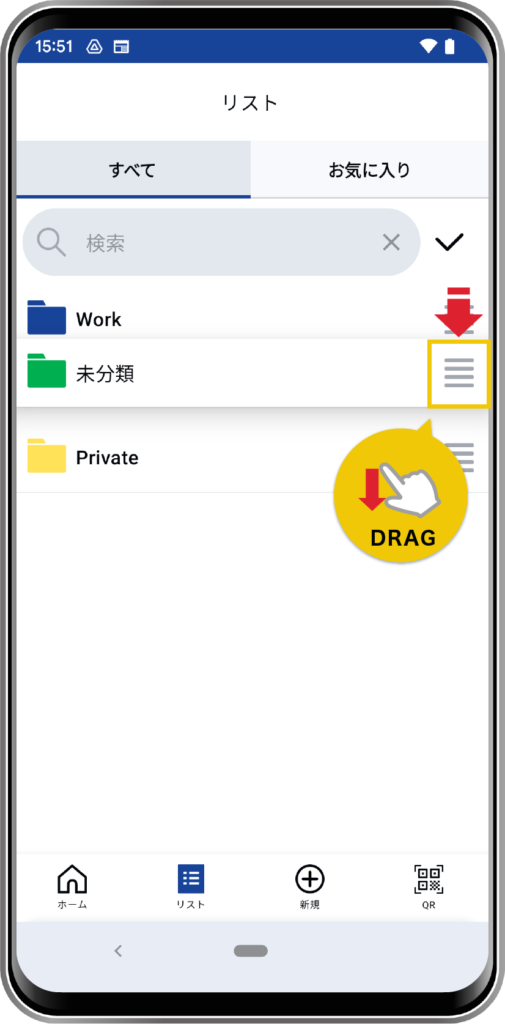
Passwords marked with an “=” symbol can be moved to any desired location by long-pressing them.
You can also move (change) to a different group.
STEP
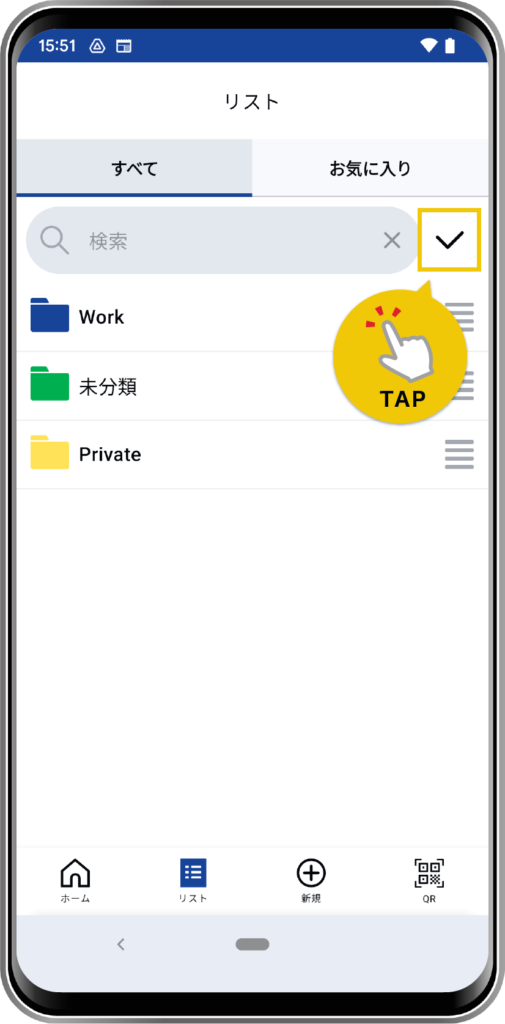
Tap the checkmark next to the search result to save.
STEP
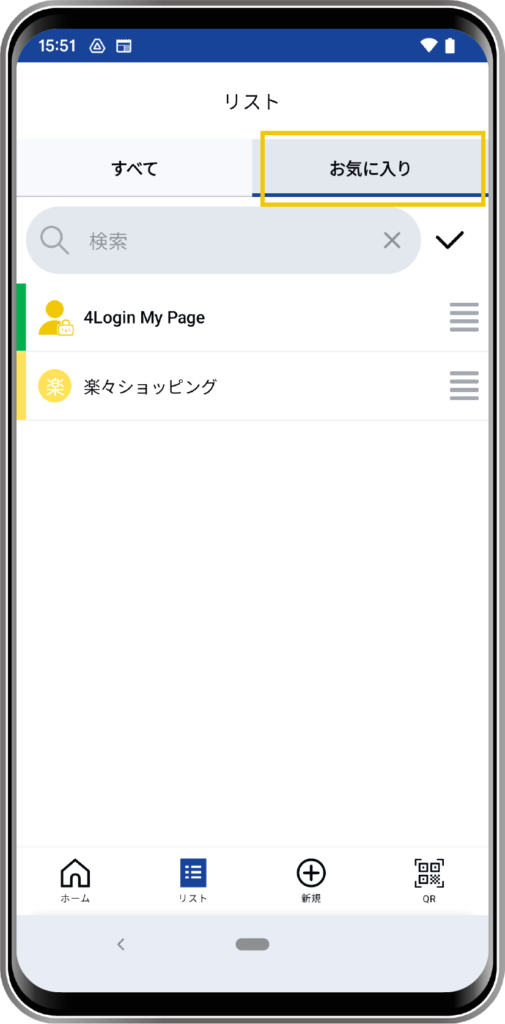
You can also rearrange items in the “Favorites” list screen in the same way. (However, you cannot change the group.)
Group rearrangement
STEP
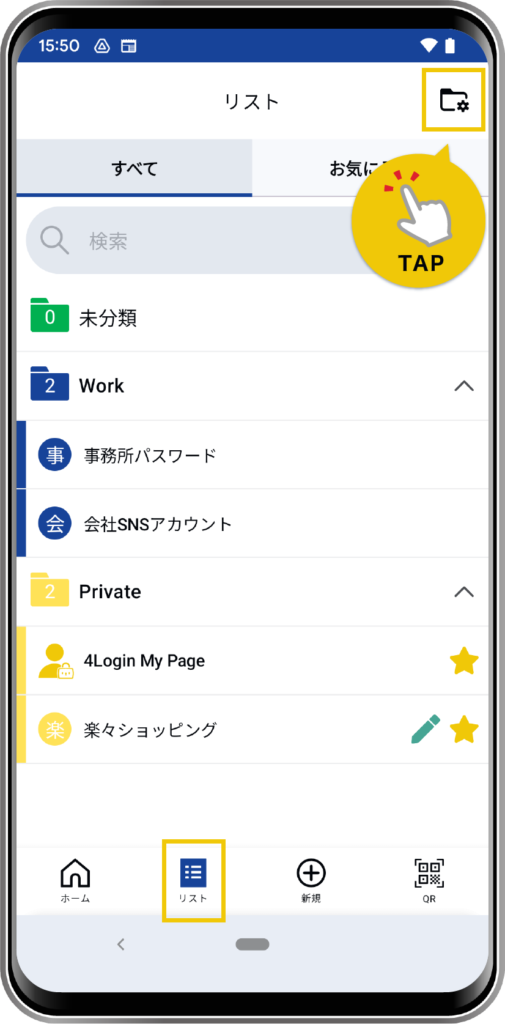
Navigate to the list view screen from the “List” menu at the bottom of the screen, and then tap the group editing button in the upper right corner.
STEP
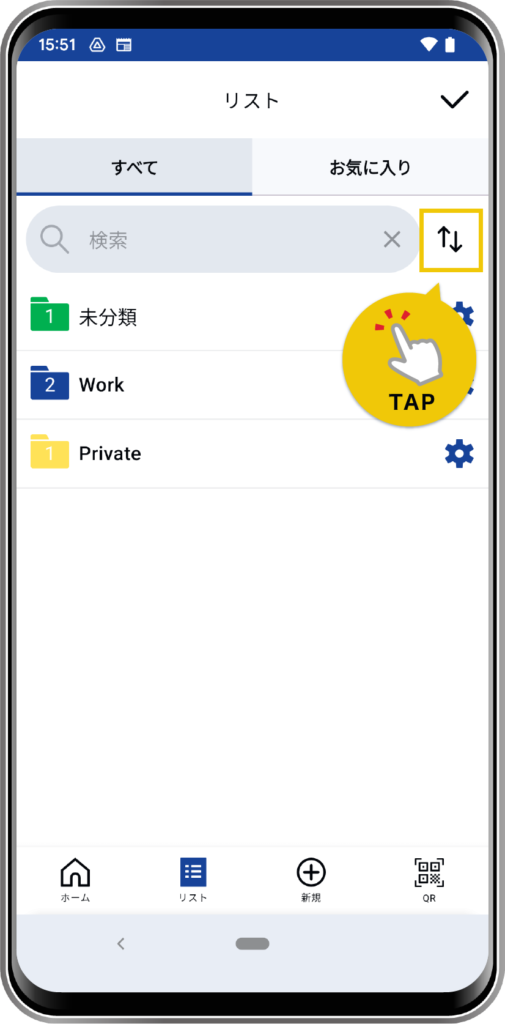
Tap the arrow icon next to the search bar.
STEP
You can move the cursor by long-pressing the “=” mark.
STEP
Tap the checkmark next to the search result to save.