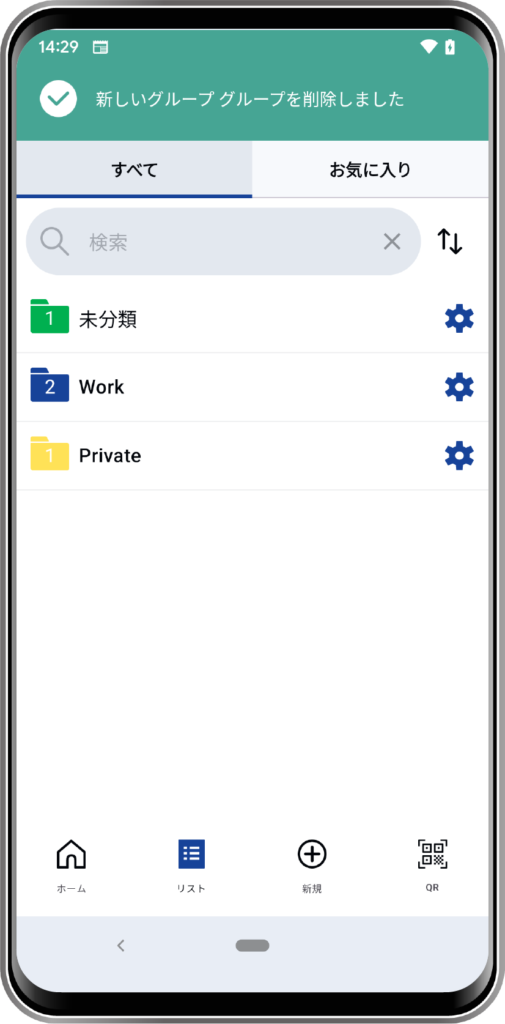
You can organize your registered passwords and 4Login codes into groups for easier access.
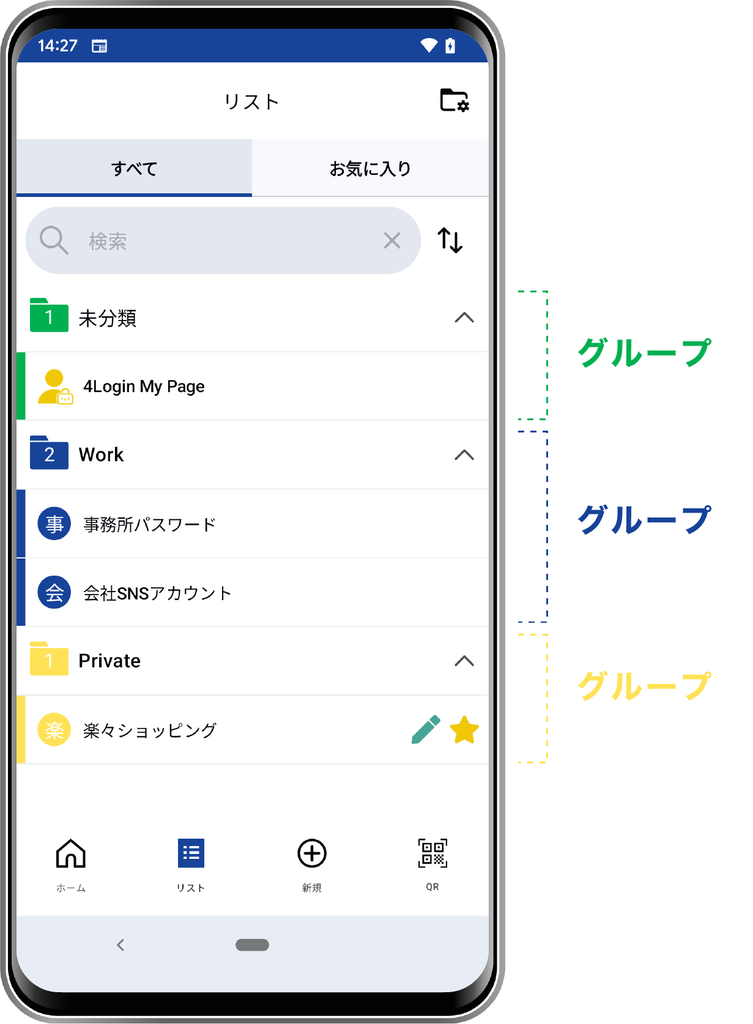
How to create a group
STEP
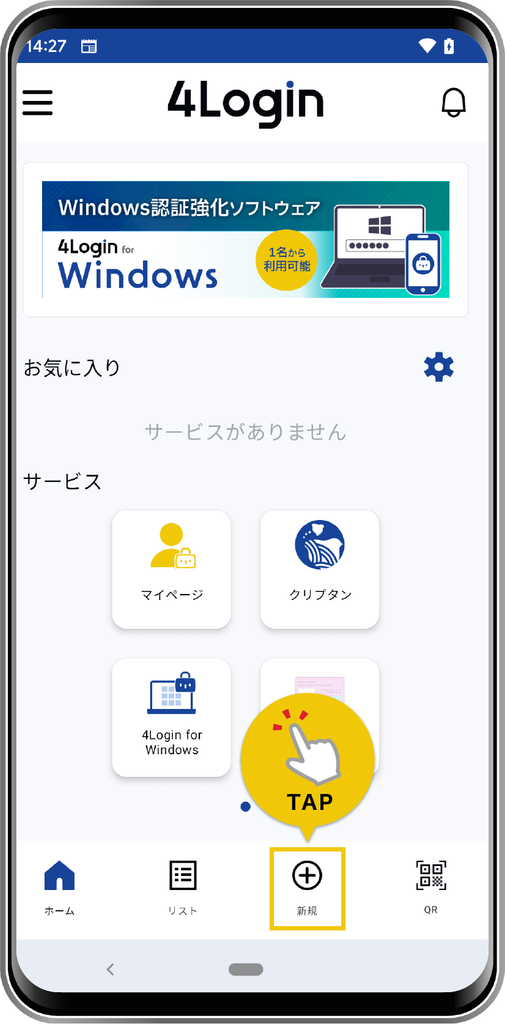
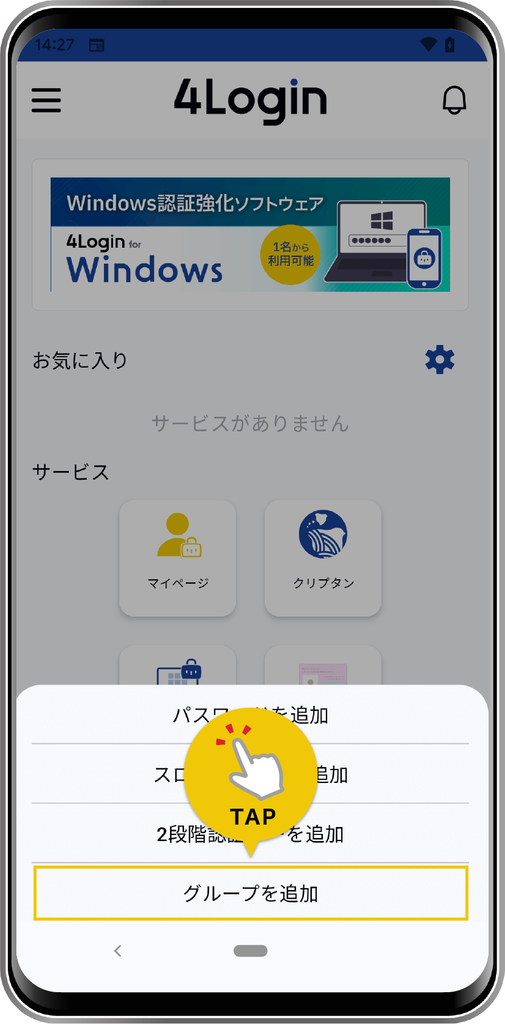
Tap “Add Group” from the “+” in the bottom menu.
STEP
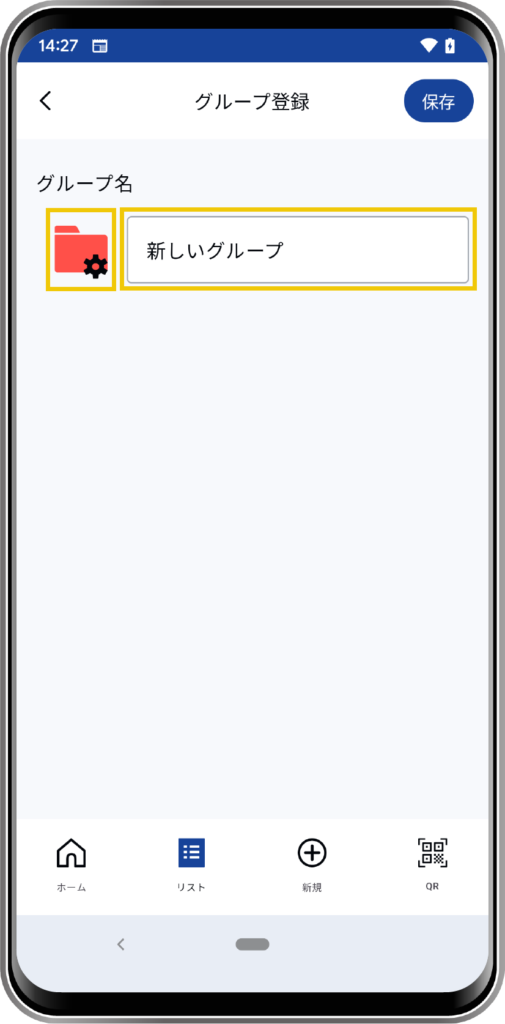
Register the group color and group name.
You can change the color by tapping the folder icon.
STEP
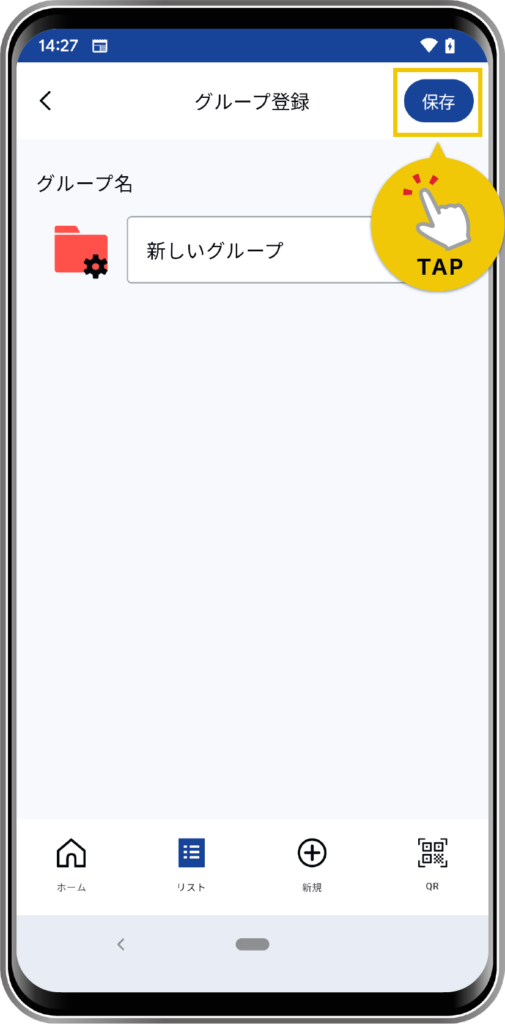
Tap the “Save” button to finish.
Editing the group
STEP
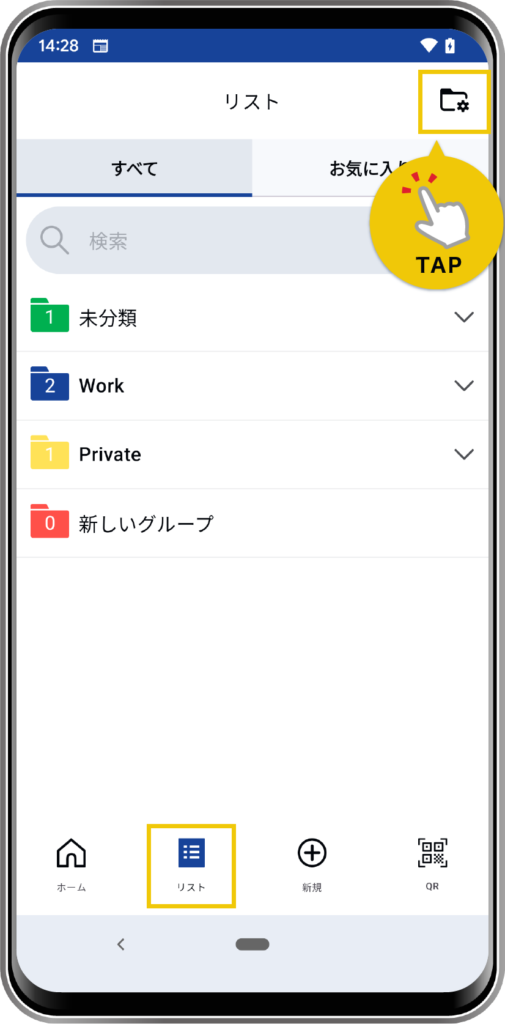
Navigate to the password list screen from the “List” menu at the bottom of the screen, and
then tap the folder editing icon in the upper right corner of the screen.
then tap the folder editing icon in the upper right corner of the screen.
STEP
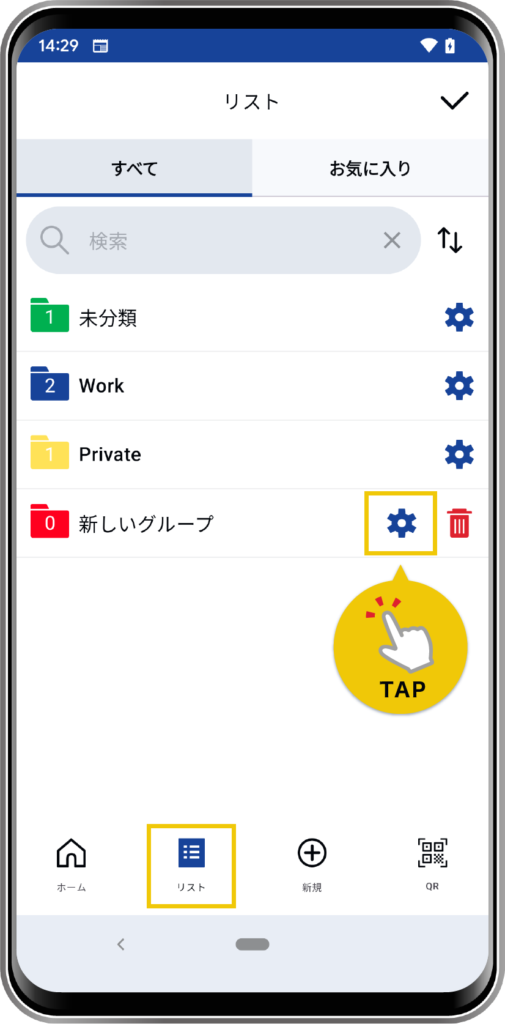
Tap the gear icon for the group you want to edit.
You can change the color by tapping the folder icon.
STEP
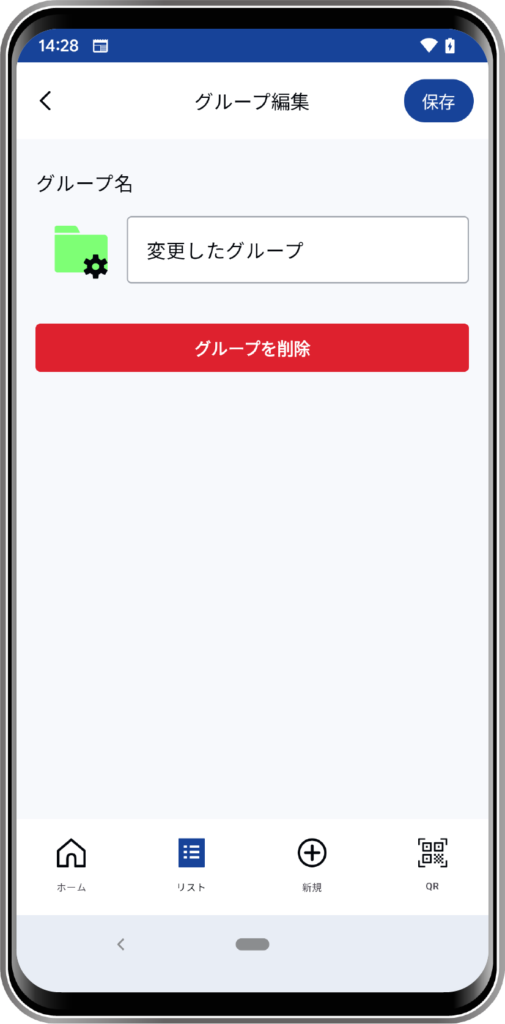
Change the group color and group name.
STEP
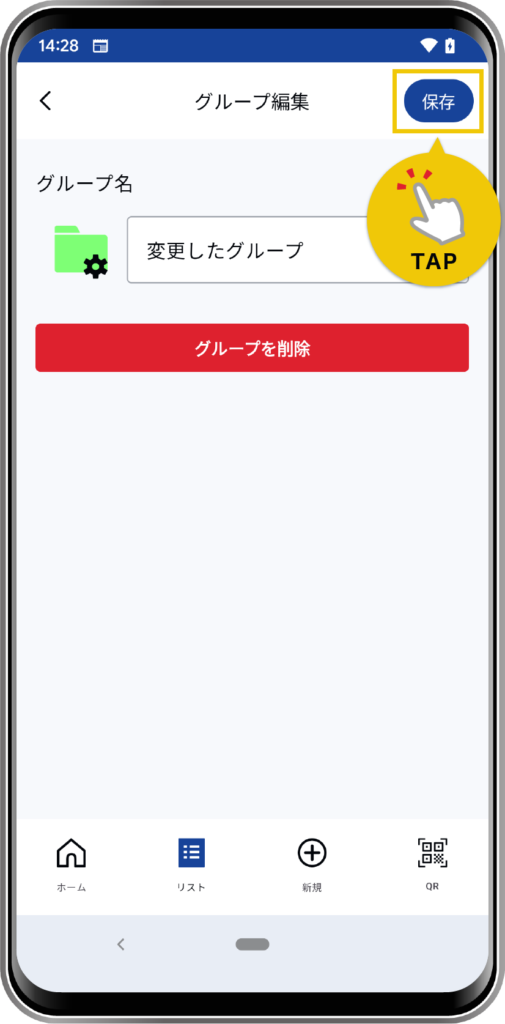
Tap the “Save” button to finish.
Delete group
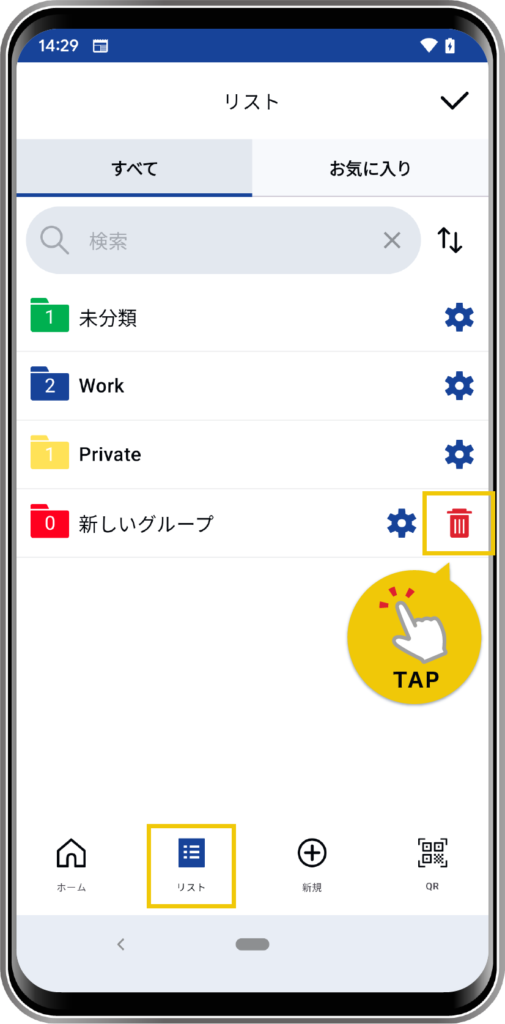
*Only groups with 0 registered slots (passwords) can be deleted .
*Groups with slots (passwords) cannot be deleted.
STEP
Navigate to the password list screen from the “List” menu at the bottom of the screen, and
then tap the folder editing icon in the upper right corner of the screen.
then tap the folder editing icon in the upper right corner of the screen.
STEP
Tap the trash can icon for the group you want to delete.
STEP
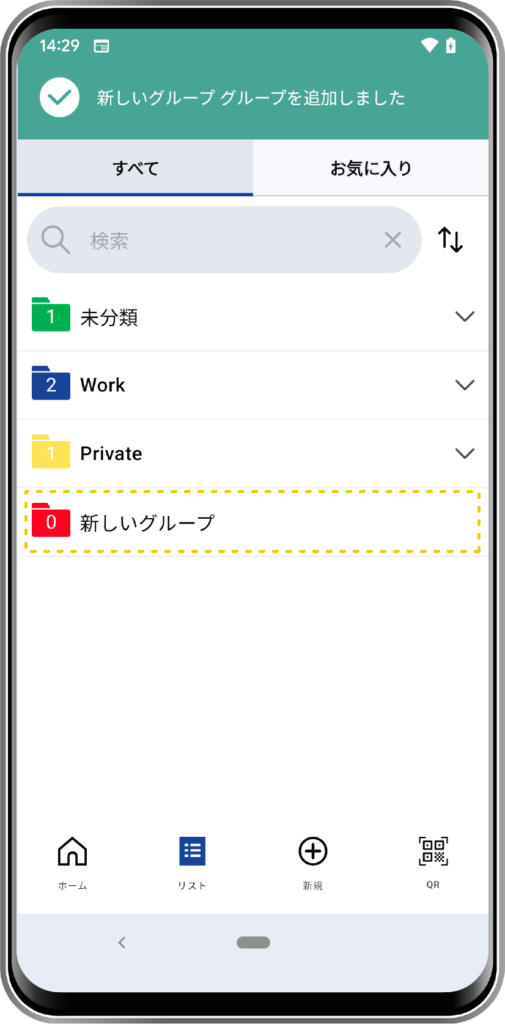
Deletion complete.