Here’s how to register a basic password 4Login.
Click here to see how to read the password↓
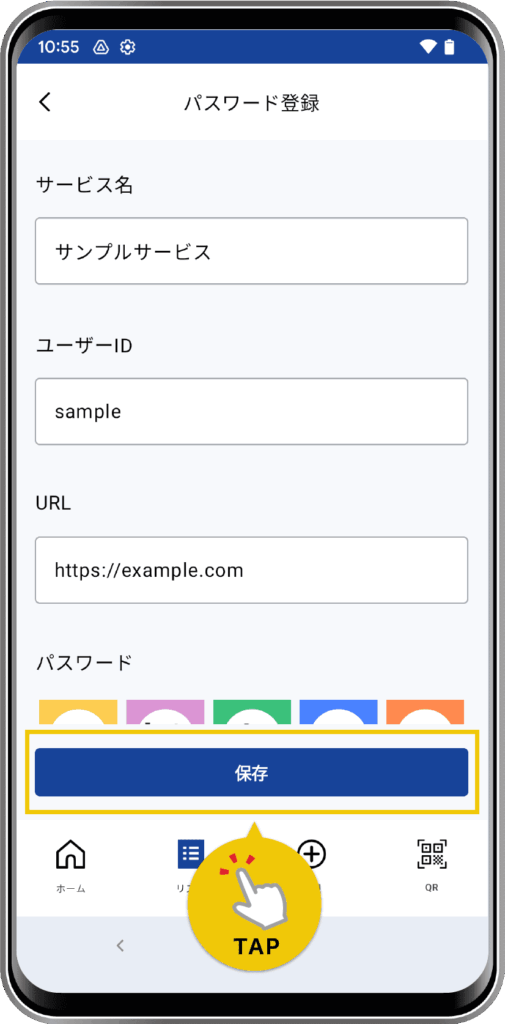
New Registration
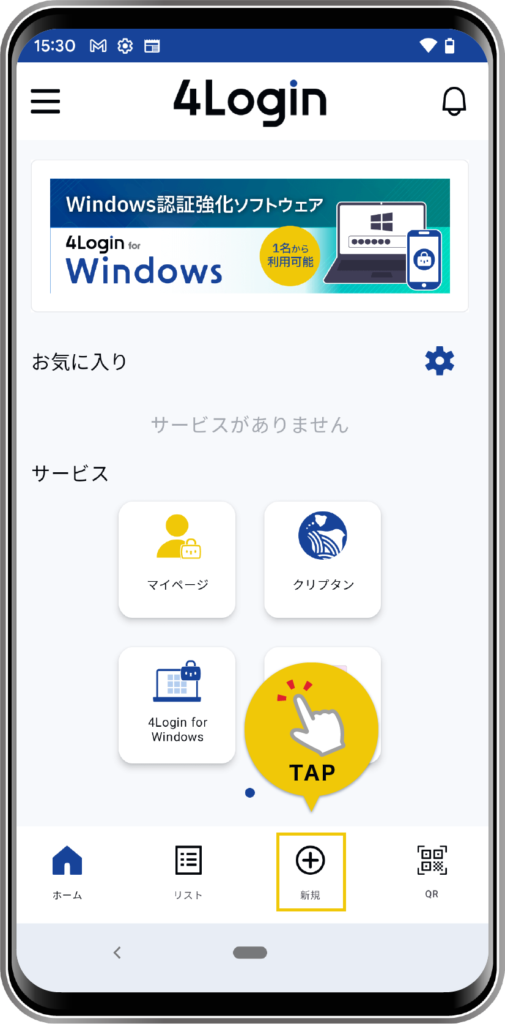
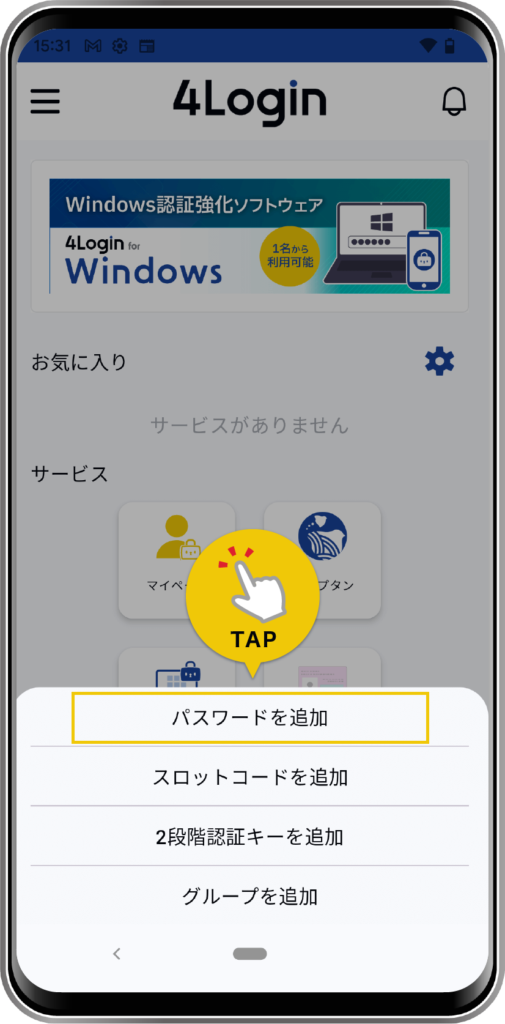
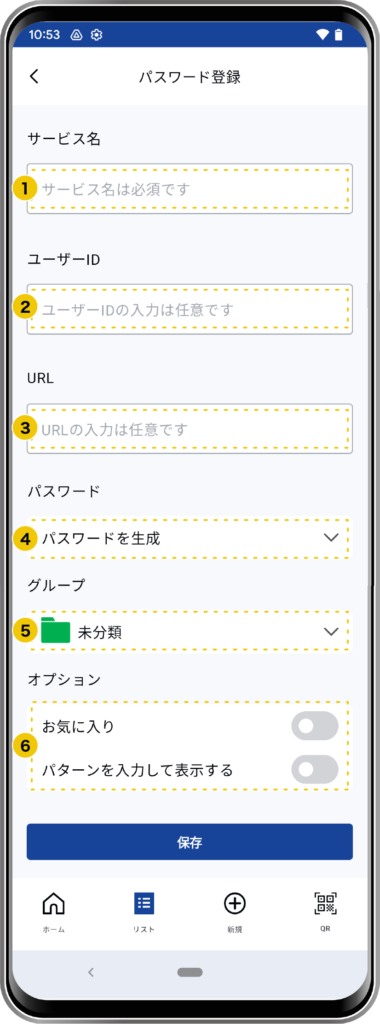
- Service Name *Required
- This is the name that will appear in the list. Please enter the name of the service or app where you’ll use this password, such as “XX Bank for XX” or “XX ID.”
- User ID
- Enter the “ID” you use when logging in.
- URL
- Enter the service’s URL.
*If no URL is entered, it will not be displayed on the screen.
- Enter the service’s URL.
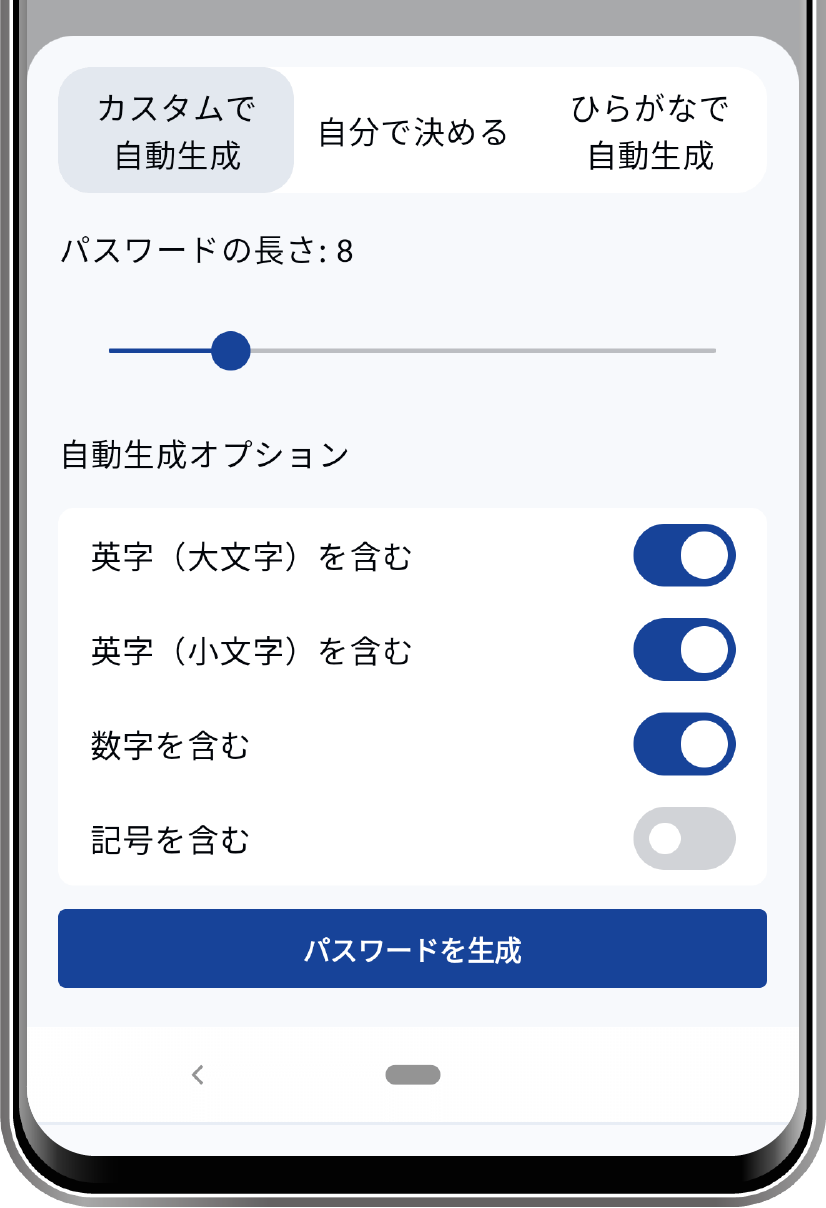
- Generate Password
- Select the password generation rules. You can preview the result by clicking the “Generate Password” button at the bottom of the screen
.*To ensure security, you can register a password that is an even-numbered string of 4 to 24 characters. - Automatically generate a custom password
- Automatically generates a random password. You can also configure detailed options.

- Automatically generates a random password. You can also configure detailed options.
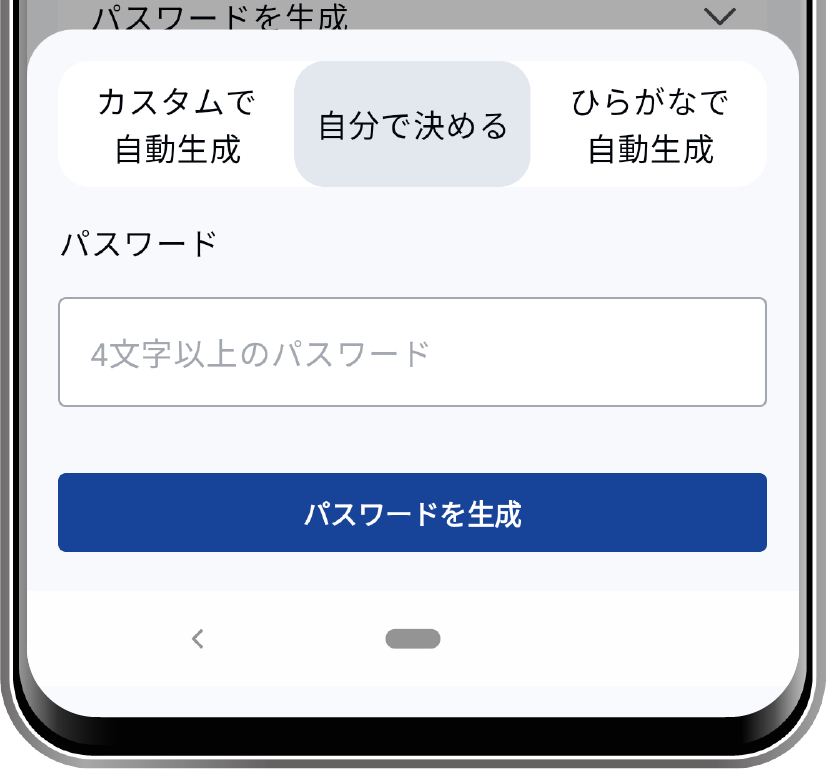
- Choose your own
- You can enter a password you’ve chosen yourself. Use this feature when registering a password you’re already using, for example.
- You can enter a password you’ve chosen yourself. Use this feature when registering a password you’re already using, for example.
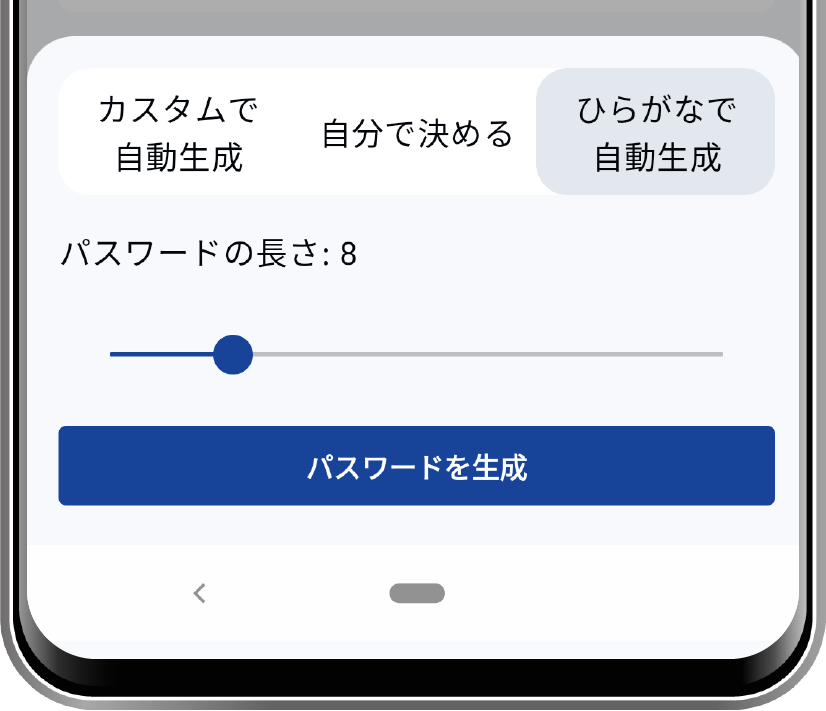
- Automatically generate using Hiragana
- Creates a Hiragana password.
- Creates a Hiragana password.
- Select the password generation rules. You can preview the result by clicking the “Generate Password” button at the bottom of the screen
- Group
- Select from the groups you have created. To create a group, use the “+” button in the bottom menu.
- Options
- Favorites
- It will be displayed in the “Favorites” tab of the list.
- Enter a pattern to display
- You will be prompted to confirm the pattern before the password is displayed.
- Favorites
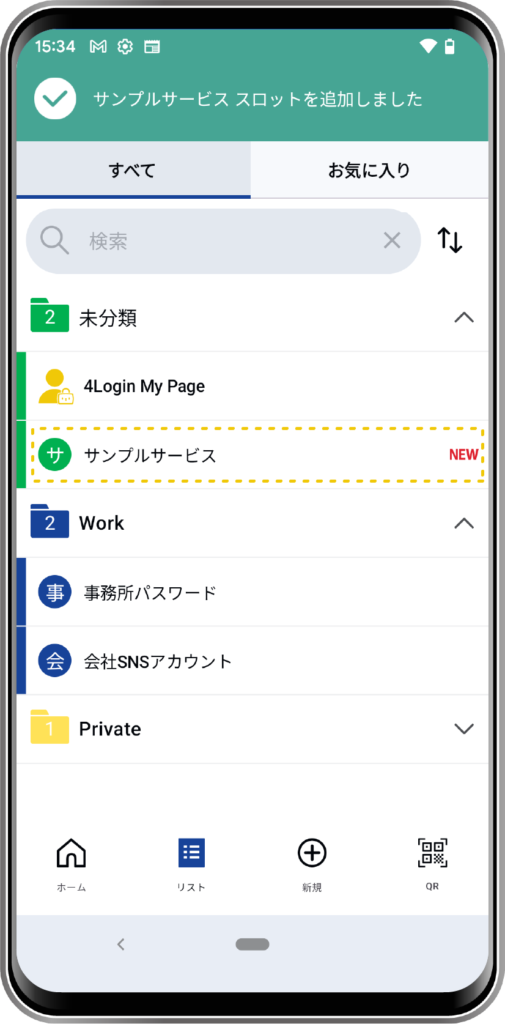
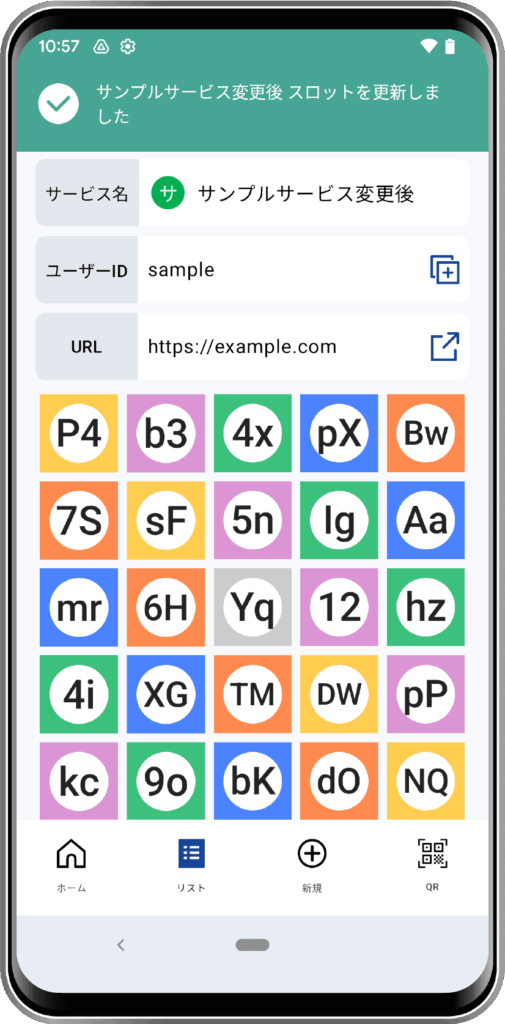
How to Edit
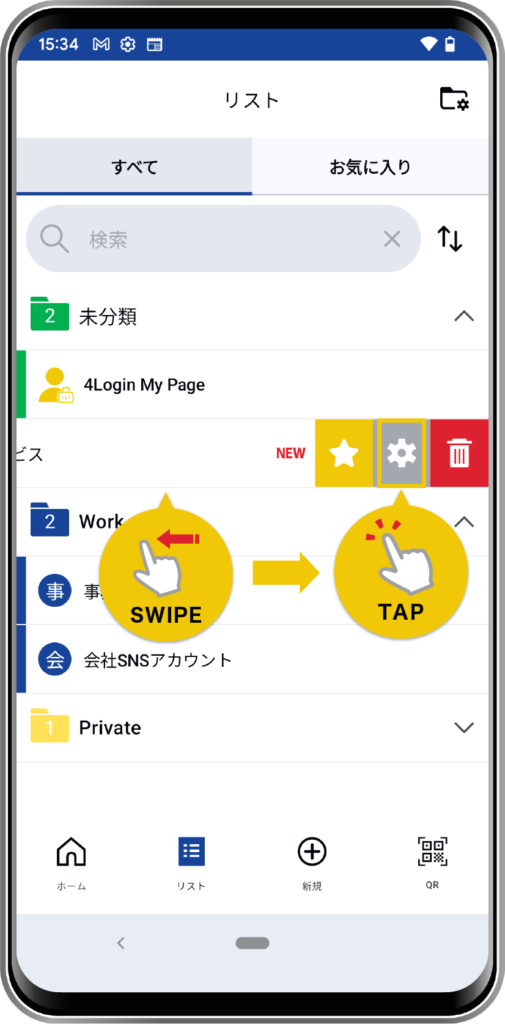
From the list screen, swipe the relevant password to the left, or tap the gear icon.
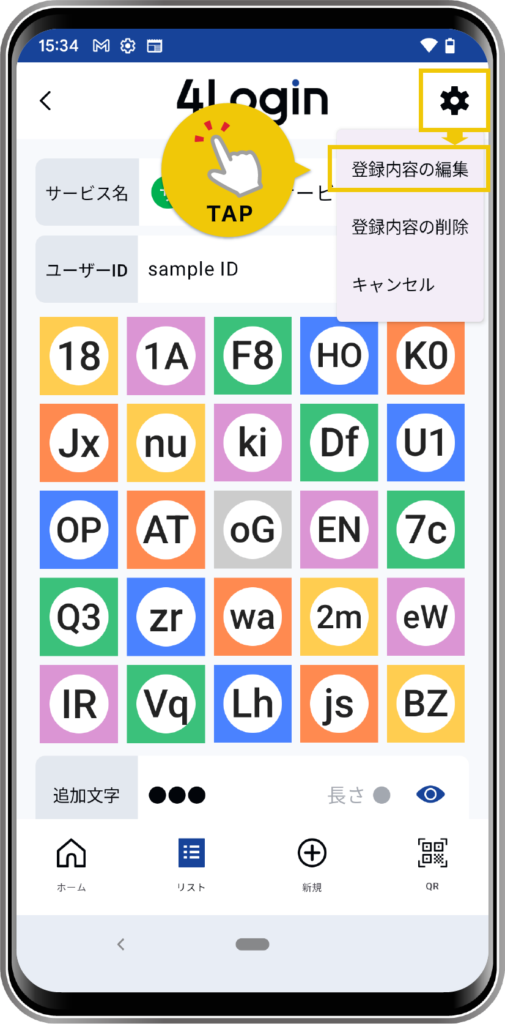
OR
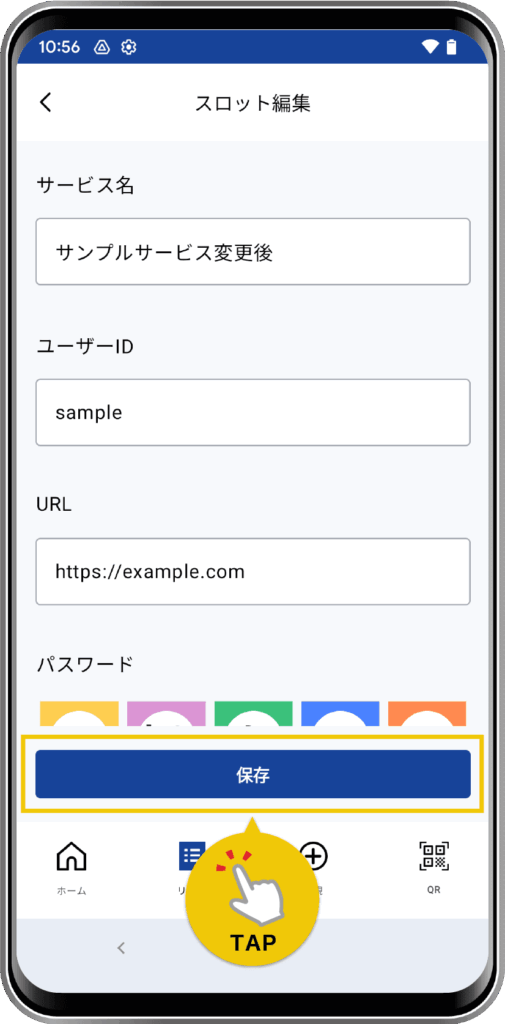
*You’ll need to enter your pattern.
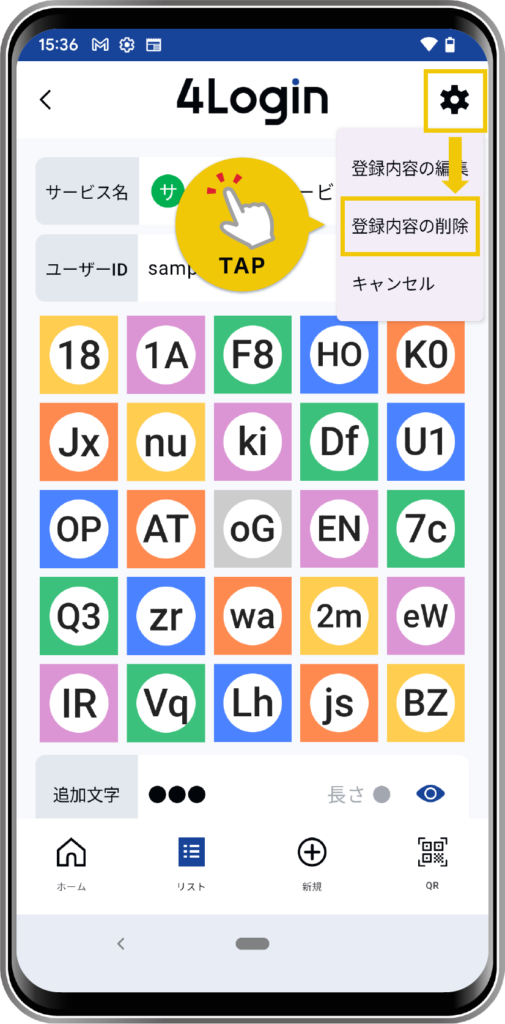
How to Delete
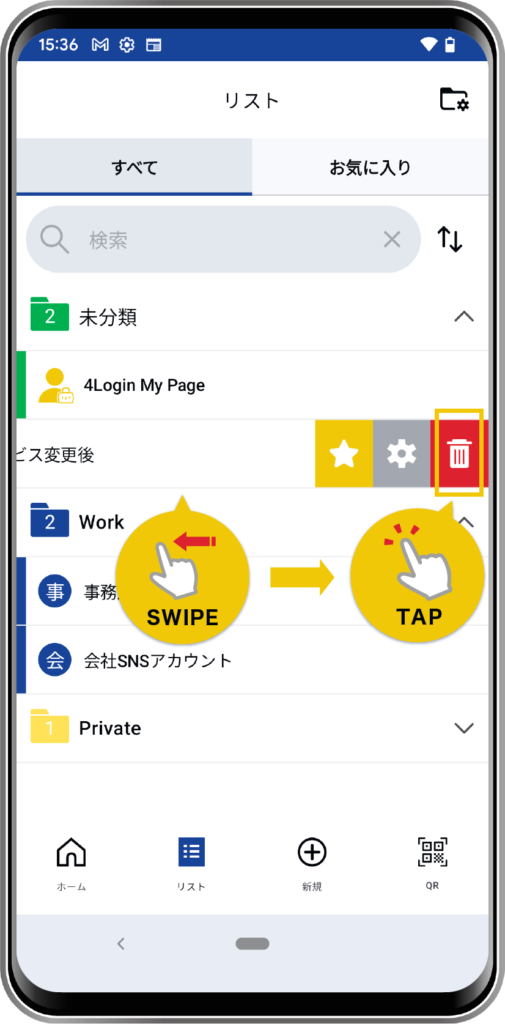
Alternatively, swipe the password to the left on the list screen and tap the trash can icon.
OR
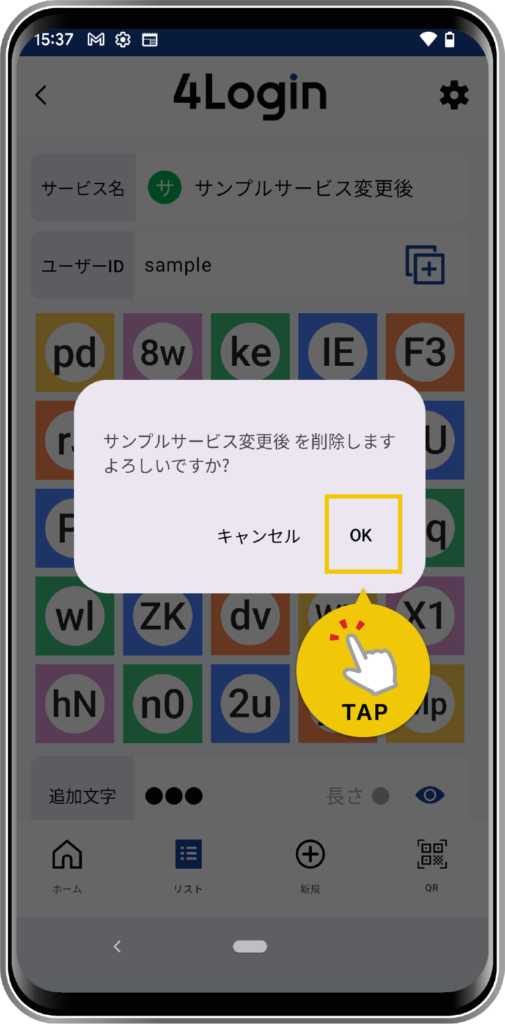
*You’ll need to enter your pattern.
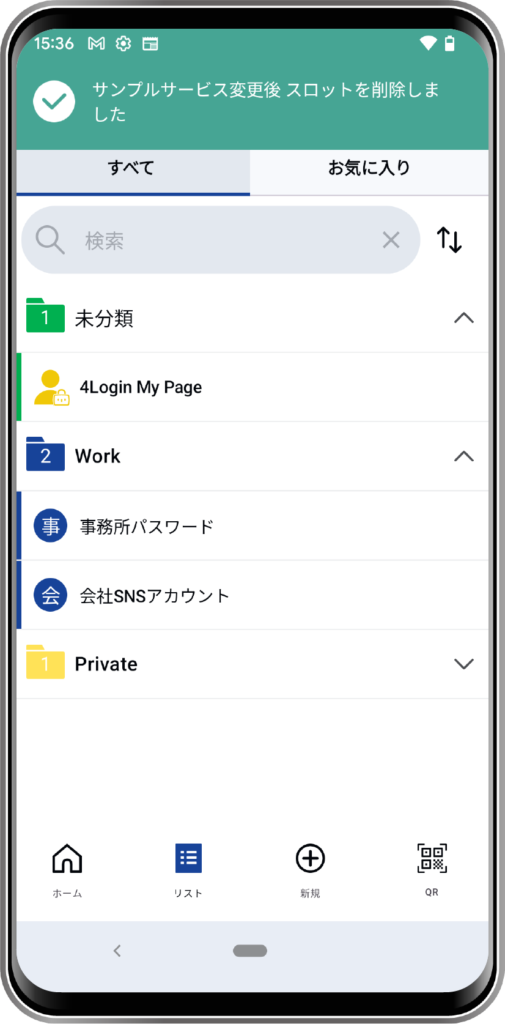
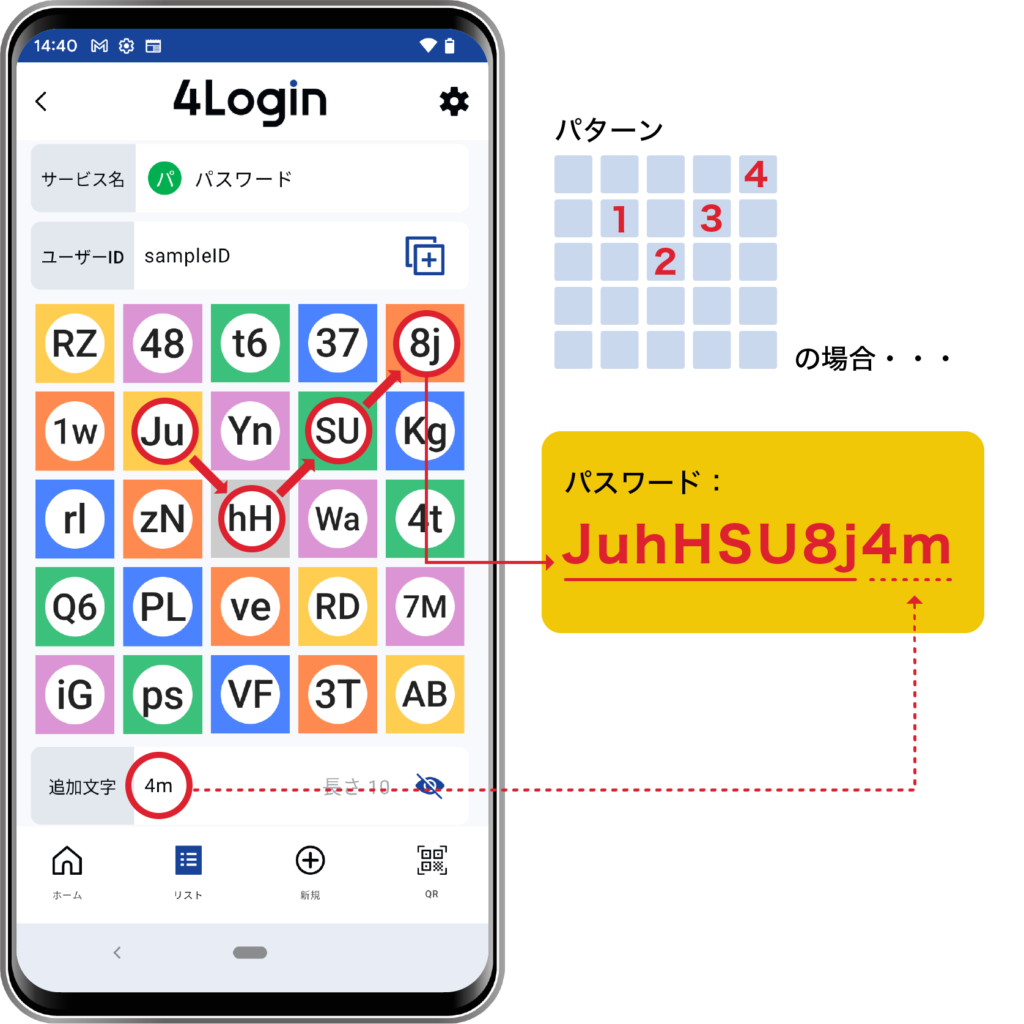
How to Read Passwords
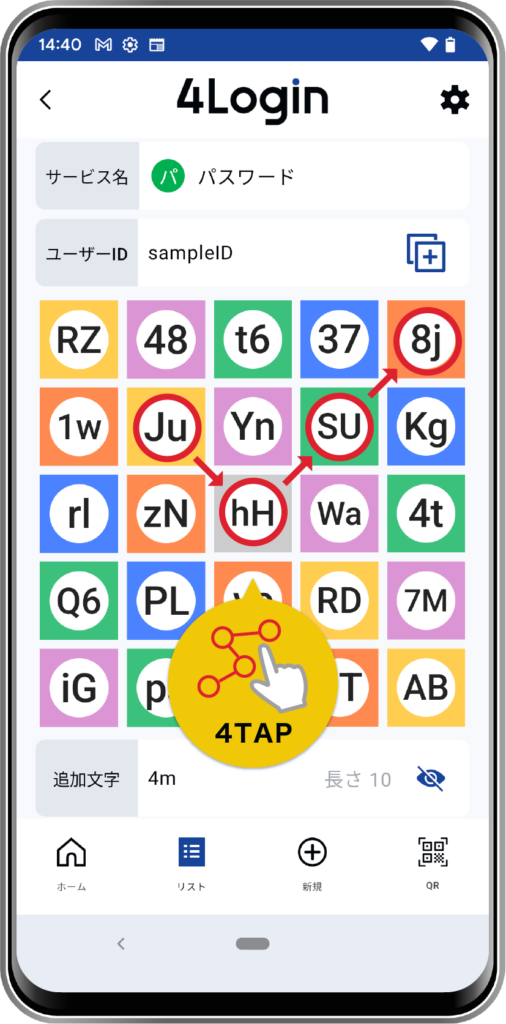
Connect the characters displayed in squares 1 through 4 using the “pattern” you chose to create your password.
If the password is 8 characters or longer, add the Addition characters at the end.
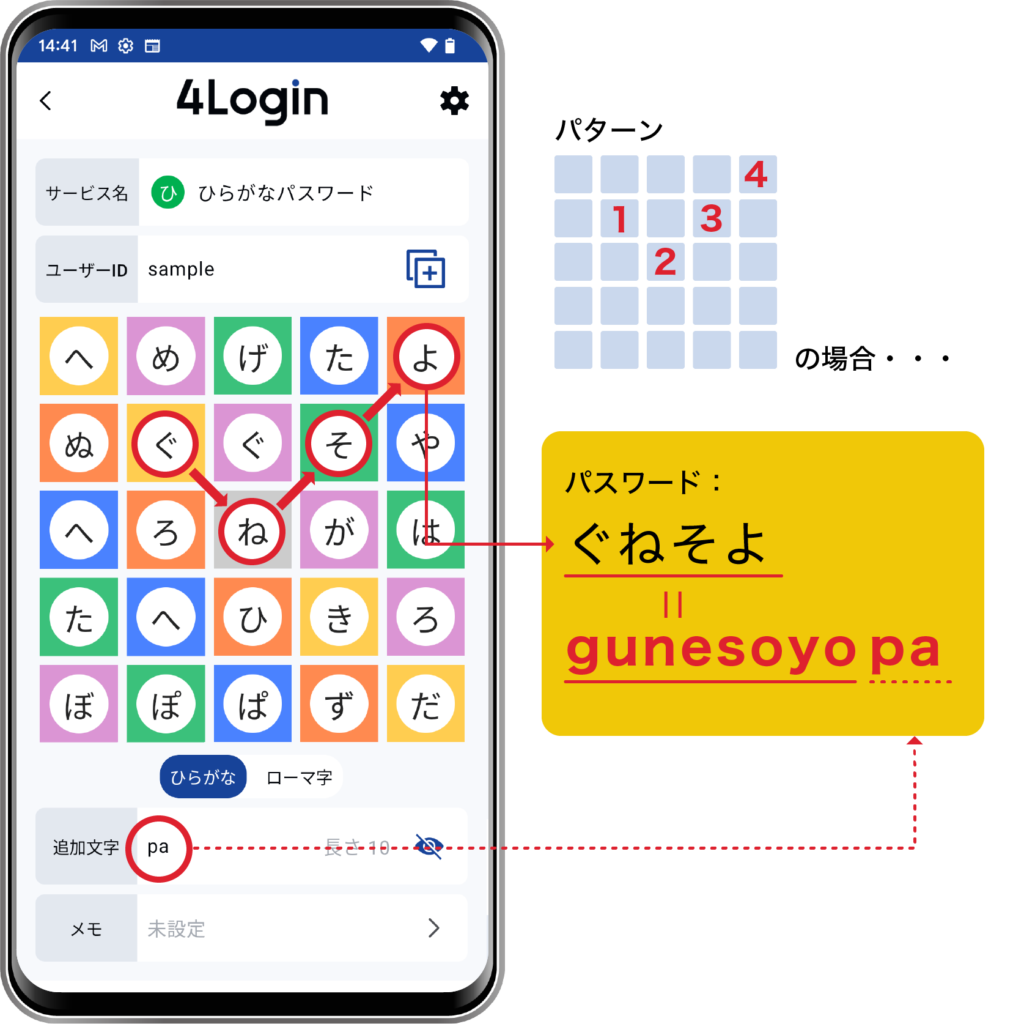
However, if you generated a password using “Automatically Generate in Hiragana,” the system will read the hiragana as Romanized characters.
You can also copy it by tapping
Tap the characters on the password grid according to the pattern you chose.
After tapping the fourth character, a “Copy” button will appear; tap it.
The password, including any additions, will be copied to the clipboard.