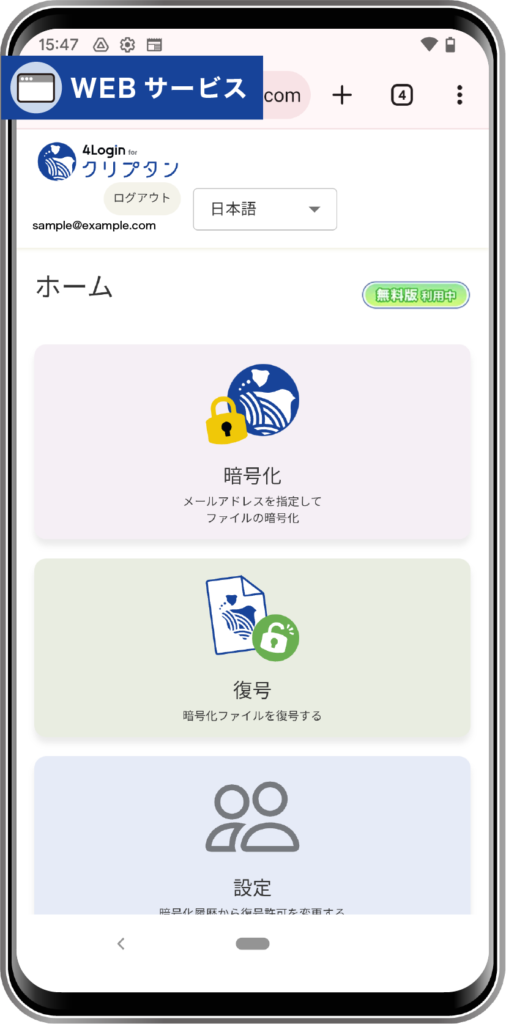
Each 4Login app linked service has an ID called a “Slot Code.”
By registering a Slot Code, you can easily register a linked service to the 4Login app.
Since 4Login authentication (PassLogic method / Login Protect) is integrated into the linked services, you can log in safely and easily.
Click here for how to perform a Slot Login↓
Click here if you are performing a Slot Login using a Smart Badge
New Registration
From the list screen, swipe the relevant password to the left, or tap the gear icon.
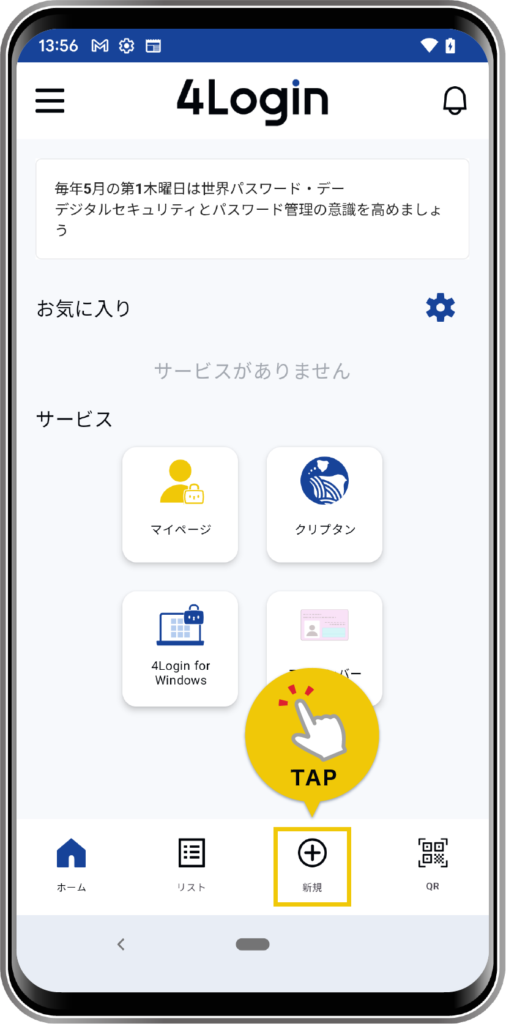
OR
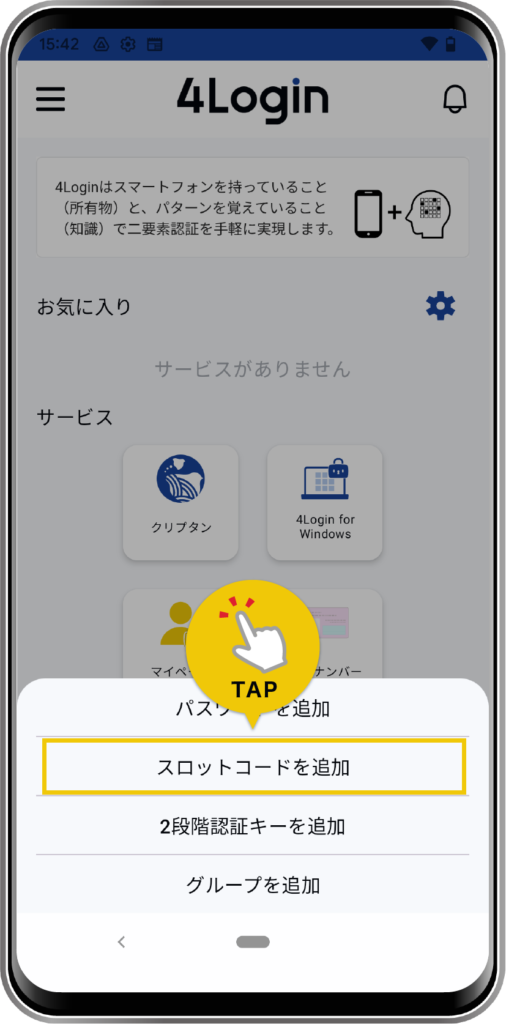
*You’ll need to enter your pattern.
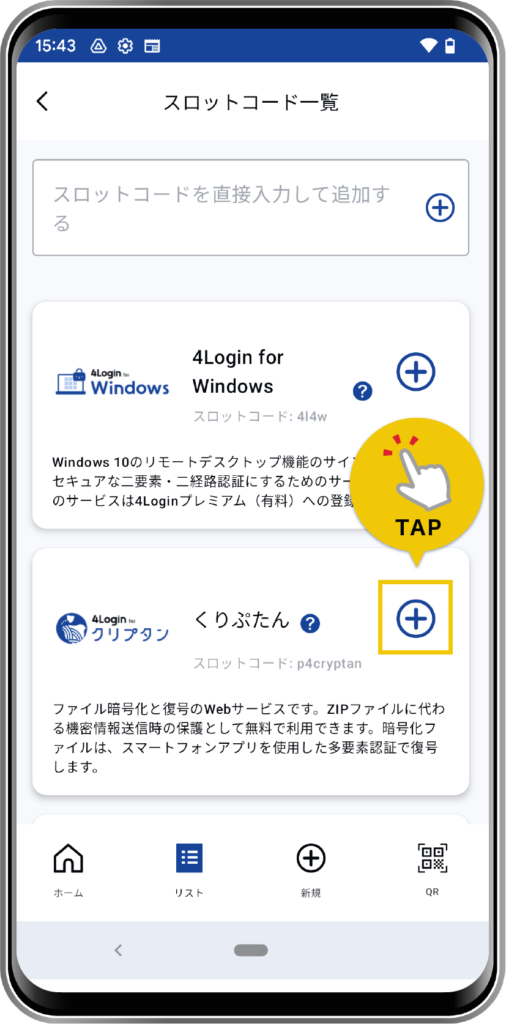
If you cannot find the service, please enter the Slot Code provided by the service side into “Add by directly entering the Slot Code” on the screen.
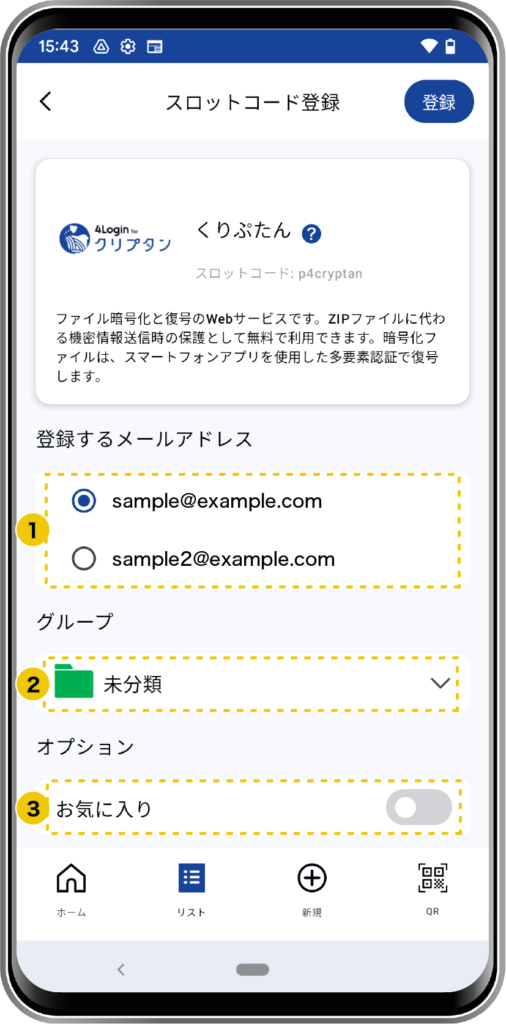
- Email address to register
- This is the email address you will register with the linked service.
- Group
- This can be changed later.
- Options
- Favorite: It will be displayed in the favorite tab within the list. This can be changed later.
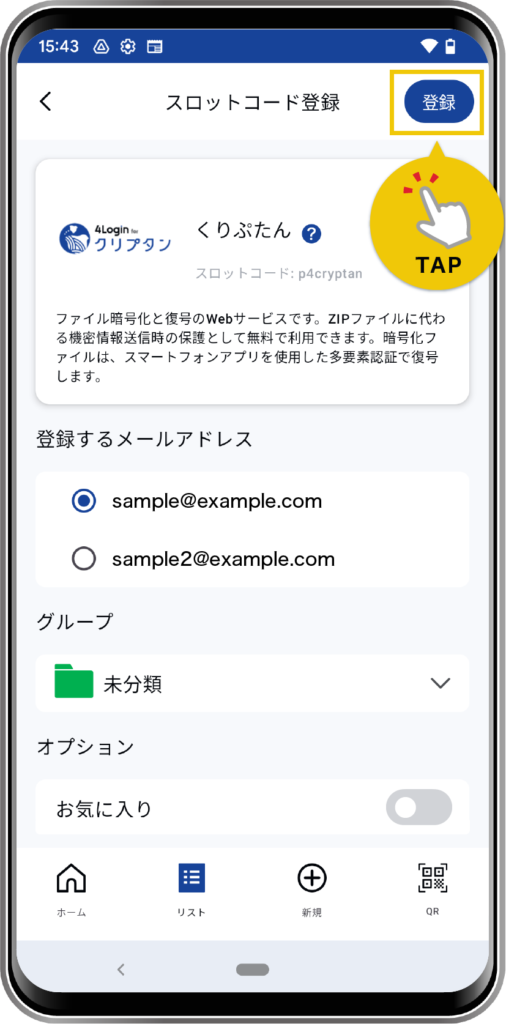
Some services are displayed inside “Services” on the “Home” screen.
Moving frequently used items to “Favorites” is recommended as it reduces the number of steps.
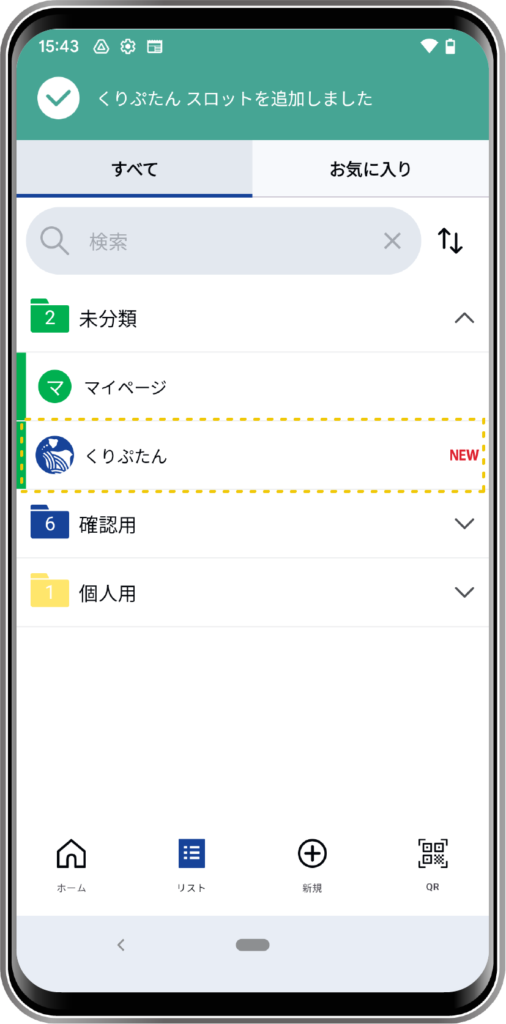
How to Edit
Alternatively, you can swipe left on the corresponding password from the list screen and tap the gear icon.
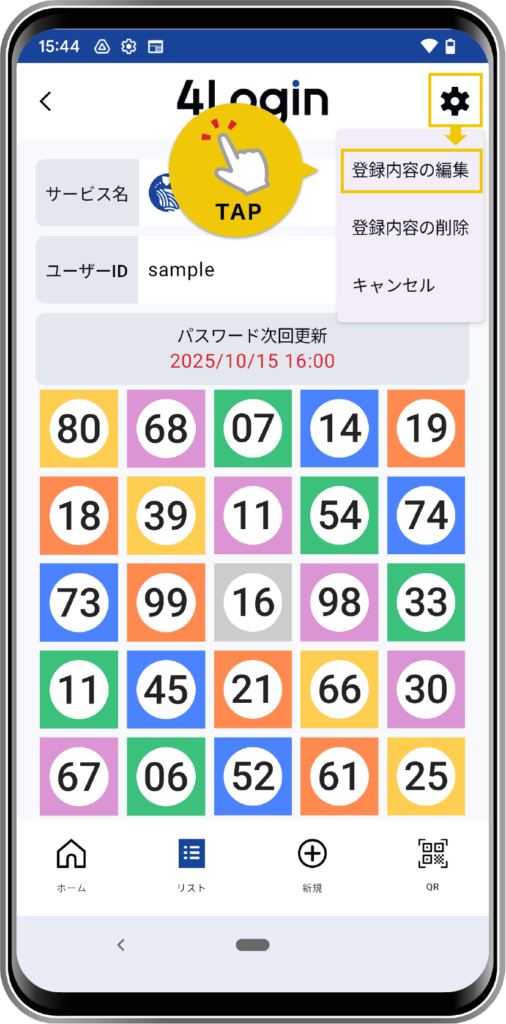
OR
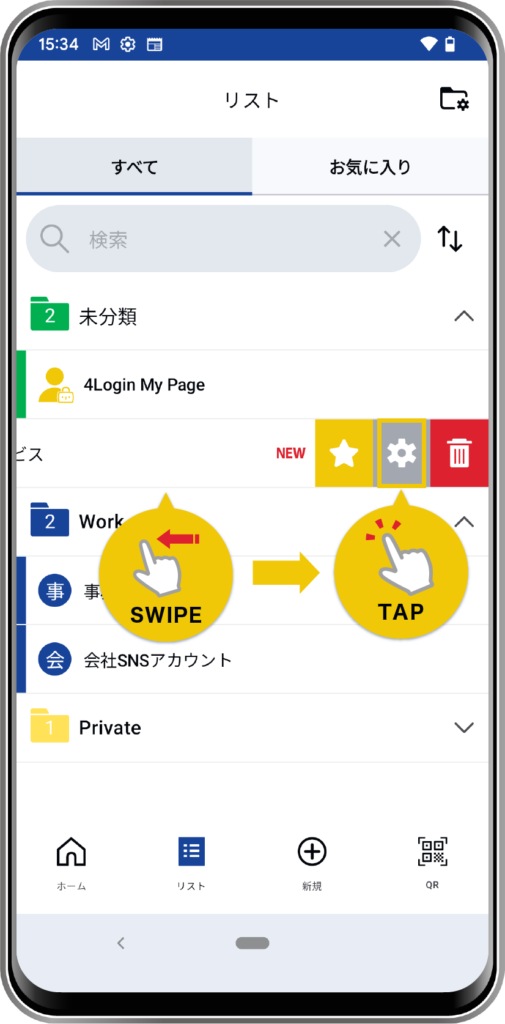
*Pattern input is required.
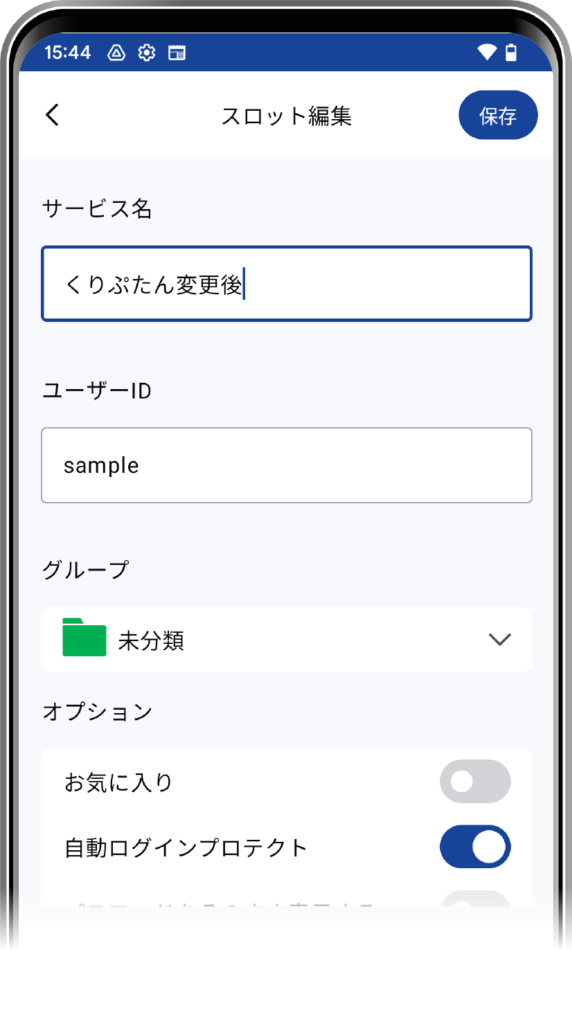
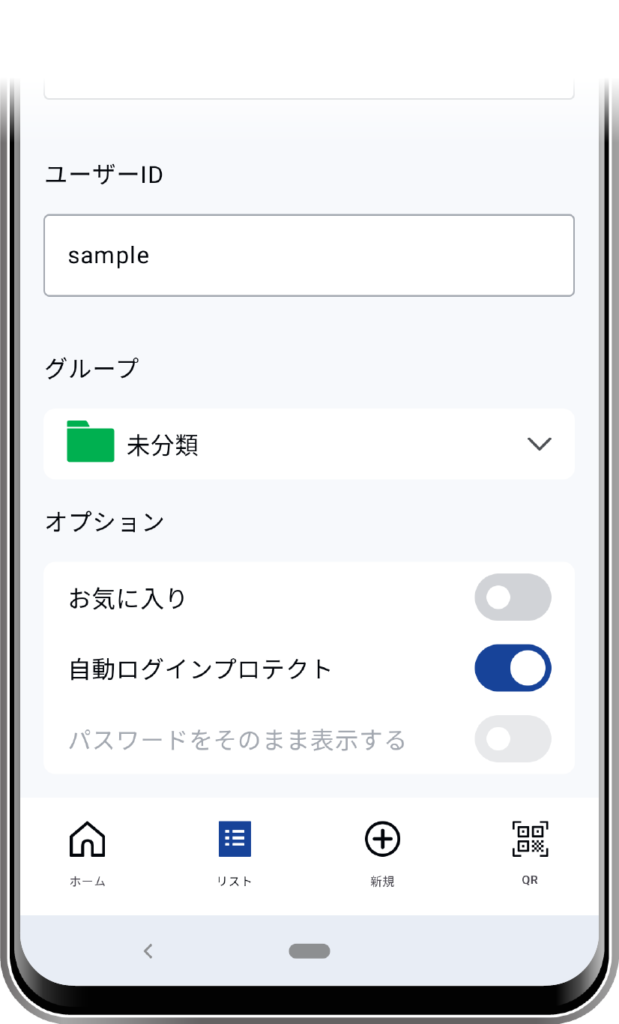
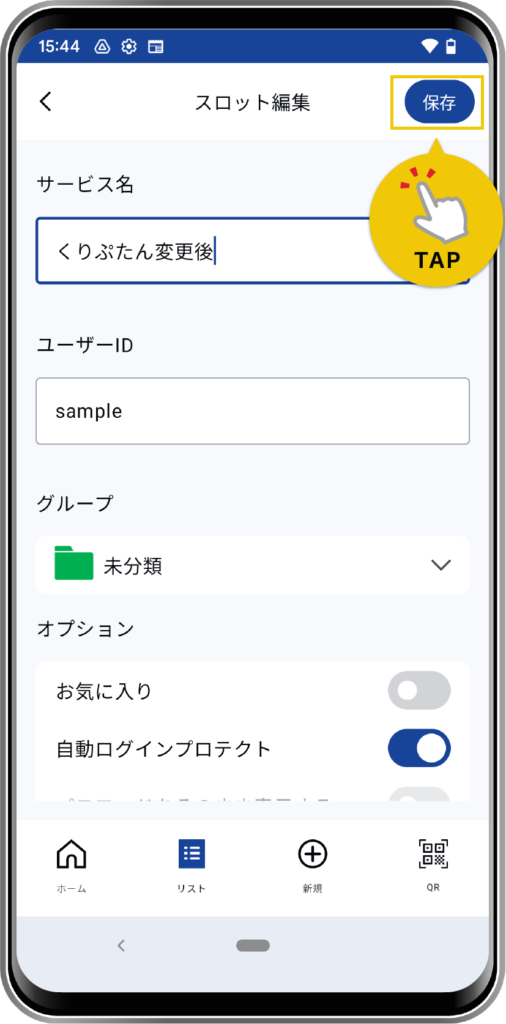
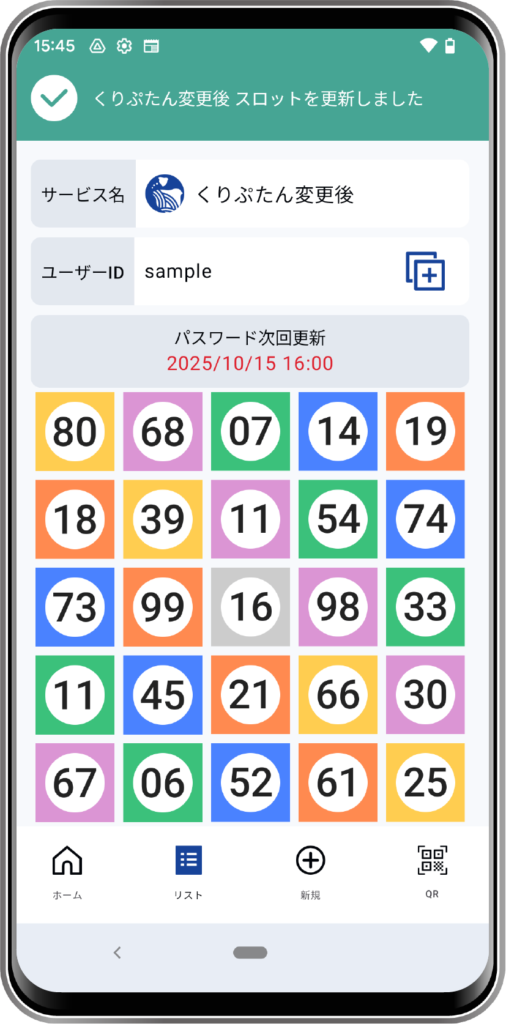
How to Delete
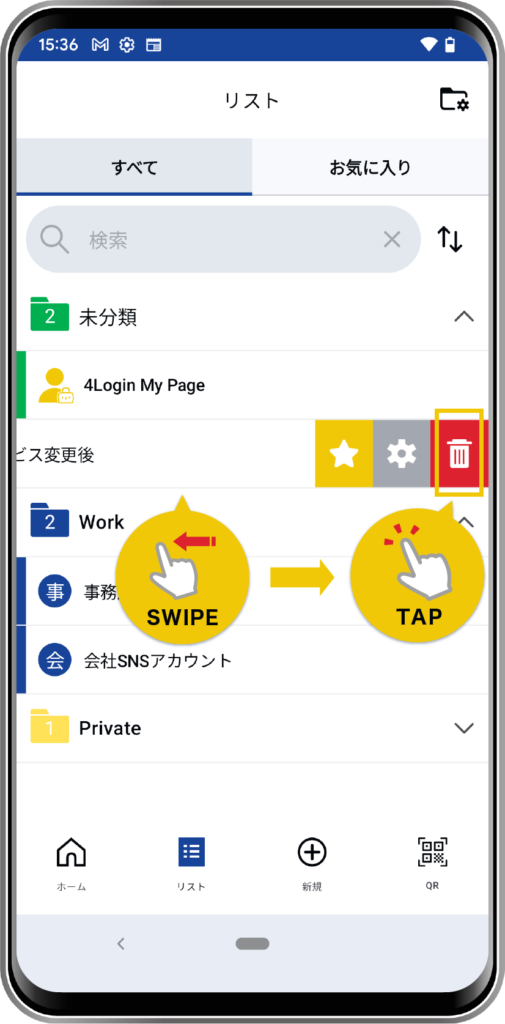
Alternatively, you can swipe left on the corresponding password from the list screen and tap the trash can icon.
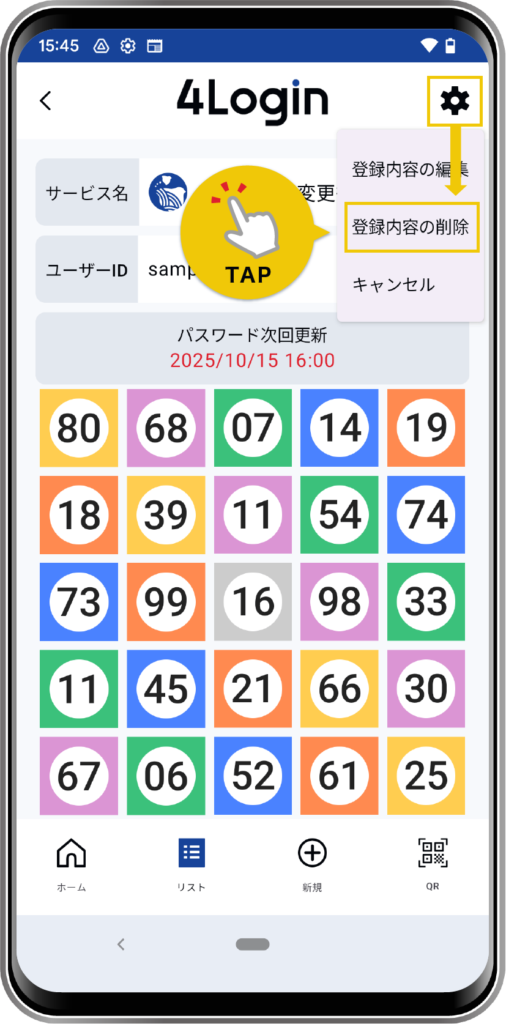
OR
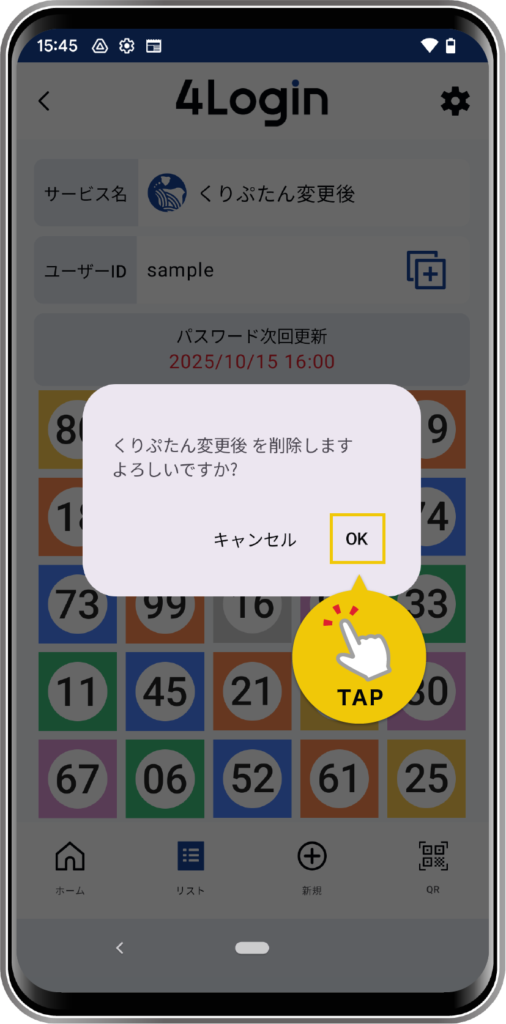
*Pattern input is required.
Deleting the password alone does not complete the account withdrawal process. Please perform the withdrawal process separately on the service side.
How to Perform a Slot Login
*Slot Login is only available for 4Login linked services.
*The standard password management screen does not support Slot Login.
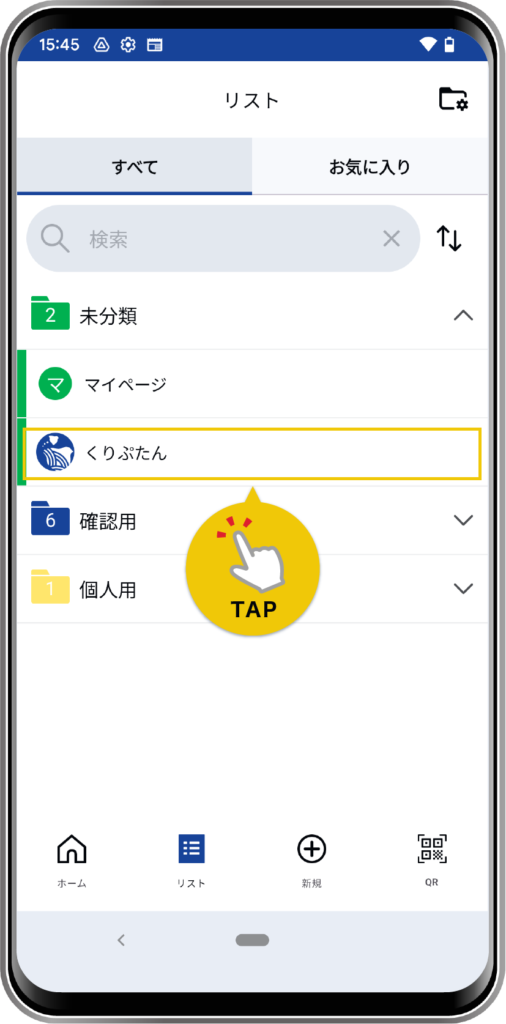
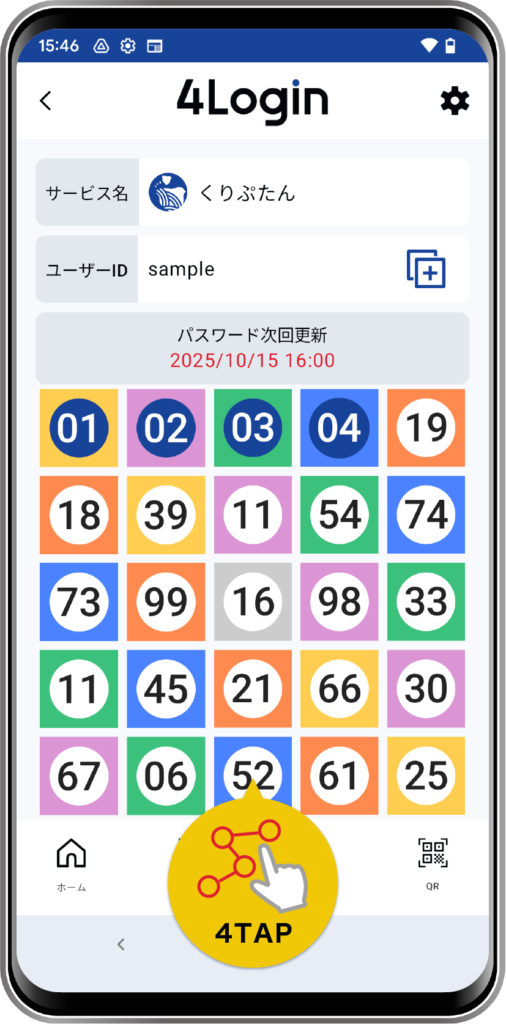
*The “Pattern” on the screen is an example.
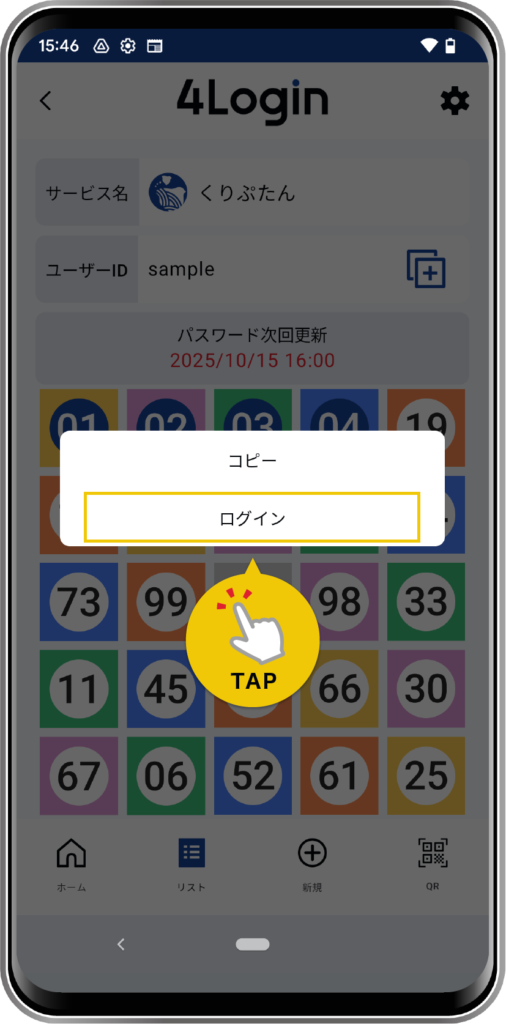
The service starts automatically
▶︎▶︎▶︎