
4Login also supports 2-step authentication.
It provides secure login for users by preventing unauthorized access using a one-time password (OTP) utilizing a pattern.
*The “key” of the service you want to use is required for registration.
New Registration
STEP
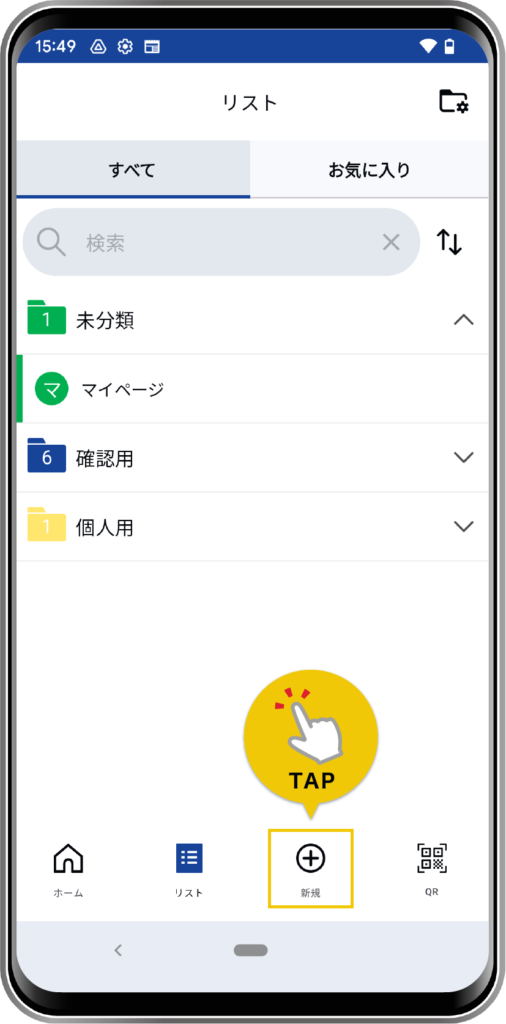
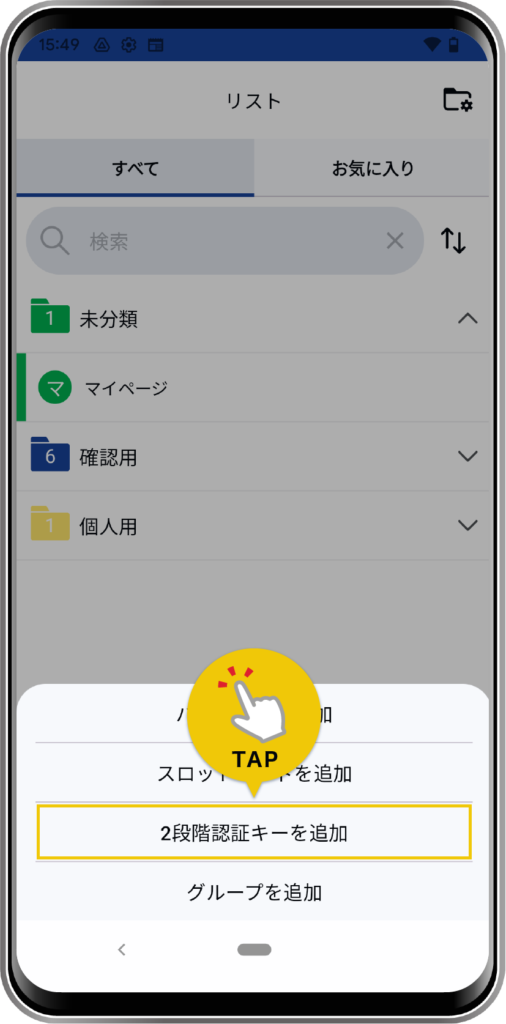
Please tap “Add 2-step authentication key” from “+ New” on the bottom menu.
STEP
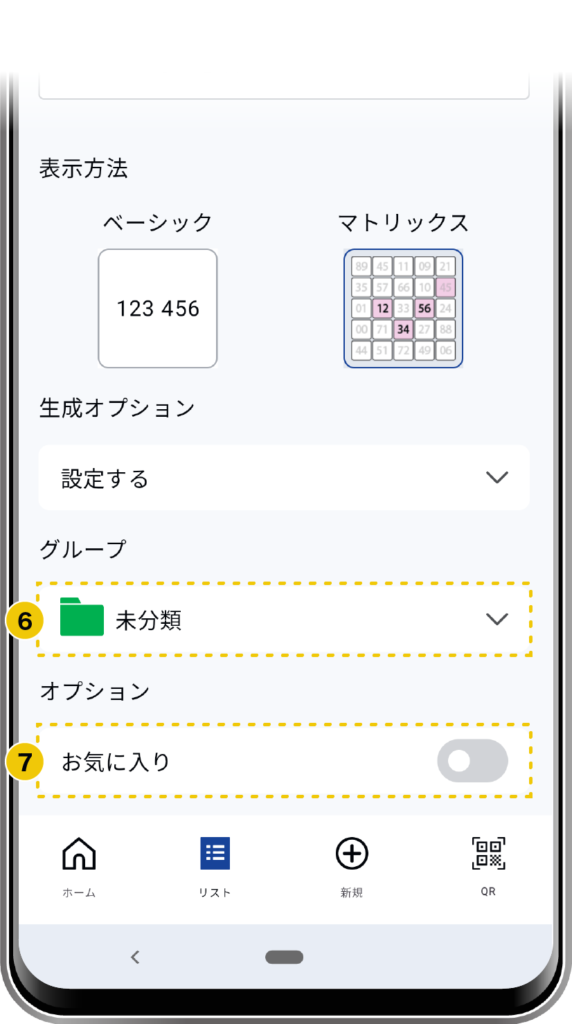
Follow the on-screen instructions to enter the required items.
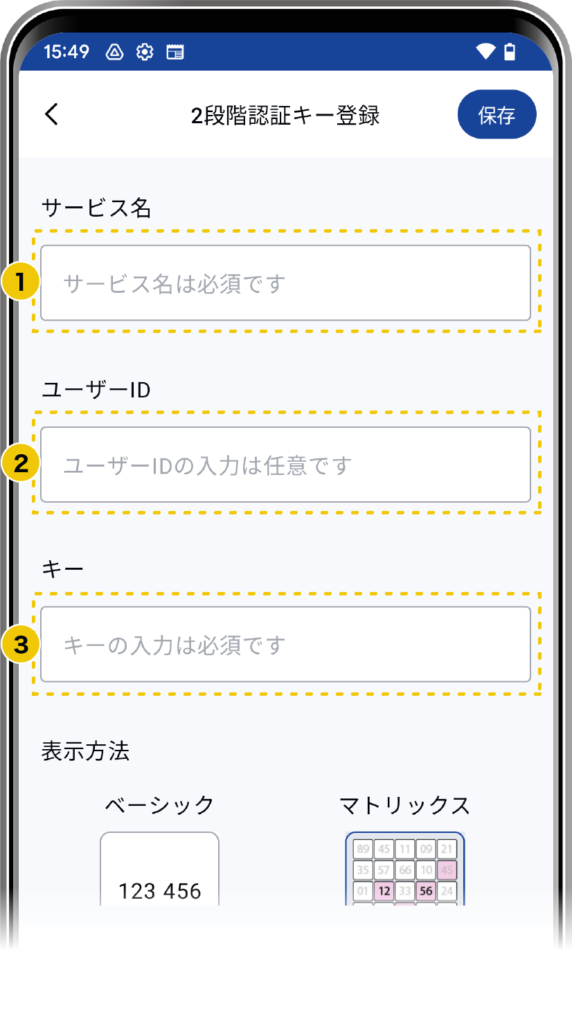
- Service Name
- User ID
- Key
- Please enter the key that can be obtained on the side of the service you want to use.
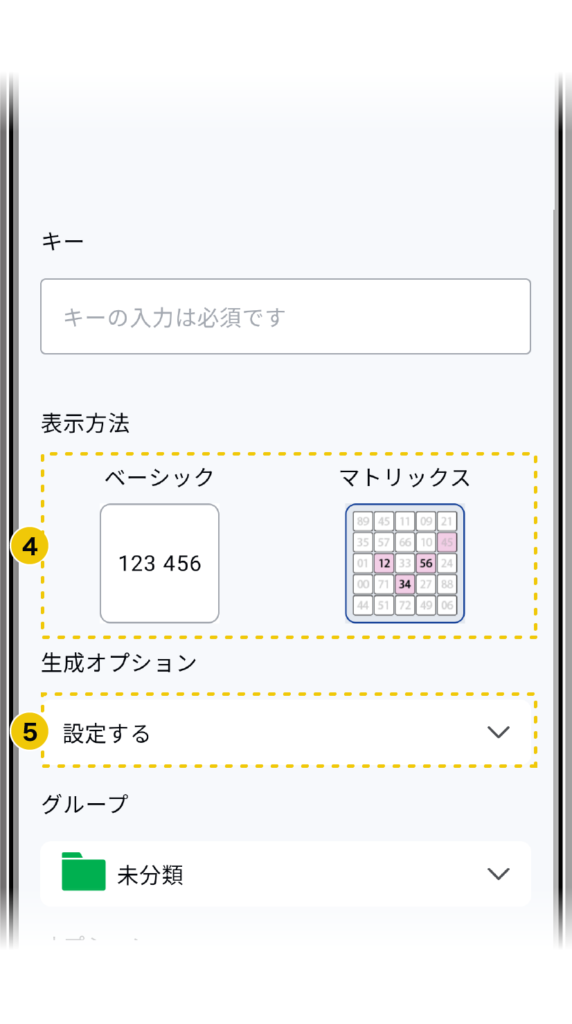
- Display Method
- Basic
- Numbers are displayed as they are. You can copy them with a tap.
- Matrix
- The password is placed inside your pattern in the matrix table.
- You can copy it by tapping the pattern in 4 places.
- Basic
- Generation Method
- If necessary, please configure it according to the service you want to use.
- Group
- Options
STEP
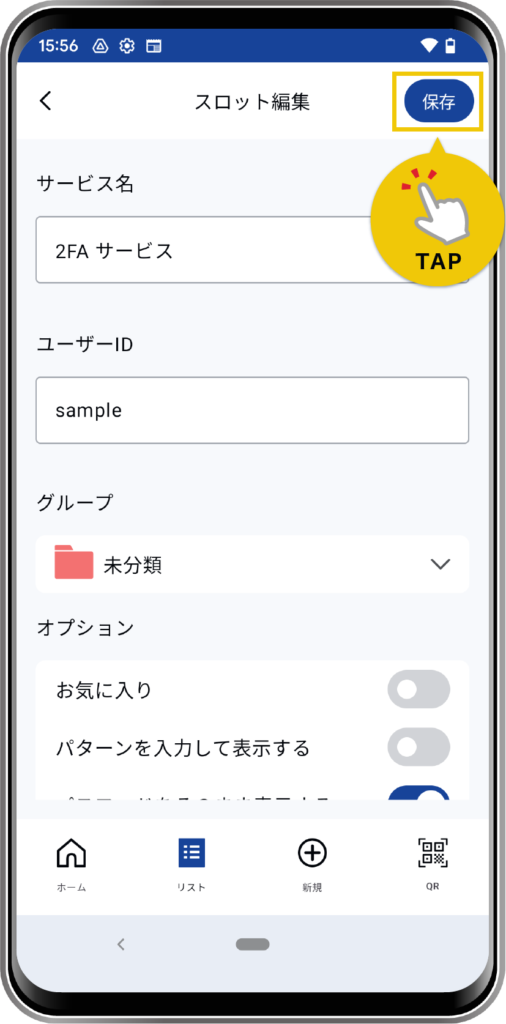
Tap the “Save” button to complete.
STEP
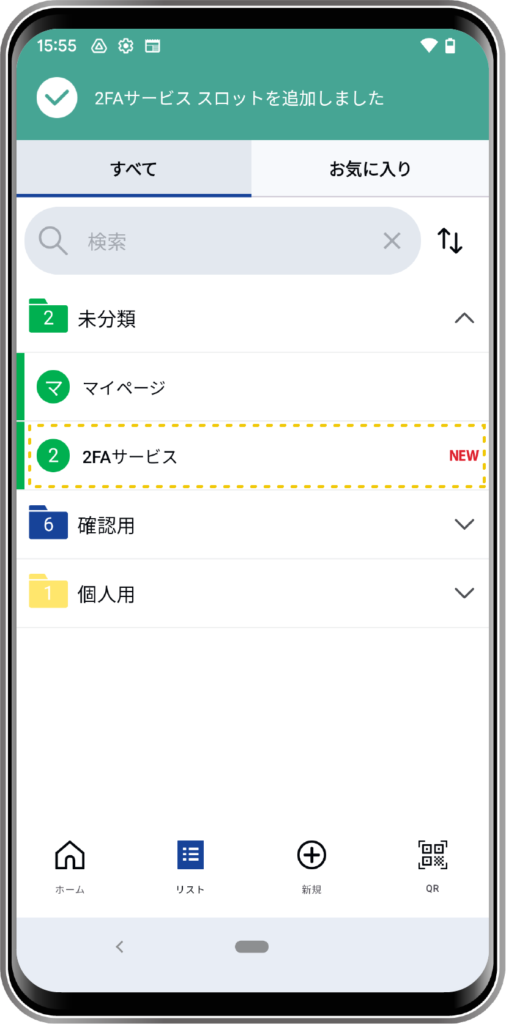
The configured password will be added to the list.
How to Edit
STEP
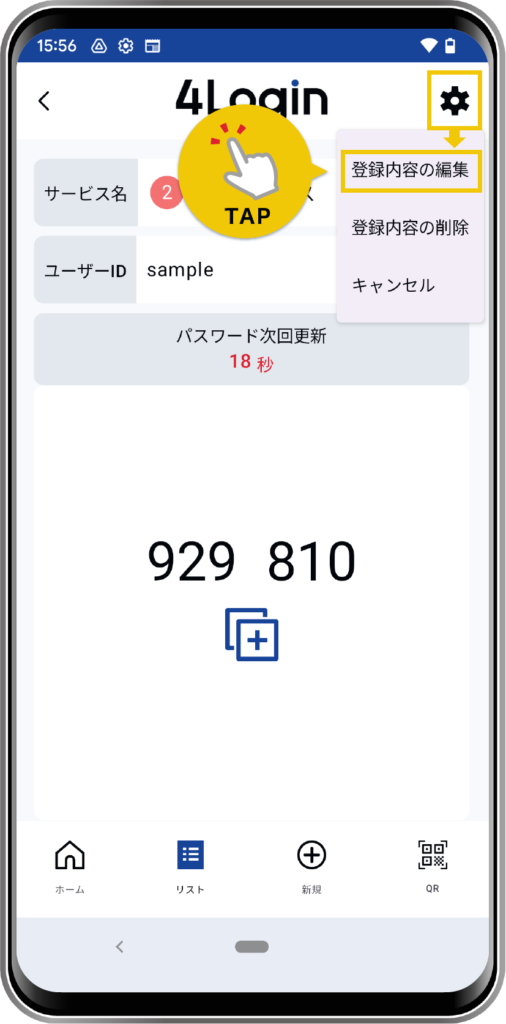
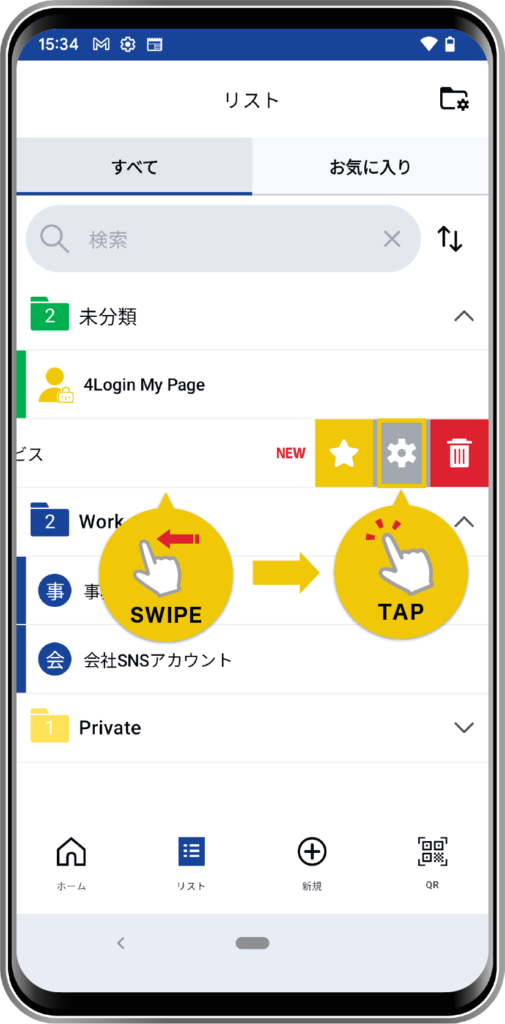
Tap “Edit Registration Details” from the gear icon at the top left of the password screen.
Alternatively, you can swipe left on the corresponding password from the list screen and tap the gear icon.
OR
*Pattern input is required.
STEP
Follow the on-screen instructions to modify the parts you wish to change.
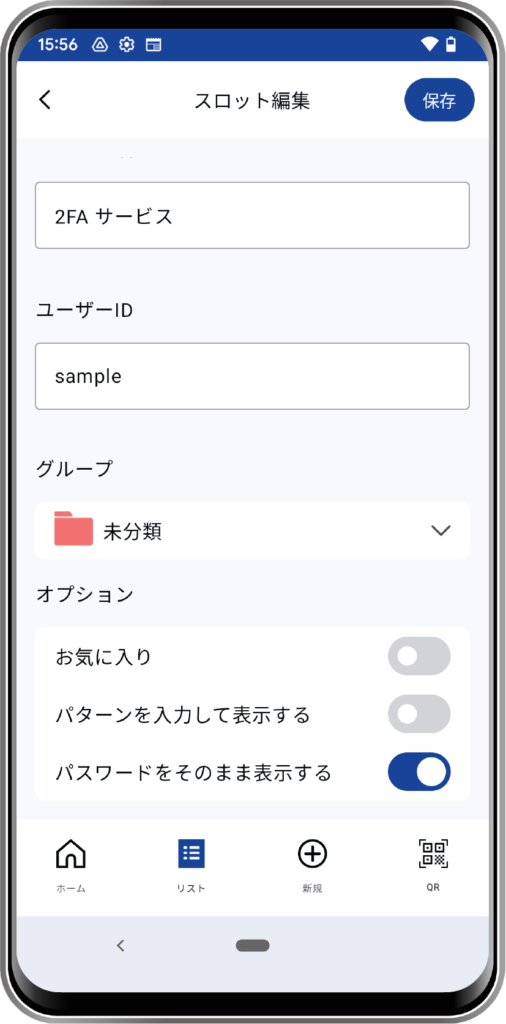
*”Generation Options” such as “Key” and algorithm cannot be changed.
STEP
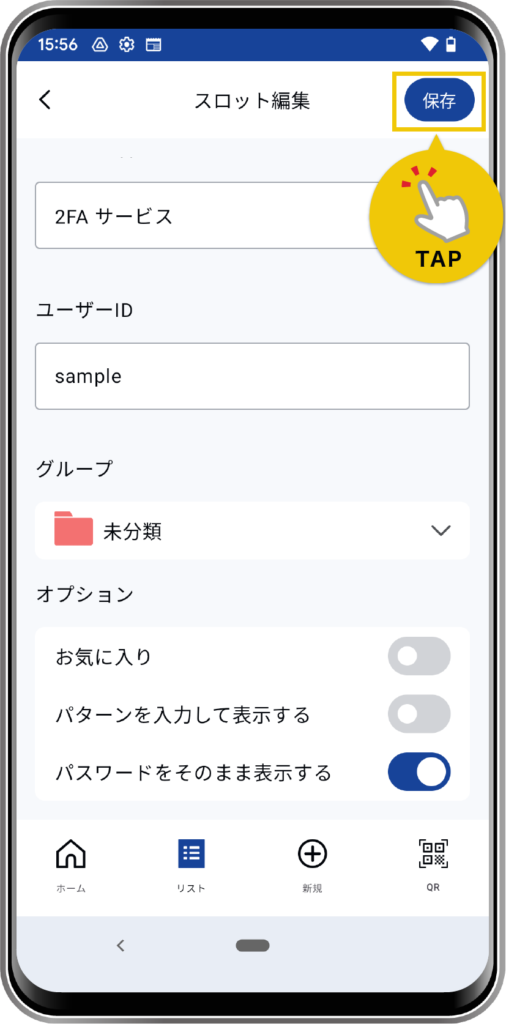
Click the “Save” button to complete editing.
How to Delete
STEP
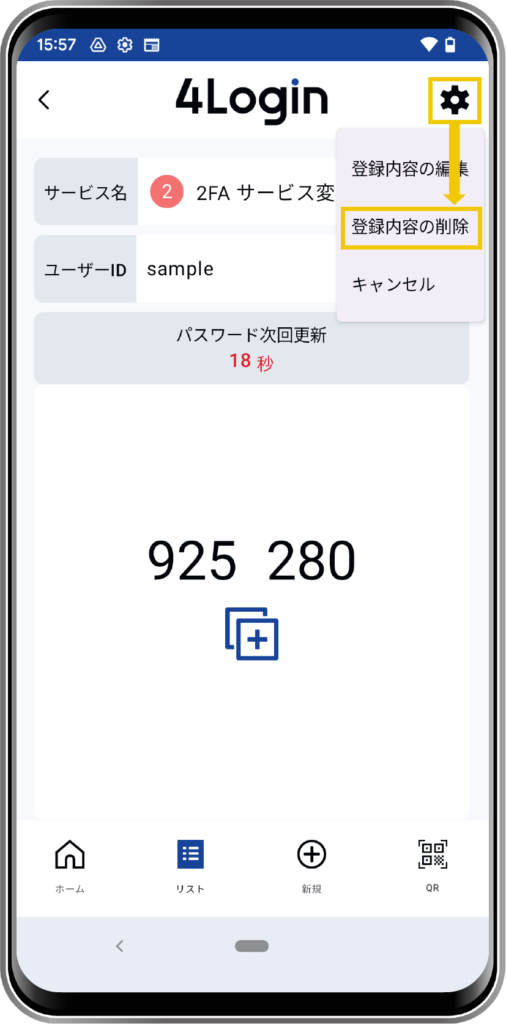
Tap “Delete Registration Details” from the trash can icon at the top left of the password screen.
Alternatively, you can swipe left on the corresponding password from the list screen and tap the trash can icon.
OR
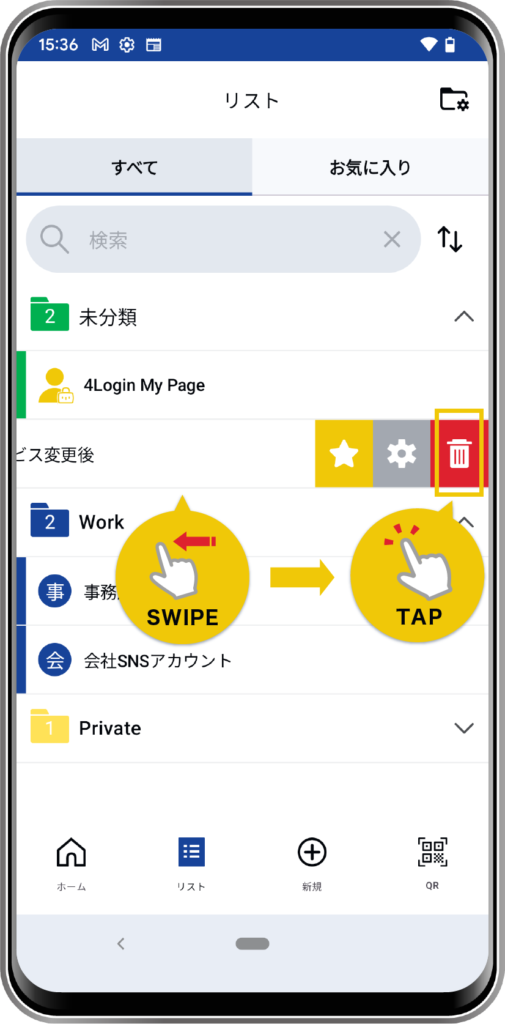
*Pattern input is required.
STEP
Agree to the deletion, and the deletion is complete.
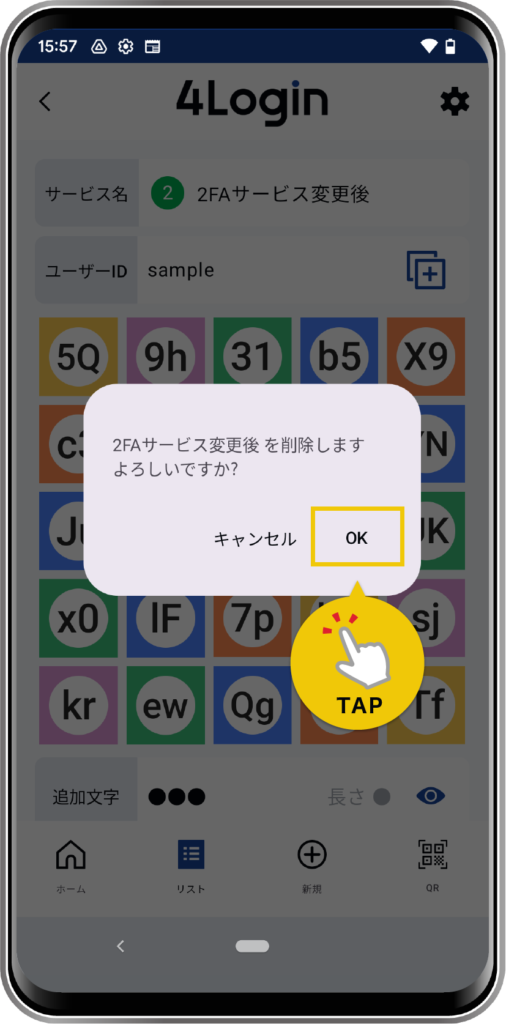
Deleting the password alone does not complete the account withdrawal process. Please perform the withdrawal process separately on the service side.