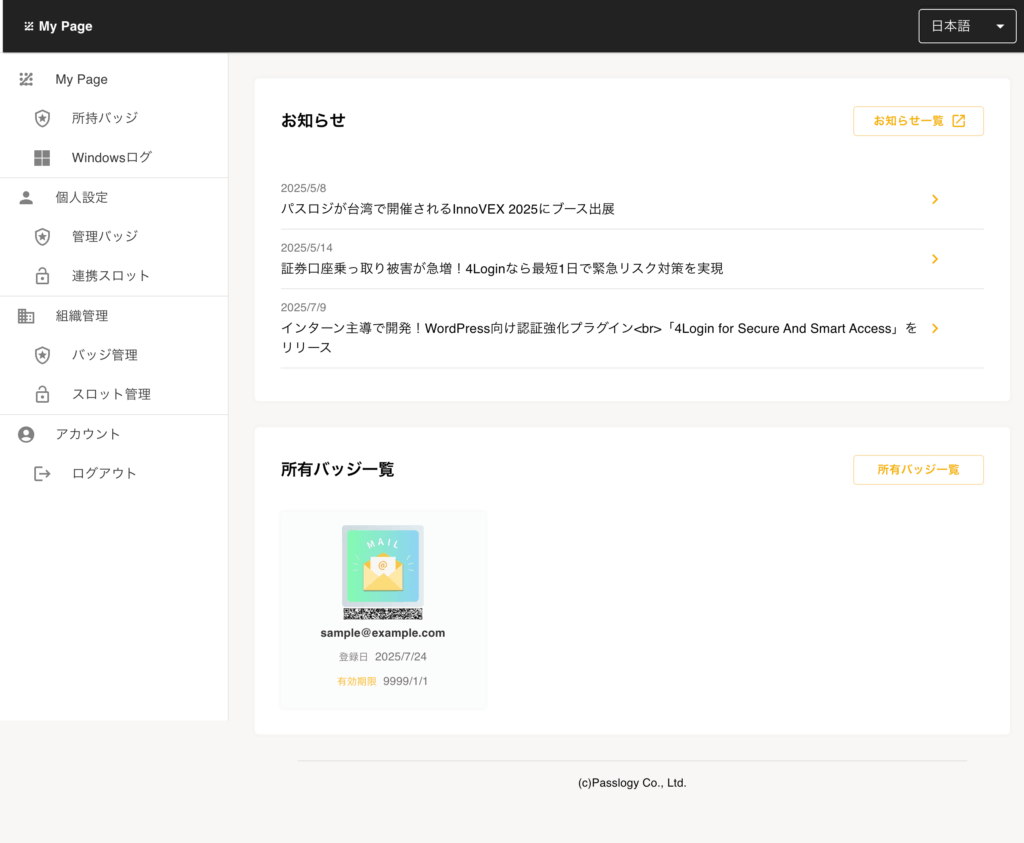
4Login provides you with your own dedicated page, My Page.
My Page is a web service accessible on both smartphones and PCs. You can view notifications and check your acquired Smart Badges.
How to open My Page (when using a smartphone)
STEP
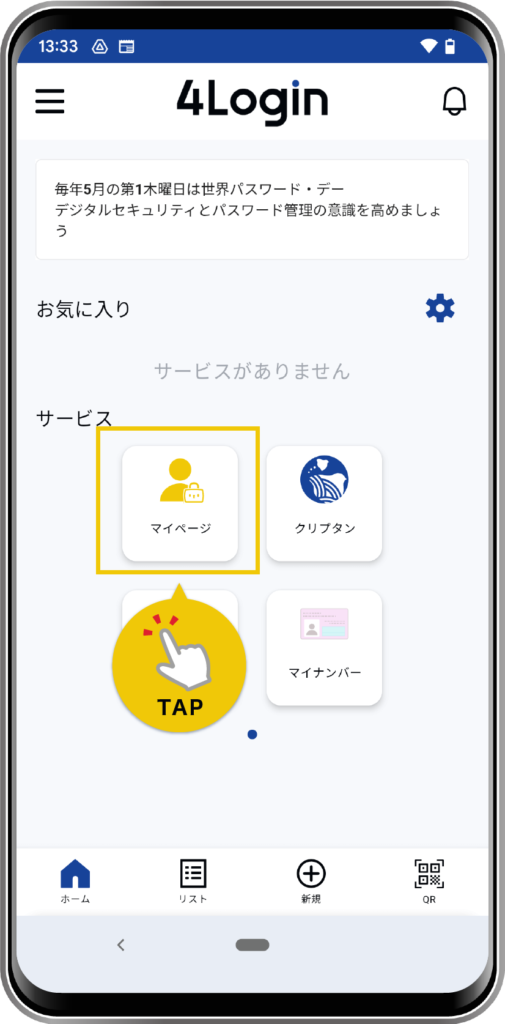
Tap the “My Page” button located under “Services” on the home screen.
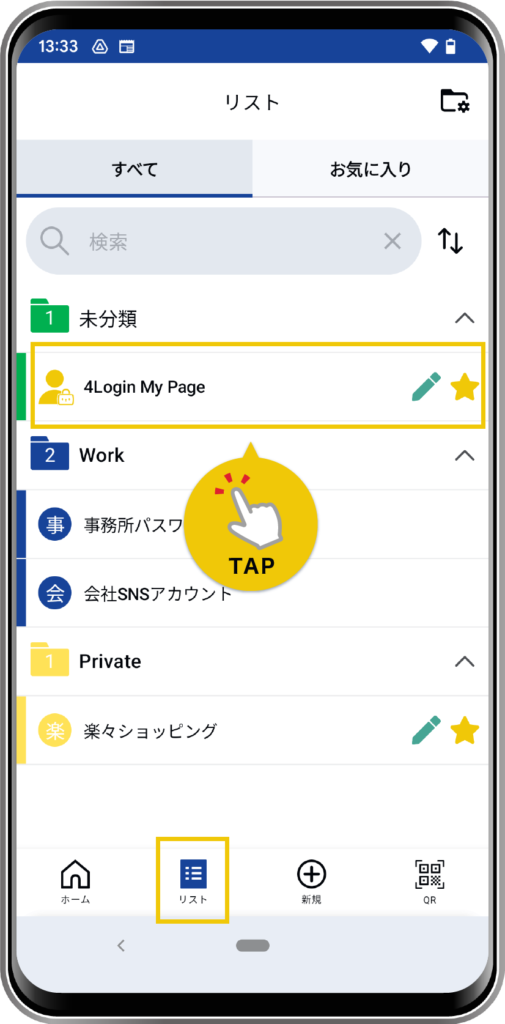
Alternatively, tap “4Login My Page” in the list under the “List” menu at the bottom.
*By default, it is in the “Uncategorized” group.
STEP
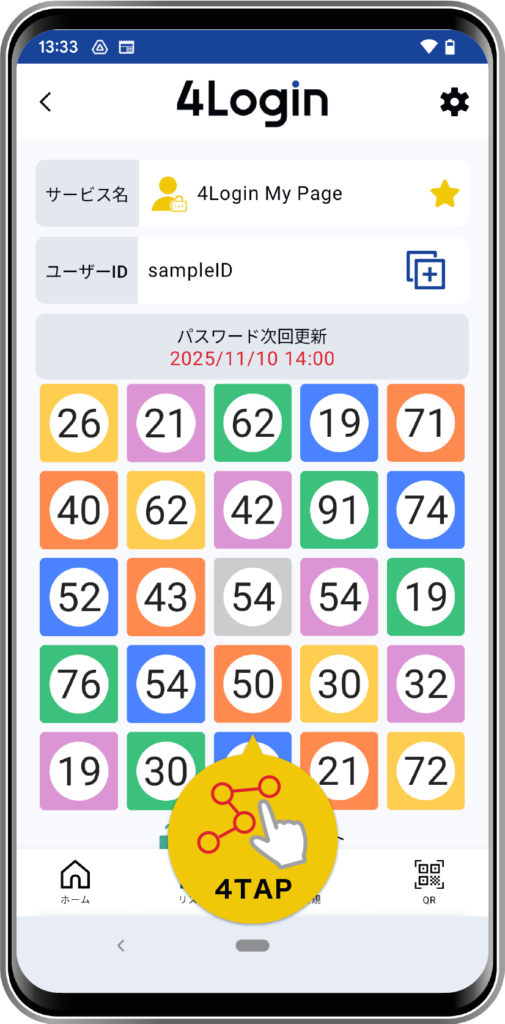
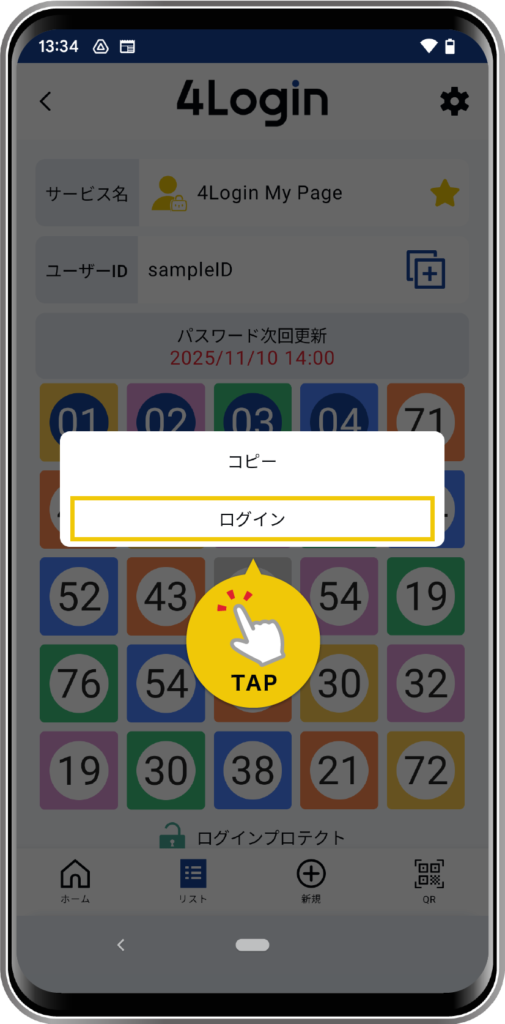
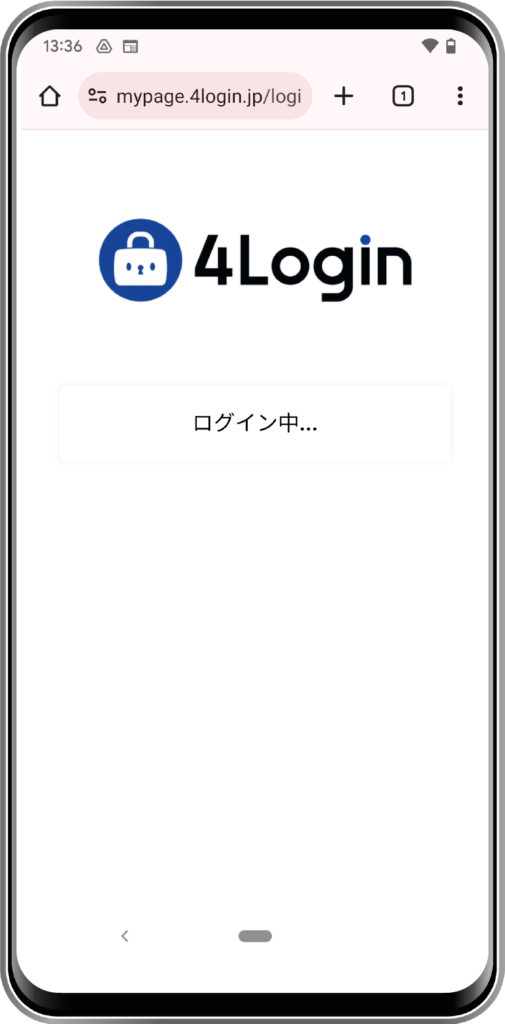
On the password screen, tap your unique “pattern” in the matrix table, then tap the “Login” button that appears.
STEP
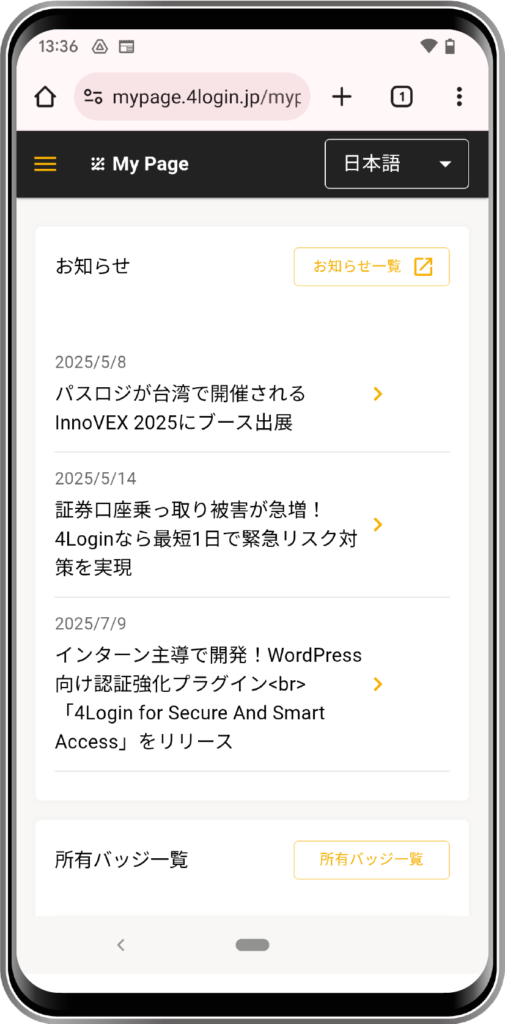
Upon successful authentication, your My Page will open.
How to open My Page (when opening on a PC)
STEP
Open the URL for your My Page.
Please click the button below to go to your 4Login My Page.
STEP
Please log in using one of the following three methods.
[1] Log in with QR code (Recommended: ★★★)
- Open the 4Login app and tap “QR” in the bottom menu.
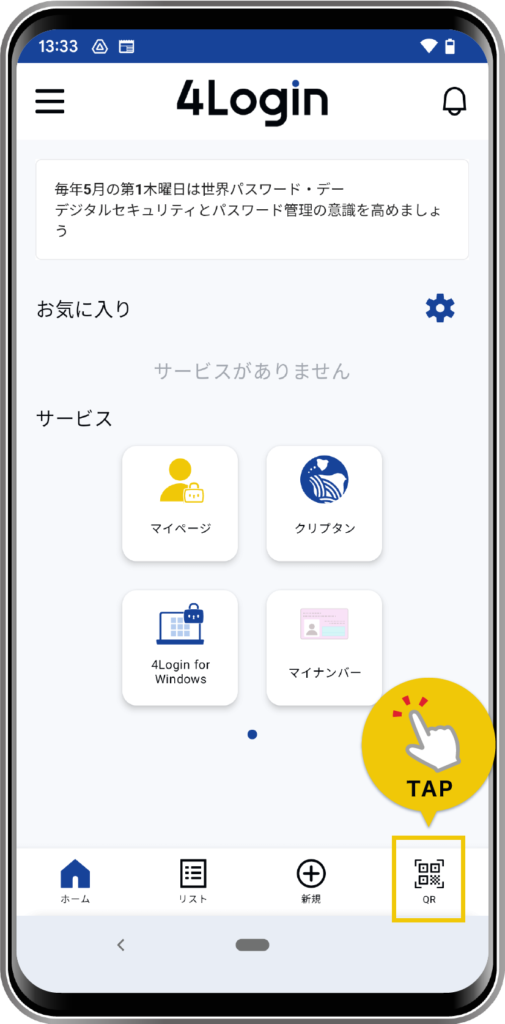
- Scan the QR code displayed on your PC screen.
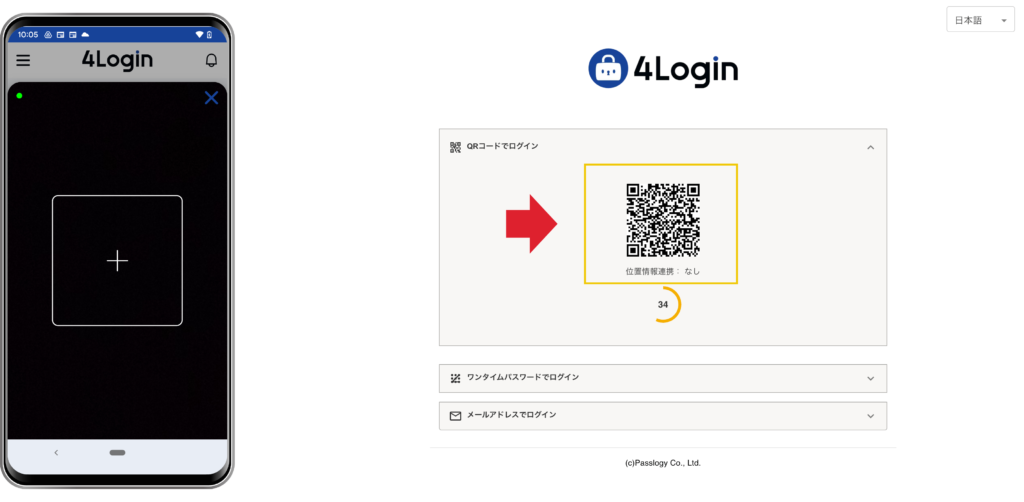
- The My Page slot will open in the 4Login app, so tap your pattern.
- Once tap authentication is successful, the PC screen will automatically transition. (Login complete)
[2] Log in with a one-time password (Recommended: ★★)
- Open the 4Login app and go to the password (slot) screen on your My Page.
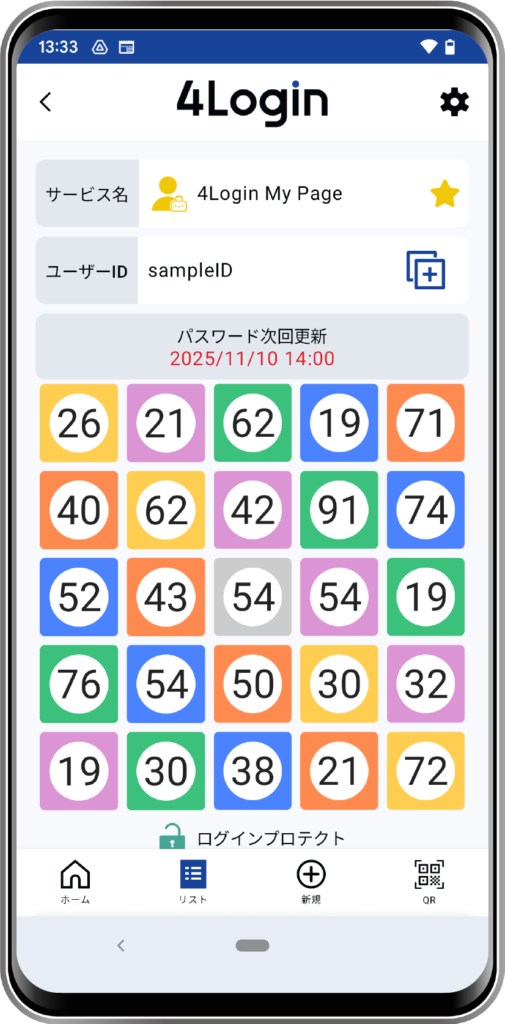
- It reads the password from your pattern.
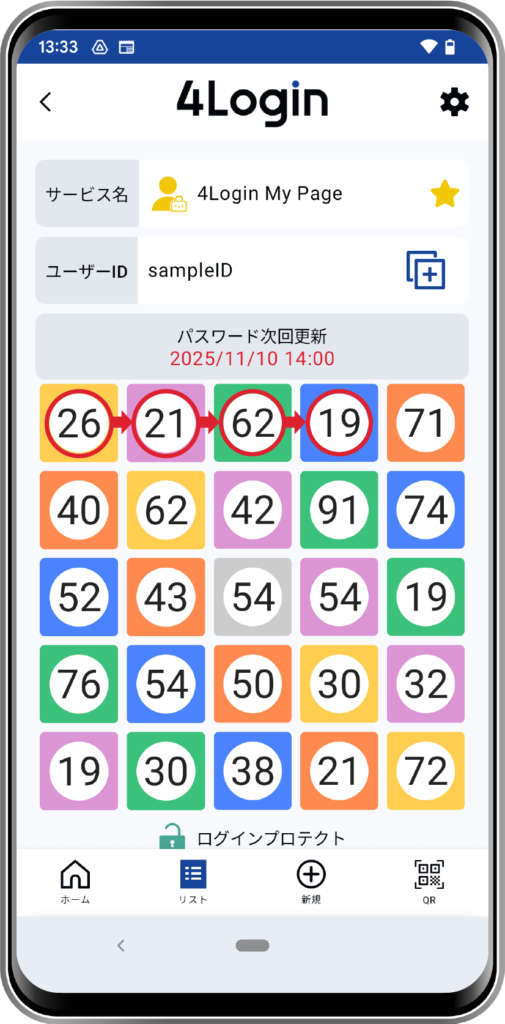
*The screen pattern shown is just one example.
- Enter the “email address” and “password” displayed on your PC screen.
*The email address and password shown are examples only.
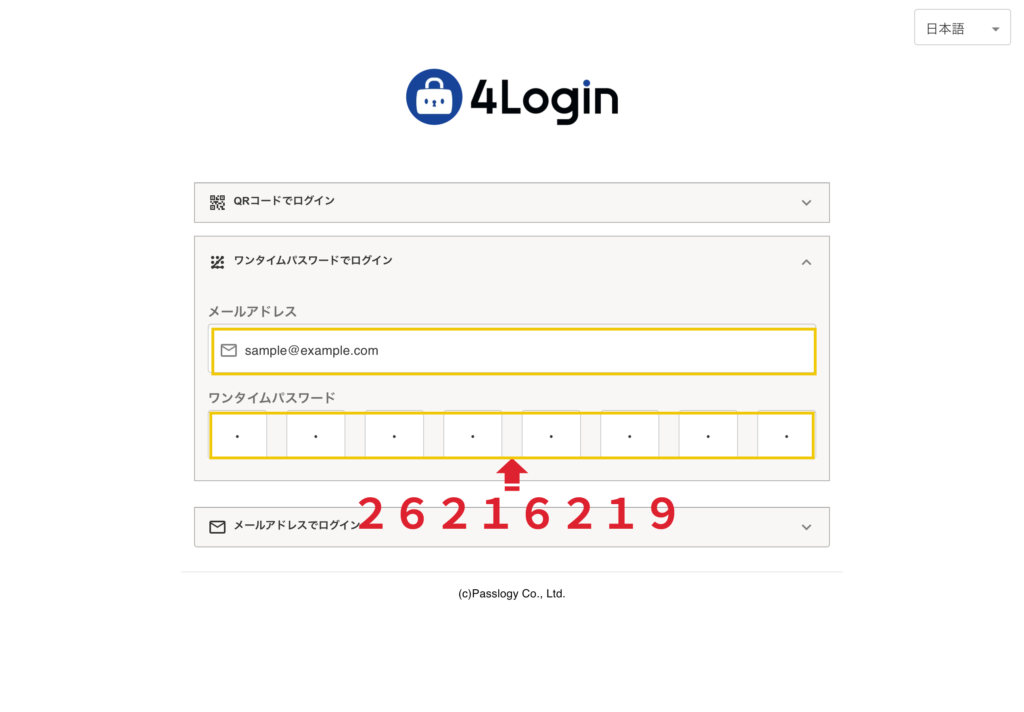
- If authentication is successful, you will be logged in.
[3] Log in with a one-time password (Recommended: ★)
- Enter the email address you registered for your My Page (the one you used when you signed up for 4Login) and click the “Send Confirmation Email” button.
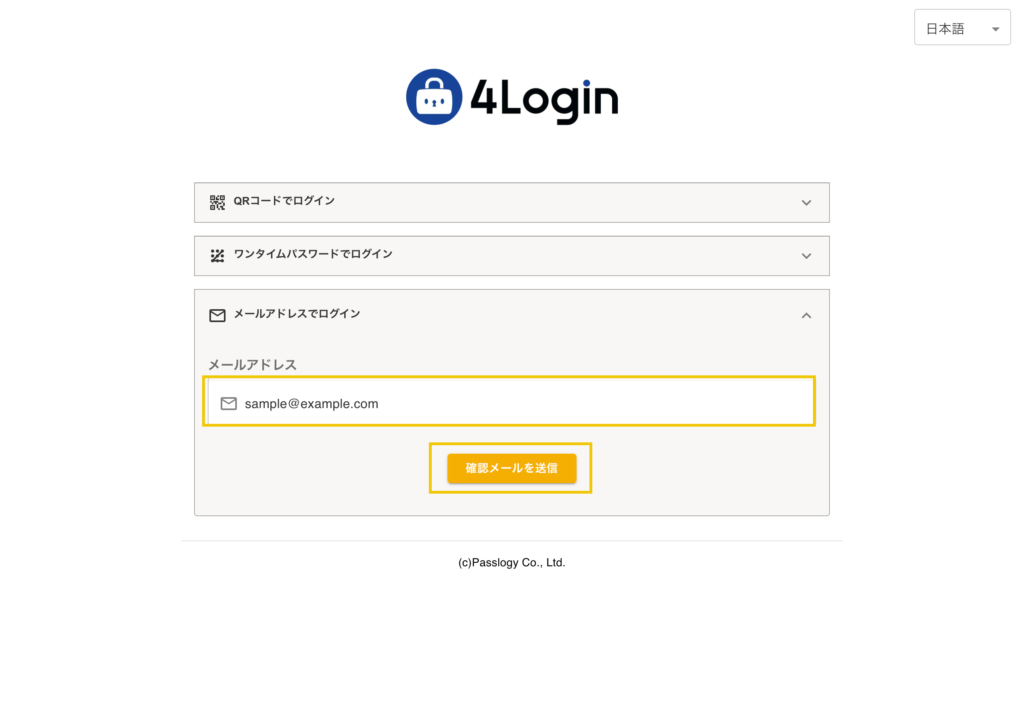
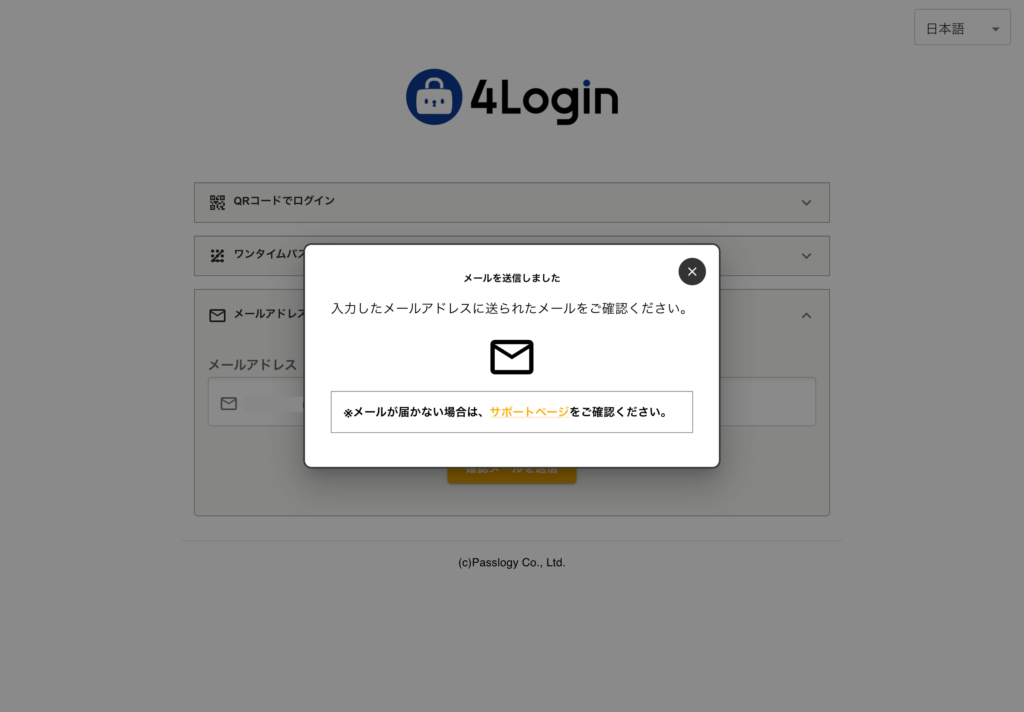
- A confirmation email will be sent from 4Login to the email address you entered.
- Click the verification URL in the confirmation email.
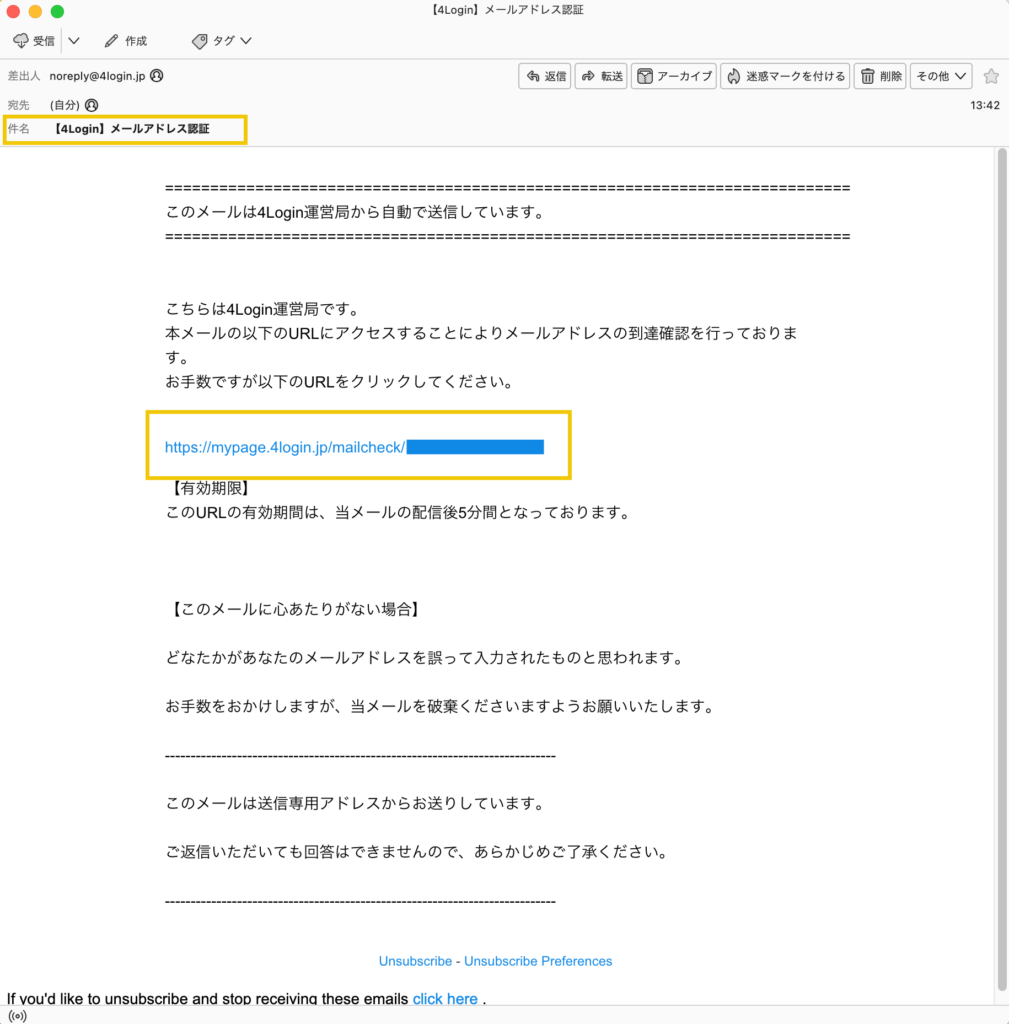
- If authentication is successful, you will be logged in.